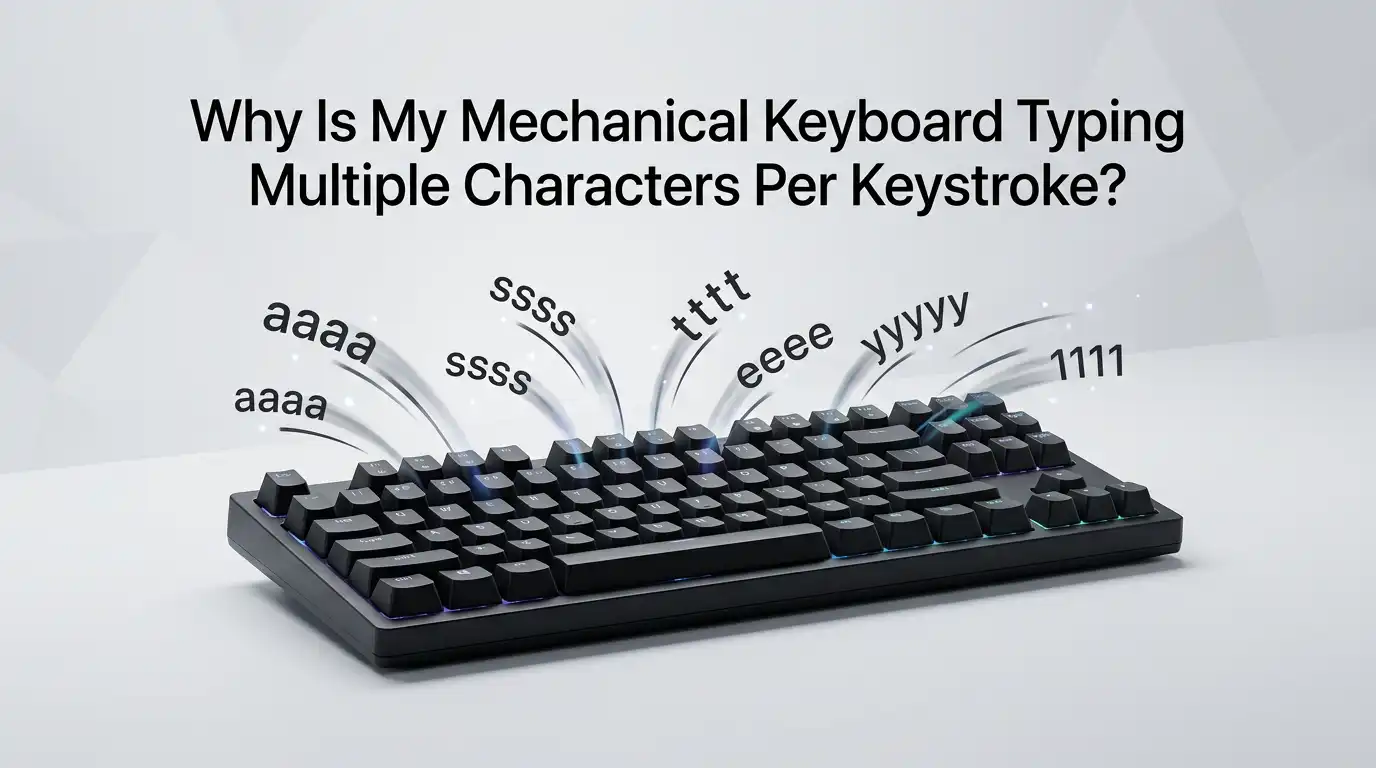
Why Is My Mechanical Keyboard Typing Multiple Characters Per Keystroke?
You press the letter “a” one time. But your screen shows “aaa.” You hit backspace, try again, and the same thing happens. This problem is annoying, and it slows down your typing. The good news is that you can fix it.
This issue has a name, and it has clear solutions. Most of the time, you do not need to throw your keyboard away. You do not even need to be a tech expert. In this guide, you will learn why your mechanical keyboard types extra characters.
You will also get simple, step by step fixes that you can try at home today. Each method comes with its own pros and cons, so you can pick the one that fits you best. Let us get your typing back to normal.
Key Takeaways
- The real name for this problem is “switch chatter” (also called contact bounce). It happens when the metal parts inside a switch vibrate and send more than one signal per press.
- Dust and debris are the most common causes. A tiny speck inside the switch can break the clean electrical contact and trigger double typing.
- You can often fix chatter with simple cleaning. Compressed air or electrical contact cleaner removes the dust or oxidation that causes the issue.
- Software settings called “debounce time” control how your keyboard filters bounce. Increasing this value by a few milliseconds can stop the chatter without any physical repair.
- A worn out switch sometimes needs replacement. Hot swappable keyboards make this easy, while soldered boards take more effort.
- Not every cause is the switch itself. Operating system settings, USB ports, drivers, and cables can also create fake repeat characters, so check those too.
What Does Switch Chatter Actually Mean?
Switch chatter is the main reason your mechanical keyboard types multiple characters per keystroke. Inside each switch sit two small metal leaves.
When you press a key, these leaves touch and complete an electrical circuit. In a perfect world, they touch one time and send one clean signal.
But metal is springy. When the two leaves meet, they can bounce against each other very fast before they settle. Your keyboard controller may read each tiny bounce as a separate keypress. That is why one press becomes two or three letters.
The technical term for this is “contact bounce.” Age, dust, and pressing style all affect how much a switch bounces. Understanding this helps you choose the right fix.
How to Confirm the Problem Is Really Chatter
Before you fix anything, you should confirm the cause. Sometimes the issue is not the switch at all. Run a quick test to be sure. This saves you time and effort.
Open a simple text editor and type slowly. Watch which keys produce extra characters. Write down the keys that misbehave. If only one or two keys chatter, the switch is likely the problem. If every key types double, the cause is probably software or settings, not hardware.
You can also use a free online “key tester” or “key chatter” website. These tools show each keypress in real time. They reveal whether a key fires once or many times. This step gives you clear data so you fix the right thing the first time.
Fix 1: Restart Your Computer and Reconnect the Keyboard
Always start with the easiest fix. A simple restart clears small software glitches. These glitches can make a keyboard repeat characters even when the hardware is fine. This costs you nothing and takes only a minute.
First, save your work. Then restart your computer fully. After it boots up, test the keyboard again. If the problem is gone, you are done.
Next, try the connection itself. Unplug the keyboard and plug it into a different USB port. A loose or faulty port can send broken signals. If you use a USB hub, connect the keyboard straight to the computer instead.
Pros: This method is free, fast, and safe. Cons: It only fixes software or connection glitches. It will not help a switch that is full of dust or worn out.
Fix 2: Blow Out Dust With Compressed Air
Dust is the number one physical cause of chatter. A tiny particle between the metal leaves blocks a clean contact. Compressed air can dislodge that particle in seconds. This is often the only fix you need.
Follow these steps. First, remove the keycap from the key that chatters. Use a keycap puller if you have one. Second, press the switch stem down with your finger and hold it. Third, aim the can of compressed air directly into the open switch housing and give it a few short bursts.
Keep the can upright so no liquid sprays out. Put the keycap back and test the key.
Pros: This method is cheap, quick, and very safe. Cons: It may not fix oxidation or a worn switch. The dust can also return over time, so you might repeat it later.
Fix 3: Adjust the Debounce Time in Your Software
If cleaning does not help, the fix may be in software. Most mechanical keyboards use a setting called debounce time. This is a short buffer in milliseconds. During this buffer, the keyboard ignores extra signals right after a press. It exists to filter out natural switch bounce.
Open your keyboard’s companion app. Many brands like Keychron, Glorious, and others let you change this value. The default is often around five milliseconds. Try raising it to eight or ten milliseconds.
Keyboards that run QMK or VIA firmware let you edit this too. You add a line such as #define DEBOUNCE 10 in the config file, then flash the firmware.
Pros: No physical repair is needed, and the change is reversible. Cons: A debounce value that is too high can make keys feel laggy. Not every keyboard exposes this setting.
Fix 4: Use a Software Debounce Tool on Windows
What if your keyboard has no debounce setting at all? You still have an option on Windows. Free chatter blocking programs can filter double presses at the system level. They watch your keystrokes and ignore any repeat that comes too fast.
These tools let you set a time threshold. For example, you can tell the program to block any repeat of the same key within thirty milliseconds. This catches the chatter before it reaches your apps.
Download a trusted, open source tool, then set your threshold. Test your typing and adjust the value until the double letters stop.
Pros: It works on almost any keyboard, even cheap ones. It is free and flexible. Cons: It only works on the computer where you install it. A wrong setting may block fast, real keystrokes, which hurts gamers and quick typists. It does not fix the hardware itself.
Fix 5: Clean the Switch With Electrical Contact Cleaner
When dust is not the issue, oxidation might be. Over time, the metal contacts can corrode. This stops a clean signal and causes chatter. Electrical contact cleaner can dissolve that buildup. This is a stronger fix than compressed air.
Warning first. Only do this if your keyboard is out of warranty. Never use standard blue and yellow can WD-40. It leaves an oily residue that ruins switches. Buy a proper electrical contact cleaner that evaporates fast and leaves no residue.
Unplug the keyboard. Remove the keycap. Press the switch stem down and spray one short burst into the housing. Then press the key fast many times for about thirty seconds. Let it dry for fifteen minutes before you plug it back in.
Pros: It removes oxidation that air cannot. It often revives a switch. Cons: It carries some risk if done wrong. It can void your warranty.
Fix 6: Replace the Faulty Switch
Sometimes a switch is simply worn out. No cleaning will save it. In that case, you must replace it. This is the most permanent fix for one bad key. How you do it depends on your keyboard type.
If you own a hot swappable keyboard, this is easy. Use a switch puller to pull the bad switch straight out. Then push a new switch into the socket until it clicks. No soldering and no tools beyond the puller are needed.
If your keyboard is soldered, the job is harder. You must open the case, desolder the two pins of the old switch, and solder a new one in place.
Pros: It fully solves a dead or worn switch. Cons: Soldered boards need skill, tools, and patience. You also need a spare switch on hand.
Fix 7: Check Your Operating System Keyboard Settings
Not all double typing comes from the switch. Your operating system has its own keyboard settings. The “repeat delay” and “repeat rate” controls decide how fast a held key repeats. If these are set too aggressively, normal typing can look like chatter.
On Windows, open Control Panel, then Keyboard. You will see sliders for repeat delay and repeat rate. Increase the repeat delay and slow the repeat rate, then test your typing.
On a Mac, open System Settings, then Keyboard. Adjust the “Key Repeat” and “Delay Until Repeat” sliders the same way.
Pros: This fix is free, fast, and affects every key at once. Cons: It only helps when the settings are the cause. It will not fix a dirty or broken switch.
Fix 8: Update or Reinstall Your Keyboard Drivers
Bad drivers can also cause strange typing. A corrupt driver may misread signals and add extra characters. Updating or reinstalling the driver often clears this up. This fix is simple and safe.
On Windows, open Device Manager. Find “Keyboards” in the list and expand it. Right click your keyboard and choose “Update driver.” Let Windows search for the newest version.
If that fails, right click again and choose “Uninstall device.” Then restart your computer. Windows reinstalls a fresh driver on its own during startup.
Also check the maker’s website. Some brands offer custom drivers and firmware updates that fix known chatter bugs.
Pros: It costs nothing and fixes software faults fast. Cons: It does nothing for hardware problems. Finding the right driver can take a little searching.
Fix 9: Test the Keyboard on Another Computer
This step is about finding where the real fault lives. Plug your keyboard into a completely different computer. Then type and watch for the same double characters.
If the chatter follows the keyboard to the new machine, the problem is in the keyboard hardware or firmware. You should then focus on cleaning, debounce, or switch replacement.
If the chatter disappears on the second computer, your original machine is the cause. The issue is likely in the drivers, settings, or USB ports of that first computer. You can then fix the software side with confidence.
Pros: It gives you a clear answer with no cost and no risk. It saves you from wasted repairs. Cons: You need a second computer to try it. It only diagnoses the problem; it does not fix it.
Fix 10: Replace the Cable or Try a Wired Connection
A damaged cable can break the signal between your keyboard and computer. Broken signals can show up as repeated or missing characters. Many mechanical keyboards use a removable USB-C cable, so swapping it is easy.
Unplug your current cable. Connect a different, good quality cable that you trust. Then test your typing. A fresh cable rules out one more cause in just a minute.
If you use a wireless keyboard, try a wired connection instead. Plug it in with a cable and test again. Wireless interference and a low battery can both cause odd input. A weak signal sometimes mimics chatter.
Pros: This is cheap, fast, and easy to try. Cons: It only helps when the cable or wireless link is the issue. It will not fix a dirty or worn switch inside the board.
How to Prevent Switch Chatter in the Future
Fixing chatter is good. Stopping it before it starts is better. A few simple habits keep your keyboard healthy for years. Prevention saves you time, money, and frustration.
First, keep your keyboard clean. Wash your hands before you type and avoid eating over the keys. Crumbs and grease are common troublemakers. Use a keyboard cover when you are away from your desk.
Second, blow out dust every few weeks with compressed air. This stops particles from settling deep inside the switches. Third, buy quality switches when you build or upgrade a board.
Better switches resist bounce and last much longer. Finally, store your keyboard in a dry place, since moisture leads to oxidation over time.
When to Repair Versus When to Replace
At some point, you may wonder if a fix is worth it. The answer depends on the keyboard and the cost. Use a simple rule to decide quickly.
Repair makes sense when only one or two keys chatter and the board is hot swappable. Cleaning or swapping a single switch is cheap and fast. A well made keyboard is worth saving.
Replacement makes more sense when many switches fail at once. It also makes sense when the board is soldered, old, and low in value. If the repair cost gets close to the price of a new keyboard, buy a new one.
Pros of repair: It saves money and reduces waste. Cons: It takes time and may not last on an old board. Pros of replacement: You get a fresh, reliable keyboard. Cons: It costs more upfront.
Frequently Asked Questions
Why does my keyboard suddenly type double letters after years of use?
Switches wear out over time. The metal contacts collect dust and oxidation with daily use. This buildup causes the bounce that creates double letters. Cleaning the switch with compressed air or contact cleaner often solves it. If the switch is truly worn, you may need to replace it.
Can increasing debounce time damage my keyboard?
No, changing debounce time does not harm your keyboard. It only changes how the firmware filters signals. The change is fully reversible. Just avoid setting the value too high. A very high debounce time can make your keys feel slow and laggy during fast typing.
Is switch chatter covered under warranty?
Often, yes. Many makers treat chatter as a defect, especially on newer keyboards. Check your warranty terms before you open or clean the board yourself. Cleaning with solvents or replacing switches can void the warranty. If your keyboard is new, contact the seller first.
Will a software chatter blocker slow down my typing?
It can if you set it wrong. These tools block repeats that come too fast. If your threshold is too high, they may block real, quick keystrokes. Start with a low value, then raise it slowly until the chatter stops but your fast typing still works.
How do I know if the problem is my keyboard or my computer?
Test the keyboard on a second computer. If the double typing follows the keyboard, the fault is in the hardware or firmware. If it goes away on the new machine, the cause is your original computer’s drivers, settings, or ports. This quick test points you to the right fix.
Can I fix chatter without opening my keyboard?
Yes, in many cases. Try a restart, adjust debounce time in the software, update your drivers, and check your operating system settings first. These steps need no tools and no disassembly. Only move to cleaning or switch replacement if these simpler fixes do not work.

Welcome to The File Fix. I’m Millie, and I review tech so you don’t have to suffer buyer’s remorse.
Navigating the endless sea of Amazon devices and gadget releases can feel like a full-time job. That’s why I do the heavy lifting. I dig past the unreliable 5-star reviews and shiny spec sheets to test how these devices actually hold up in the real world. Whether you’re looking for the best budget earbuds, a reliable power bank, or the latest smart home gear, you’ll find honest, no-nonsense breakdowns here.