How To Resolve Firmware Update Loops On Smart Thermostats?
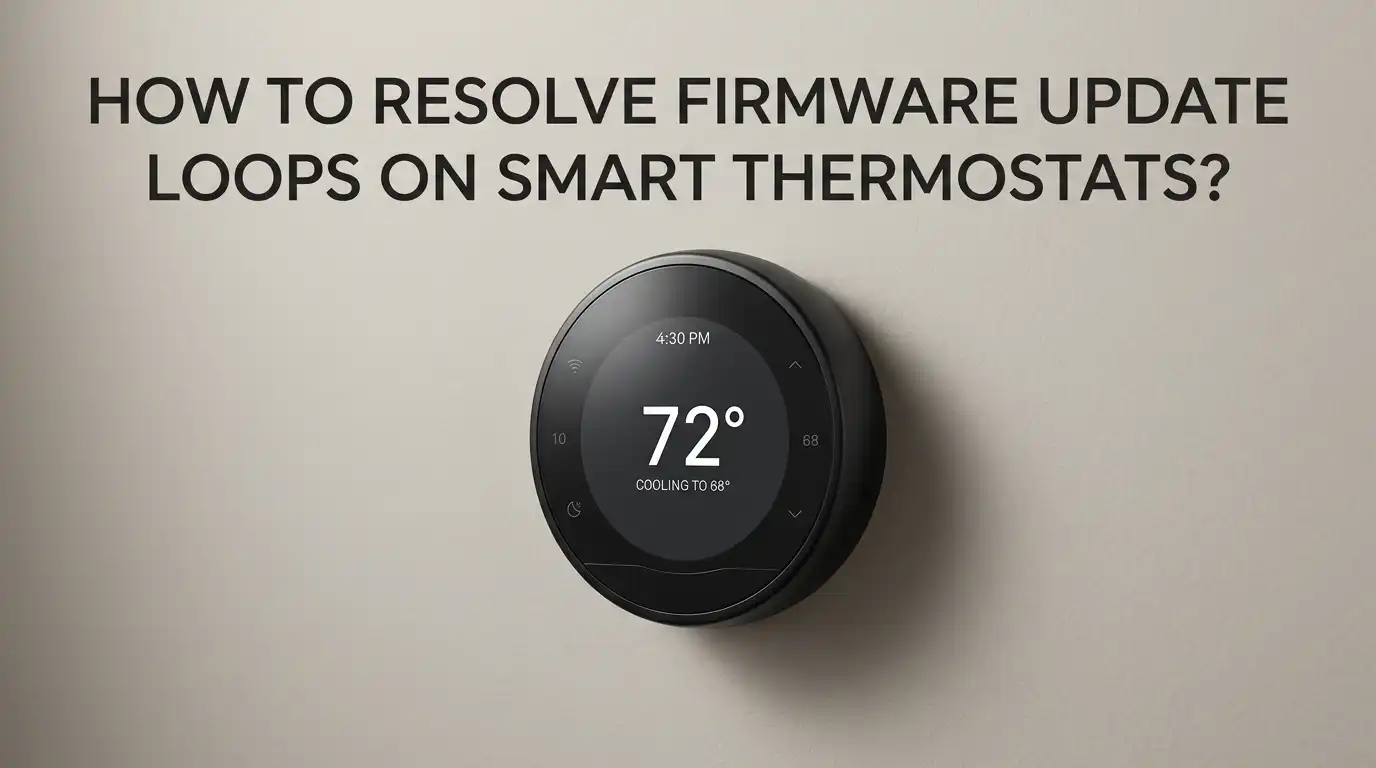
Smart thermostats make home heating and cooling easier, but they can sometimes get stuck in a frustrating firmware update loop. The screen reboots over and over. The update never finishes.
Your heating or cooling stops working, and your home temperature swings wildly. This problem can hit any brand, from Nest to Ecobee to Honeywell. The good news is that most loops have a clear cause and a clear fix.
This guide walks you through every step in plain language. You will learn what triggers these loops, how to stop them safely, and how to keep them from coming back. Let us get your thermostat working again today.
Key Takeaways
- Most firmware update loops come from weak power, a missing or loose C wire, or an unstable Wi-Fi signal during the update. Fixing the power source solves about seventy percent of cases.
- A simple manual restart works first. Press the thermostat display, remove it from the base for thirty seconds, and reseat it. This often breaks the loop without losing any settings.
- A factory reset is the second line of defense, but it wipes your schedules and Wi-Fi info. Try every softer fix first because resets can sometimes worsen the loop if the root cause is hardware related.
- Check your circuit breaker, fuse, and HVAC blower door switch before blaming the thermostat. A tripped safety switch can starve the device of power and trigger endless reboots.
- Strong, stable Wi-Fi matters a lot during firmware downloads. Move the router closer, switch to a 2.4 GHz band, or use a hotspot to push the update through.
- Contact official support when hardware fails. If your thermostat is under warranty, manufacturers like Google, Ecobee, and Resideo often replace looping units at no cost.
What Is A Firmware Update Loop On A Smart Thermostat?
A firmware update loop happens when your thermostat keeps trying to install new software but never finishes. The screen shows the update progress bar, then restarts. Then it shows the bar again. This cycle can run for hours or even days. The device cannot reach the home screen, so you cannot control heat or cool settings.
The loop usually starts after a power flicker, a weak C wire, or a dropped Wi-Fi signal mid update. Some loops are caused by a bug in the new firmware itself, which the manufacturer later patches. Knowing the cause helps you pick the right fix. If you skip diagnosis, you may waste time on resets that do not work.
Why Do Smart Thermostats Get Stuck In Update Loops?
Several issues can trigger a stuck update. The most common is unstable 24 volt power coming from the HVAC system. If your thermostat lacks a dedicated C wire, it pulls tiny amounts of power from other wires. This trickle is often not enough to finish a firmware install.
Wi-Fi drops during the download also corrupt the update file, forcing the device to restart and try again. A clogged furnace filter can trip the high limit switch and cut power mid update.
Older units with worn internal batteries struggle to hold charge long enough for the install to complete. Sometimes a buggy firmware push from the maker is the real cause. Identifying which trigger applies to you saves hours of guesswork.
Step One: Perform A Manual Restart Without Losing Settings
A manual restart is the safest first move. It keeps your schedule, Wi-Fi password, and HVAC setup intact. Hold the thermostat display ring or button for about ten to fifteen seconds until the screen goes black. Release and wait for it to power back on.
For Nest models, press and hold the ring. For Ecobee, hold the screen until the reboot menu appears. For Honeywell, follow the menu option for restart. Do not pull the device off its base yet. A simple restart often clears a stuck update because the device retries the install with a fresh start.
Pros: keeps all settings, takes under a minute, no tools needed.
Cons: may not work if the loop is caused by hardware or corrupt firmware files.
Step Two: Cut Power At The Breaker For A Full Cold Boot
If the soft restart fails, try a full power cycle. Go to your circuit breaker panel and flip off the breaker that feeds your HVAC system. Wait at least sixty seconds. This drains every capacitor in the device and gives it a true cold boot.
Flip the breaker back on and watch the thermostat carefully. It may take two or three minutes to wake up. Sometimes the loop ends here because the device clears its temporary memory. If the screen comes up and shows the home screen, you are done. If it returns to the update loop, move to the next step.
Pros: clears deeper memory glitches than a soft restart.
Cons: briefly shuts off your heating or cooling, may not fix wiring issues.
Step Three: Check The C Wire And Wiring Connections
A missing or loose C wire is the number one cause of firmware loops, especially on Ecobee and Nest models. The C wire delivers steady 24 volt power for tasks like firmware updates. Without it, the device runs on a borrowed trickle that fails during high power moments.
Pull the display off the base and inspect each wire. Press each terminal button and make sure the copper end is fully seated. Look for frayed or oxidized wire tips. Trim back a quarter inch if needed. If you have no C wire at all, you can install a C wire adapter or add a power extender kit. Many newer thermostats also ship with one.
Pros: solves the root cause for many users, prevents future loops.
Cons: requires basic wiring knowledge, may need a pro for older HVAC systems.
Step Four: Inspect The Furnace Door Switch And Filter
Your furnace has a safety door switch that cuts all power when the panel is open. If the door sits slightly ajar, the thermostat loses power and resets repeatedly. Push the panel firmly until it clicks. Check the screws.
A clogged air filter also creates loops. When airflow is blocked, the high limit safety switch trips. This cuts the 24 volt line to your thermostat. Replace the filter if it looks gray or full of dust. Most filters need swapping every one to three months. After fixing these, the thermostat usually completes its update on the next try.
Pros: cheap, fast, and often overlooked.
Cons: needs furnace access, requires basic HVAC familiarity.
Step Five: Strengthen Your Wi-Fi Signal During The Update
Firmware files can be large. A weak signal causes download timeouts that loop the device. Run a speed test near the thermostat using your phone. If the signal is below three bars or under ten Mbps, signal strength is your problem.
Move your router closer if possible, or add a mesh node nearby. Switch your home network to the 2.4 GHz band, which travels through walls better than 5 GHz.
If your router is dual band with one shared name, briefly disable the 5 GHz band so the thermostat locks onto 2.4 GHz. You can also create a phone hotspot near the device just long enough for the update to complete.
Pros: solves loops caused by network issues, no hardware changes needed.
Cons: temporary fix if your home Wi-Fi is consistently weak.
Step Six: Charge The Internal Battery Manually
Some thermostats, like the Nest Learning Thermostat, have a small rechargeable battery. If the battery drops below 3.6 volts, firmware updates fail. This is common in homes without a C wire where the battery never gets a full top up.
Pull the display off the base. Plug it into a computer or wall charger using a USB cable. Charge it for at least two hours, or until the indicator light stops blinking. Then snap it back on the base. Try the update again. A fully charged battery gives the device enough headroom to finish even a large firmware install.
Pros: addresses a hidden cause many users miss, easy to do at home.
Cons: only applies to thermostats with internal batteries, slow process.
Step Seven: Try A Factory Reset As A Last Software Fix
If softer steps fail, a factory reset is your next move. This wipes your schedules, Wi-Fi credentials, and account links, so use it only after backing up your settings if the app allows.
On Nest, go to Settings, then Reset, then All Settings. On Ecobee, use the Reset menu under Settings. On Honeywell, hold the menu and minus buttons together for about five seconds. The device starts fresh and pulls the newest firmware version from scratch. Many loops end here because the corrupt update file is replaced cleanly.
Pros: clears software corruption, gives a clean start.
Cons: erases personal settings, requires full setup again, will not fix hardware loops.
Step Eight: Roll Back Or Pause Automatic Updates
Some loops come from buggy firmware that the manufacturer pushed out. Check community forums and support pages to see if other users report the same issue with the same version number. If they do, the fix is on the maker’s side.
While you wait, turn off automatic updates if the option exists. On Ecobee, you can opt out of beta updates in the app. On Honeywell Home, you can delay updates through your account settings. Nest does not allow rollbacks, but you can contact support to request a downgrade. Patience pays off here because patches often arrive within days.
Pros: avoids repeated loops while a fix is rolling out.
Cons: leaves you on older firmware, not all brands allow rollback.
Step Nine: Contact Manufacturer Support For Hardware Issues
When nothing works, the loop is likely a hardware failure. The display board, power circuit, or memory chip may be damaged. Call or chat with your thermostat brand’s support team. Have your model number, serial number, and purchase date ready.
Google, Ecobee, and Resideo (Honeywell Home) all offer warranty replacements for units stuck in loops. Many give one or two year warranties, with some extended programs for pro installed units. Ecobee is widely praised for fast replacements, while Nest sometimes ships refurbished units. Keep your receipts and photos of the loop screen as proof.
Pros: free replacement if under warranty, ends the issue for good.
Cons: takes days to ship, may require an HVAC pro for reinstall.
Step Ten: Prevent Future Firmware Update Loops
Once your thermostat is back online, take a few steps to stop the problem from returning. Install a proper C wire if your model needs steady power. Keep your furnace filter clean and on a replacement schedule.
Place your Wi-Fi router within thirty feet of the thermostat or add a mesh point nearby. Use a surge protector on your HVAC circuit if your area sees frequent power flickers.
Update during low traffic hours, like late evening, when your home network is less crowded. Finally, register your device with the maker so you get update notices and recall alerts early. These small habits keep your smart thermostat stable for years.
When To Call A Professional HVAC Technician
Some loops point to deeper HVAC problems. If your breaker trips every time the thermostat tries to update, the wiring may be damaged. If you smell burning or see scorch marks near the base, stop and call a pro right away. These are signs of a short circuit, not a software bug.
A licensed HVAC technician can test 24 volt output at the transformer, check your control board, and confirm that your wiring matches the thermostat’s needs.
Most service calls cost between one hundred and two hundred dollars for diagnosis. This is worth it if you have tried every step above without success, especially in older homes with mixed wiring.
Pros: solves the deepest issues, ensures safety.
Cons: costs money, may need scheduling time.
FAQs
How long should a smart thermostat firmware update take?
Most updates finish within five to fifteen minutes. If your device sits on the update screen for more than thirty minutes, it is likely stuck. Try a manual restart first before assuming it is a full loop.
Will a factory reset delete my thermostat history?
Yes. A factory reset clears schedules, Wi-Fi info, and learned preferences. It usually keeps your account link if you sign in again, but your usage history may be lost depending on the brand. Always check if a cloud backup exists before resetting.
Can I skip a firmware update on my smart thermostat?
Some brands like Ecobee and Honeywell let you delay updates through the app. Nest does not allow skipping updates. Skipping for too long can leave you without security patches, so update once a stable version is confirmed.
Why does my thermostat reboot loop start after a power outage?
Power outages can corrupt the update file or drain the internal battery below the safe level. When power returns, the device tries to finish the broken update and gets stuck. A full cold boot at the breaker often fixes this.
Is a firmware update loop covered by warranty?
Yes, most major brands cover firmware related loops if the device is within its warranty window. Google Nest, Ecobee, and Resideo all offer replacements for confirmed loop failures. Keep your proof of purchase ready when you call support.