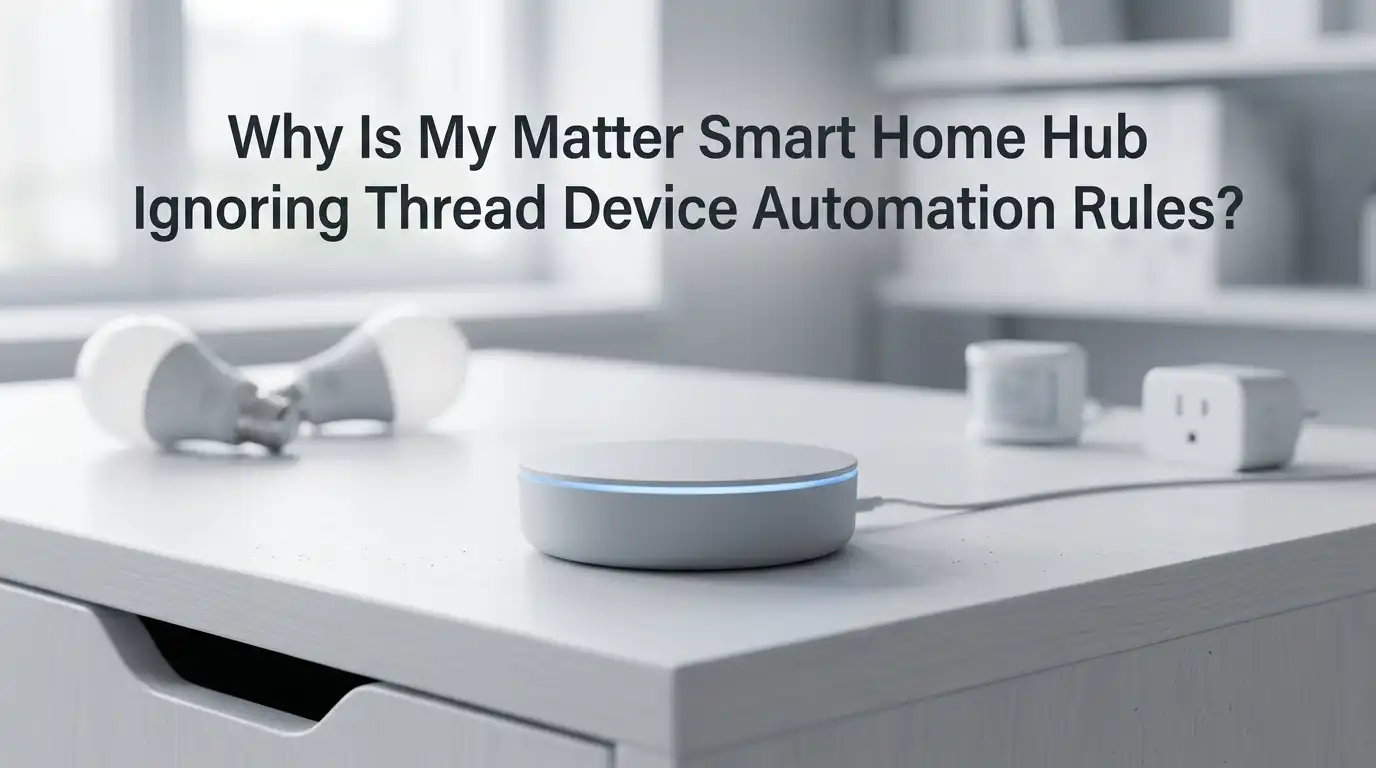
Why Is My Matter Smart Home Hub Ignoring Thread Device Automation Rules?
You set up the perfect automation. The motion sensor should turn on the lights. The door sensor should trigger the porch lamp. But nothing happens.
Your Matter hub sees the Thread device, yet it skips the rule completely. This is one of the most frustrating smart home problems, and you are not alone. Thousands of users face the same silent failure every day.
The good news is simple. Most of these problems come from a handful of fixable causes. Your Thread mesh, your border routers, your hub firmware, and your automation logic all play a role. Once you understand how these pieces talk to each other, the fix becomes clear.
In a Nutshell:
- Thread devices need a healthy mesh, not just a healthy hub. A border router can show online while the actual path to your device is broken. Battery powered sensors suffer the most when the mesh weakens.
- Multiple border routers from different brands cause conflicts. When your Apple, Google, Eero, or Aqara hubs do not share the same Thread credentials, they form separate networks. Your automation then talks to a device that lives on the wrong network.
- Sleepy end devices add delay. Battery powered Thread sensors sleep to save power. They wake slowly, so your hub may miss the trigger window if the polling interval is too long or the route is weak.
- Firmware and software bugs break automations after updates. A hub update, a Matter server update, or a device firmware change can quietly stop rules from running. Rolling back or reinstalling often fixes it fast.
- Local automation differs from cloud automation. Some rules need the cloud, and some run locally on the hub. Knowing which type you use tells you where to look when a rule fails.
- Most fixes are reversible and safe. Start with small changes like rebooting, re saving the rule, and adding a powered repeater. Save the full reset for last.
What Actually Happens When Your Hub Ignores a Thread Rule
Your Matter hub does not really “ignore” a rule on purpose. The rule is still stored. The problem is that the message never completes its full trip. A Thread device sends an event, the border router passes it on, the hub reads it, and then the hub sends a command back. If any step breaks, the automation looks dead.
Thread is a mesh network. This means devices relay messages through each other, not straight to your Wi Fi router. A weak link anywhere in that chain stops the whole rule. The hub might still see the device as reachable while the trigger signal gets lost.
Understanding this flow changes how you troubleshoot. You stop blaming the rule itself and start checking the path the message travels. That shift saves you hours of wasted resets and guesswork.
Check If Your Thread Device Is Truly Reachable
A device can show “online” and still be unreachable for automation. This trips up almost everyone. Reachable status and automation readiness are not the same thing. The hub may have an old cached status that says the device is fine when the real path has dropped.
Start with a manual test. Open your app and try to control the device by hand. If manual control works but automation does not, the path is fine and the rule logic is the problem. If manual control also fails or lags badly, you have a mesh or connectivity issue instead.
Next, check whether the device disappears in one app only or across all apps. If it vanishes everywhere, the problem sits in Thread, not your software display. This single check tells you which direction to take next, and it costs you nothing.
Fix Conflicting Thread Border Routers
This is the biggest hidden cause of broken Thread automations. Many homes now have several border routers without the owner knowing. An Apple TV, a Google Nest device, an Eero router, and an Aqara hub can all act as border routers at once.
The danger comes when they do not share the same Thread credentials. When credentials differ, each one builds its own separate Thread network. Your sensor joins one network and your hub listens on another. The trigger never reaches the rule.
Solution one: Make all border routers share one Thread network. Apple, Google, and Samsung now support credential sharing through your phone. Open the Thread settings in your platform app and sync the credentials so every router joins one mesh.
Pros: You keep all your routers, you get better coverage, and the mesh grows stronger.
Cons: Cross brand sharing is still imperfect. Some brands sync poorly and need manual steps.
Solution two: Disable the extra border routers and keep only one brand active.
Pros: This removes the conflict instantly and simplifies your network.
Cons: You lose mesh coverage, so distant battery devices may drop out.
Strengthen Your Thread Mesh With Powered Devices
Battery powered Thread sensors are weak relays. They sleep to save power, so they do not extend the mesh well. Mains powered Thread devices act as routers and carry the signal across your home. Without enough of them, your far rooms lose their path.
One real example shows this clearly. A user unplugged a single hallway smart plug. Suddenly the back bedroom sensors began dropping. The border router still looked perfectly healthy, but the relay path was gone, so the automation rules stopped firing.
Add powered Thread devices between your hub and your weak spots. Smart plugs, powered bulbs, and wired switches all work as repeaters. Place them roughly every two rooms or wherever signal feels weak.
Pros: This is the most reliable long term fix and improves the whole network.
Cons: It costs more devices and needs some planning around your layout.
Handle Sleepy End Devices and Polling Delays
Battery sensors are called sleepy end devices. They wake up at set intervals to check for messages, then sleep again. This saves battery but adds delay. If your automation needs an instant response, a slow polling interval can make the rule seem broken.
When a sleepy device sits in idle mode, it polls its parent router slowly. A command from your hub may wait until the next poll cycle, which can feel like the rule was ignored. The rule did run, but the response arrived late or timed out.
You usually cannot change polling intervals as a normal user. Instead, improve the parent route. Place a strong powered router near the sleepy device so it wakes to a clean, fast path. A shorter, stronger path shrinks the delay you feel.
Pros: Better placement gives faster, more reliable triggers without new firmware.
Cons: You depend on physical layout, which is not always easy to change.
Reboot Your Hub and Border Router in the Right Order
A simple reboot fixes a surprising number of automation failures. But order matters. Rebooting in the wrong sequence can leave your Thread network half formed. Follow a clean sequence so every layer rebuilds in the correct order.
Start by powering down your Thread devices last, not first. Reboot your Wi Fi router and internet connection first, then the border router, then the hub. Wait two full minutes between each step so each layer settles before the next one wakes.
After everything restarts, give the network time. Thread devices can take up to twenty four hours to fully rejoin and rebuild their best routes. Do not judge success in the first five minutes. Test your automation again the next day before deciding it failed.
Pros: Fast, free, and safe. It clears stuck states and stale caches.
Cons: It is temporary if a deeper cause like a border router conflict remains.
Re Save and Rebuild the Automation Rule
Sometimes the rule itself becomes corrupted. The hub stores it, but the trigger link breaks during an update or sync. Deleting and rebuilding the rule forces the hub to relink the device fresh. This often revives a rule that the hub seemed to ignore for no reason.
Open your automation, note its settings, then delete it completely. Do not just edit it, because editing may keep the broken link alive. Create the rule again from scratch and pick the device fresh from the list.
While rebuilding, watch how the app labels the rule. Some platforms mark rules as cloud or local. If your rule needs the cloud and your internet drops, the rule fails even when Thread works fine.
Pros: Quick fix that repairs corrupted links and refreshes device bindings.
Cons: You lose the original rule and must remember its exact settings.
Understand Local Versus Cloud Automation
Not all automations run the same way. Local automations run on your hub and keep working without internet. Cloud automations need an online server to fire. Knowing which type you use changes where you troubleshoot.
Thread and Matter aim to run locally for speed and privacy. But many platforms still route some rules through the cloud, especially rules that mix devices from different brands or trigger notifications. When the cloud lags, those rules feel ignored.
Check your platform settings to see how each rule runs. If a rule shows as cloud based, test it while your internet is stable. If a local rule still fails offline, the problem sits inside your Thread mesh or hub. This split tells you exactly where to focus.
Pros of local: Faster response, more privacy, works during outages.
Cons of local: Some advanced cross brand rules still need the cloud to function.
Update or Roll Back Firmware Carefully
Firmware drives everything. A buggy hub update or device firmware can quietly break automation rules overnight. Many users report that rules worked fine until an update arrived, then half their devices went unresponsive.
First, check for pending updates on your hub, border router, and Thread devices. An outdated device firmware can refuse to bind to a rule properly. Apply updates one device at a time so you can spot which one causes trouble.
If a rule broke right after an update, the update itself may be the cause. Rolling back to a previous version or restoring a backup often fixes it instantly. Several users solved widespread Matter failures simply by reloading an older stable backup.
Pros: Updates fix known bugs, and rollbacks recover broken setups fast.
Cons: Rollbacks are not always available, and skipping updates leaves old bugs in place.
Resync Thread Credentials Across Your Devices
When your phone or hub holds the wrong Thread credentials, automation fails silently. A credential mismatch makes the hub talk to a network your device left long ago. This happens often after adding a new hub or resetting a border router.
Many platforms include a credential sync tool buried in settings. On some apps you find it under troubleshooting as “sync Thread credentials” or similar. Running this tool pushes the correct network keys to every device so they all share one mesh.
Do this after any major change, like adding a hub or moving a border router. A fresh sync keeps every device on the same Thread network, which keeps your automation paths intact. It takes seconds and prevents many future failures.
Pros: Quick, official, and prevents split network problems.
Cons: Cross brand syncing remains inconsistent and sometimes needs repeating.
Reduce Network Congestion and Device Overload
Too many devices on one network choke your automations. A crowded Thread mesh or a busy Wi Fi band slows every message. When the network is congested, triggers arrive late and commands time out, so rules appear ignored.
Thread devices share airtime with your Wi Fi on nearby channels. If your Wi Fi is loud on the 2.4 GHz band, it can drown out Thread signals. Move your Thread border router away from your Wi Fi router and any large metal objects.
Also count your devices. A mesh with too many sleepy sensors and too few powered routers gets unstable. Spread powered routers evenly and avoid clustering all your devices in one spot. A balanced mesh handles automation traffic far more smoothly.
Pros: Lower congestion improves speed and reliability across the whole home.
Cons: You may need to rearrange hardware or adjust your Wi Fi channels.
Decommission and Re Add a Stubborn Device
When one device keeps ignoring rules after every other fix, a clean re pairing helps. Removing and re adding the device clears corrupted bindings and stale credentials. This is your last resort, so try it only after the steps above.
Remove the device fully from your platform first. Then factory reset the device itself so it forgets all old network keys. A half removed device often keeps broken settings that block new automations from working.
After the reset, add the device back fresh and rebuild its rules. Pick a moment when your border router and credentials are already synced. A clean device joining a healthy network forms strong, working automation links.
Pros: Clears deep corruption that nothing else can reach.
Cons: Time consuming, and you must rebuild every rule for that device.
Build a Smart Troubleshooting Routine for the Future
Once your rules work again, keep them working. A simple habit prevents most repeat failures. Change one thing at a time and watch the result before changing anything else. This keeps the cause clear when something breaks.
Keep a short note of your setup. Write down your border routers, your powered Thread devices, and which rules are local or cloud. When trouble returns, this note saves you from guessing what changed.
Before adding a new hub or moving a device, sync your Thread credentials first. Most automation failures trace back to a network change made without a resync. A few minutes of planning protects your whole smart home from sudden silent breakdowns.
Pros: Stable, predictable automations and faster fixes when issues appear.
Cons: It takes a little discipline and record keeping to maintain.
Frequently Asked Questions
Why does my Thread device show online but still ignore automation rules?
Online status only means the hub got a recent ping. The real message path can still be broken. Test manual control first. If manual works but automation fails, your rule logic or cloud link is the issue. If both fail, your Thread mesh needs attention.
Can having too many border routers break my automations?
Yes, and this is very common. When border routers from different brands do not share Thread credentials, they form separate networks. Your device joins one and your hub listens on another, so triggers never connect. Sync credentials or keep only one brand active.
Why do my battery powered Thread sensors fail more than my plugs?
Battery sensors are sleepy end devices. They sleep to save power and wake slowly, so they rely heavily on nearby powered routers. Plugs stay awake and relay signals. Add powered Thread devices near your sensors to give them a strong, fast path.
Should I reset everything when a rule stops working?
No, save resets for last. Start with reboots, re saving the rule, and adding a powered repeater. A full reset is hard to undo and rarely needed. Make one small reversible change at a time so you can see what actually fixed the problem.
My automations broke right after an update. What should I do?
Updates can introduce bugs. Check if a rollback or backup restore is available for your hub or Matter software. Many users fixed widespread failures by reloading an older stable version. Also update your device firmware, since old firmware can block rule binding.
How long should I wait after making a change before testing?
Give Thread time to rebuild. Devices can take up to twenty four hours to rejoin and find their best routes. Do not judge a fix in the first few minutes. Test the next day before deciding whether your change worked or failed.