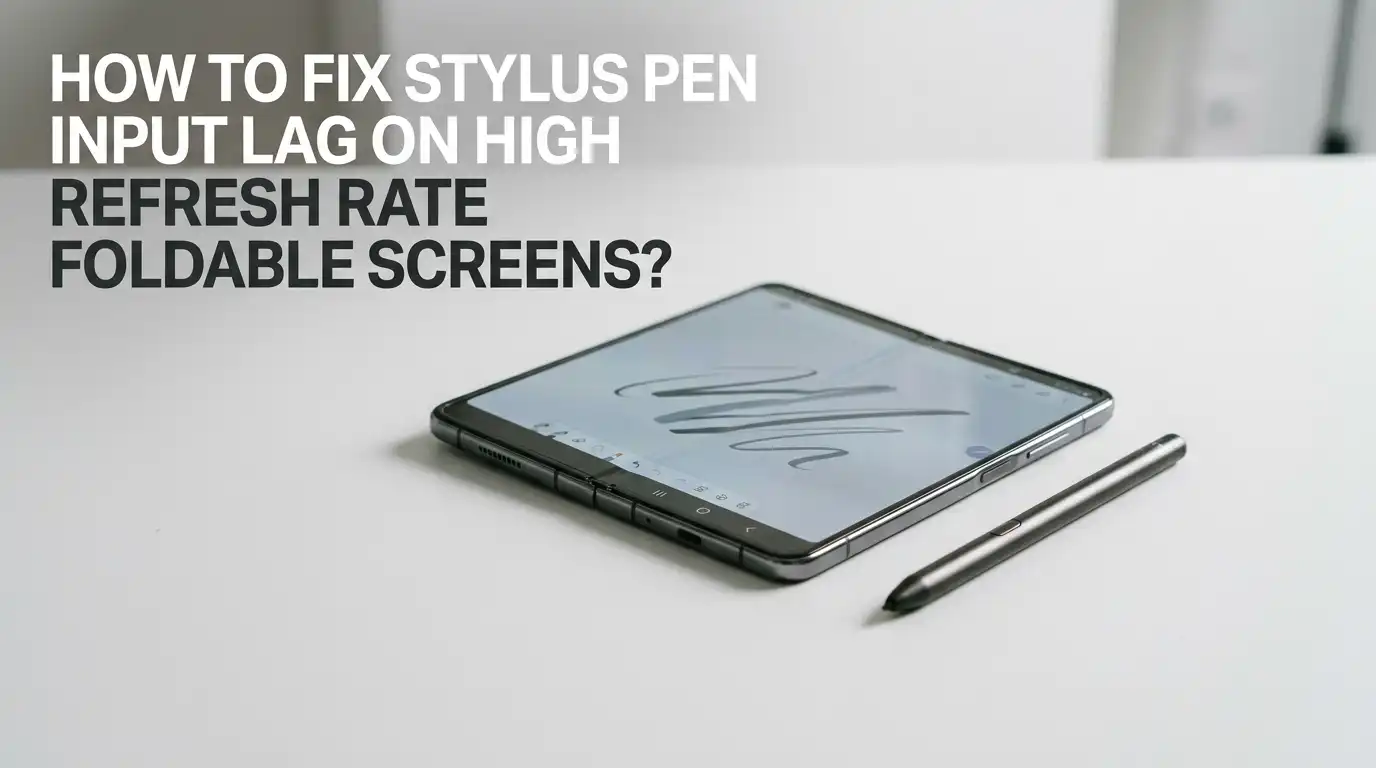
How To Fix Stylus Pen Input Lag On High Refresh Rate Foldable Screens?
Stylus lag on a foldable phone feels frustrating. You write a word, and the ink shows up a half second later. You draw a line, and it smears across the bend.
This problem hits foldable screens harder than flat ones because the display, the hinge, and the refresh rate all interact in tricky ways. The good news is that most lag has a clear cause and a clear fix.
This guide walks you through every reason your stylus stutters, and it gives you simple steps to make your pen feel sharp again. You will learn software fixes, hardware checks, and habits that keep your writing smooth.
In a Nutshell:
- Restart and update first. A simple reboot clears stuck processes, and a firmware update often ships the exact lag patch you need. Always check both before you change settings.
- Refresh rate matters. A higher refresh rate usually reduces lag, but a buggy adaptive refresh mode can cause stutter. Lock your screen to a steady rate and test the difference.
- The hinge area is a known weak spot. On foldables, the flex cable near the crease degrades over time. Dead zones and lag near the bend often point to hardware, not settings.
- Background apps steal performance. Animations, power saving modes, and heavy apps slow your digitizer. Closing them frees resources for pen tracking.
- The app you draw in controls the feel. Smoothing and stabilizer settings add fake lag. Lower these values to get instant ink.
- Hardware fails sometimes. A worn pen tip, low pen battery, or magnetic interference can mimic software lag. Rule these out early.
What Causes Stylus Input Lag On Foldable Screens?
Stylus lag happens when your screen draws ink slower than your hand moves. The pen sends position data, the phone reads it, and the display paints the line.
Any delay in this chain creates lag. On a foldable, this chain has extra weak points. The screen bends, so the digitizer layer must flex with it. The hinge carries thin flex cables that connect both halves of the panel. These cables wear out and slow down pen signals.
High refresh rates add another layer. A 120Hz screen samples touch faster, which usually helps. But a variable refresh mode can drop to 60Hz or lower to save battery. That drop makes your ink feel sticky. Knowing these causes helps you pick the right fix instead of guessing.
Restart Your Device And Recalibrate The Pen
Always start with the simplest fix. A restart clears stuck background tasks that hog your processor. Many lag problems vanish after a clean reboot. Hold the power button, choose restart, and let the phone fully load before testing your pen again.
On Samsung foldables, you can force a deeper restart by holding Volume Up and Power together until the logo appears. This clears the cache and refreshes the digitizer driver. After the reboot, open your notes app and draw a few slow lines.
Some pens also support recalibration through the settings menu. Recalibration teaches the screen where the pen tip actually sits. This sharpens tracking near the crease. It is a thirty second step that often delivers a big improvement.
Pros: Fast, free, and safe. It fixes temporary software glitches instantly.
Cons: It does not solve hardware faults or driver bugs. The lag may return if a deeper issue exists.
Update Your Phone Firmware And Pen Drivers
Outdated software is a top cause of pen lag. Manufacturers ship updates that fix digitizer timing and refresh rate bugs. Many users report their stylus stuttered badly after one update, then a later patch restored normal speed. So staying current matters.
Open your settings, go to the software update section, and download the latest version. Install it while charging and connected to Wi-Fi so the process finishes cleanly. Restart afterward to let the new drivers load.
Some foldables also update the S Pen or stylus firmware separately. Check your accessory settings or the connected pen menu. A pen firmware update can lower latency at the hardware level. This is one of the most overlooked fixes, yet it often solves lag that no setting change touches.
Pros: Targets the root cause and improves system wide performance.
Cons: Updates take time, and rarely a new update introduces a fresh bug.
Adjust Your Screen Refresh Rate Settings
Your refresh rate has a direct link to pen feel. A higher refresh rate redraws the screen more often, so ink keeps up with your hand. At 60Hz, fast strokes can smear because the display lags behind your movement. At 120Hz, lines feel tight and instant.
But adaptive refresh modes cause trouble. Variable refresh drops the rate to save battery, and that drop creates sudden stutter while you write. Go to your display settings and look for a refresh rate option.
Try locking the screen to the highest standard setting first. If lag continues, test a fixed 60Hz mode to compare. Sometimes a steady 60Hz feels smoother than a jumpy adaptive mode. Pick the option that gives you the most consistent ink, not just the highest number.
Pros: A simple toggle that can dramatically smooth your writing.
Cons: Higher refresh drains battery faster, and locked modes remove the power saving benefit.
Close Background Apps And Free Up Memory
Your stylus needs processing power to track movement. When too many apps run at once, the system has fewer resources for pen input. This shows up as delayed ink and skipped strokes, especially during long writing sessions.
Open your recent apps view and swipe away everything you do not need. Heavy apps like games, video editors, and browsers with many tabs steal the most memory. Close them before you start drawing or note taking.
You can also check your storage. A nearly full phone slows down because the system has no room to work. Clearing cache files and unused apps gives your device breathing space. Restart after clearing, then test your pen. A lighter system tracks the stylus faster and keeps your ink in sync with your hand.
Pros: Improves overall speed and costs nothing.
Cons: You must repeat it often, and it only helps when memory was the bottleneck.
Turn Off Power Saving And Performance Limiters
Power saving modes throttle your processor to extend battery life. This throttling directly slows stylus tracking. Your screen also drops to a lower refresh rate in these modes, which adds to the lag you feel while writing.
Open your battery settings and switch off any power saving or low power mode. Look for a performance profile and set it to standard or high. Some Samsung foldables hide this under a processing speed or enhanced processing option.
Adaptive battery features can also limit background services your pen relies on. Disable aggressive battery optimization for your notes and drawing apps. This keeps them running at full speed. After these changes, your phone uses more power, but your stylus responds the way it should. Plug in while doing heavy creative work to offset the extra drain.
Pros: Unlocks full processor speed for instant pen response.
Cons: Battery drains faster, so you may need to charge more often during long sessions.
Fix The Crease And Hinge Dead Zone Problem
The fold line is the most common trouble spot on foldable screens. The flex cables that run through the hinge connect both halves of the display. Over time, these cables wear from constant folding. When they degrade, your pen lags or stops working near the bend.
Watch for clear signs. If your speakers, Wi-Fi, or Bluetooth also act up when the phone is open, the flex cable is likely failing. This points to a hardware fault, not a setting.
You can test it by drawing slowly across the crease. If lag appears only at the fold and software fixes do nothing, the inner screen or hinge assembly may need repair. Contact official service support rather than opening the phone yourself. Foldable repairs are delicate, and a wrong move damages the panel further.
Pros: Identifies a serious issue early and protects your warranty.
Cons: Repairs cost money and take time, and out of warranty fixes can be expensive.
Check Your Pen Tip, Battery, And Magnet
Hardware on the pen itself causes lag too. A worn or chipped tip drags across the screen instead of gliding, which feels like delay. Replace the nib if it looks flat, rough, or cracked. Fresh tips restore smooth contact instantly.
Some active pens use a small battery or charge through contact with the phone. A low pen battery weakens the signal and creates stutter. Snap the pen to its magnetic dock or charging slot and let it power up fully.
Magnetic interference is another hidden cause. Metal cases, magnetic stands, and nearby speakers confuse the digitizer. Remove these objects and test again. Clean the pen tip and the screen with a soft cloth, since dust and oil break the connection. These quick checks rule out simple hardware faults before you blame software.
Pros: Cheap, fast, and often the real solution to mystery lag.
Cons: Replacement tips are easy to lose, and battery pens need regular charging.
Adjust Smoothing And Stabilizer Settings In Your App
Your drawing or notes app shapes how ink feels. Smoothing and stabilizer features intentionally delay your line to make it look cleaner. The app waits, predicts your path, then draws a polished stroke. This wait reads as lag even when your phone runs perfectly.
Open your app settings and find the smoothing, stabilizer, or stroke correction slider. Lower it to a small value or turn it off completely. Test your writing right after each change so you can feel the difference.
Different apps use different names for this feature. Some call it ink prediction, others call it brush dynamics. The fix is the same: reduce the value until the ink keeps pace with your hand. If one app lags badly while others feel fine, the app setting is your culprit, not the phone or pen.
Pros: Instantly removes fake lag without touching system settings.
Cons: Lower smoothing can make shaky lines look rough, so you trade polish for speed.
Use Apps Built For Low Latency Inking
Not every app handles stylus input well. Some apps use modern low latency drawing tools, while others rely on older code that adds delay. The same pen can feel fast in one app and slow in another. The software design makes the difference.
Android offers a low latency graphics library that app makers use to cut the gap between pen and screen. Apps built with this technology paint ink almost instantly. Look for note and drawing apps that advertise smooth or low latency writing.
Test a few free options and compare them with the same strokes. Pick the app that tracks your hand most closely. If your favorite app lags no matter what, switching apps may be the easiest fix of all. A well built app squeezes the best performance from your foldable hardware without any hardware change.
Pros: Often delivers the smoothest experience with zero cost.
Cons: You may need to learn a new app and move your old notes over.
Clear Cache And Reset Stylus Related Settings
Corrupted cache files slow down apps and system services. Old cache builds up and clogs the processes your pen depends on. Clearing it gives your stylus a clean path to work through.
Go to your app settings, open your notes or drawing app, and tap the clear cache option. This deletes temporary files without erasing your saved notes. Restart the app and test your pen afterward.
You can also reset pen settings to their defaults. Many foldables have an S Pen or stylus settings menu with a reset option. A reset wipes any bad configuration that crept in over time. This often fixes lag that started after an update or a settings change you forgot about. If lag persists across every app, a broader settings reset for the whole device is a stronger last step before service.
Pros: Removes hidden software clutter and resets bad configurations.
Cons: A full settings reset erases your custom preferences, so back them up first.
Test In Safe Mode To Find Bad Apps
Sometimes a single rogue app causes all your lag. Safe mode loads only the built in system software and blocks every app you installed. This tells you whether your problem comes from the phone or from a downloaded app.
To enter safe mode, hold the power button, then press and hold the power off option until the safe mode prompt appears. Your screen will show a safe mode label in the corner. Now test your pen in the built in notes app.
If lag disappears in safe mode, a third party app is the cause. Restart normally, then remove recently installed apps one at a time. Test your pen after each removal until the lag goes away. This method takes patience, but it pinpoints the exact app without guesswork. Once you find the culprit, you can delete it or look for an update.
Pros: Cleanly separates app problems from hardware and system faults.
Cons: Testing takes time, and you must reinstall or replace the bad app afterward.
Maintain Your Screen And Use The Right Screen Protector
Your screen surface affects pen feel every day. Dirt, fingerprints, and smudges break the smooth contact between tip and glass. Wipe your foldable with a soft microfiber cloth before each writing session. A clean surface tracks the pen better.
Screen protectors matter too. A thick or poorly fitted protector adds distance between the pen and the digitizer, which creates lag and reduces accuracy. Foldable screens are soft and need protectors made for that exact model.
Some users add a paper feel film for better grip while writing. These films change friction but can dull sensitivity if they are too thick. Choose one designed for your foldable and remove any old, peeling film. Bubbles and lifted edges scatter the pen signal. Good screen care keeps your stylus responsive and protects the delicate foldable panel at the same time.
Pros: Cheap upkeep that improves accuracy and protects the screen.
Cons: The wrong protector hurts performance, and replacing one on a foldable is tricky.
When To Contact Support Or Seek Repair
Some lag goes beyond what you can fix at home. If you have tried every software step and the pen still lags, hardware is likely the cause. This is common on older foldables where the hinge cables have worn down from years of folding.
Contact official support when you see clear hardware signs. Dead zones near the crease, lag paired with audio or connection drops, or a pen that fails across the whole screen all point to internal damage. Describe exactly what you tested so the technician moves faster.
Check your warranty before paying for repair. Many foldable issues fall under coverage, especially screen and hinge faults. Use authorized service centers only, since unofficial repairs void your warranty and risk more damage.
Professional repair is the right move when the problem sits inside the hardware, and trying to fix it yourself often makes things worse.
Pros: Solves deep hardware faults that no setting can touch.
Cons: It costs money and time, and you may lose your device during the repair.
Frequently Asked Questions
Why does my stylus lag more near the fold of my screen?
The hinge carries thin flex cables that connect both halves of your display. These cables wear out with repeated folding, which slows pen signals near the crease. If software fixes do not help, this points to a hardware fault that needs service.
Does a higher refresh rate reduce or cause stylus lag?
A higher refresh rate usually reduces lag because the screen redraws faster and keeps up with your hand. Problems come from adaptive modes that drop the rate suddenly. Locking your screen to a steady rate often gives the smoothest writing feel.
Can a screen protector cause my pen to lag?
Yes. A thick or poorly fitted protector adds distance between the pen tip and the digitizer. This creates lag and reduces accuracy. Use a protector made for your exact foldable model, and remove any old film with bubbles or peeling edges.
Will updating my phone fix stylus input lag?
Often, yes. Manufacturers ship updates that fix digitizer timing and refresh rate bugs. Many lag issues appear after one update and disappear after the next patch. Always install the latest firmware and any separate pen firmware update before changing other settings.
How do I know if my pen lag is a software or hardware problem?
Test your phone in safe mode and try different apps. If lag disappears in safe mode, an app is the cause. If lag stays everywhere and appears near the crease, or comes with audio and connection drops, the problem is hardware and needs repair.
Does turning off power saving mode help with pen lag?
Yes. Power saving modes throttle your processor and lower your refresh rate, which slows pen tracking. Switch to a standard or high performance profile while writing. Your battery drains faster, so plug in during long creative sessions to balance the trade off.