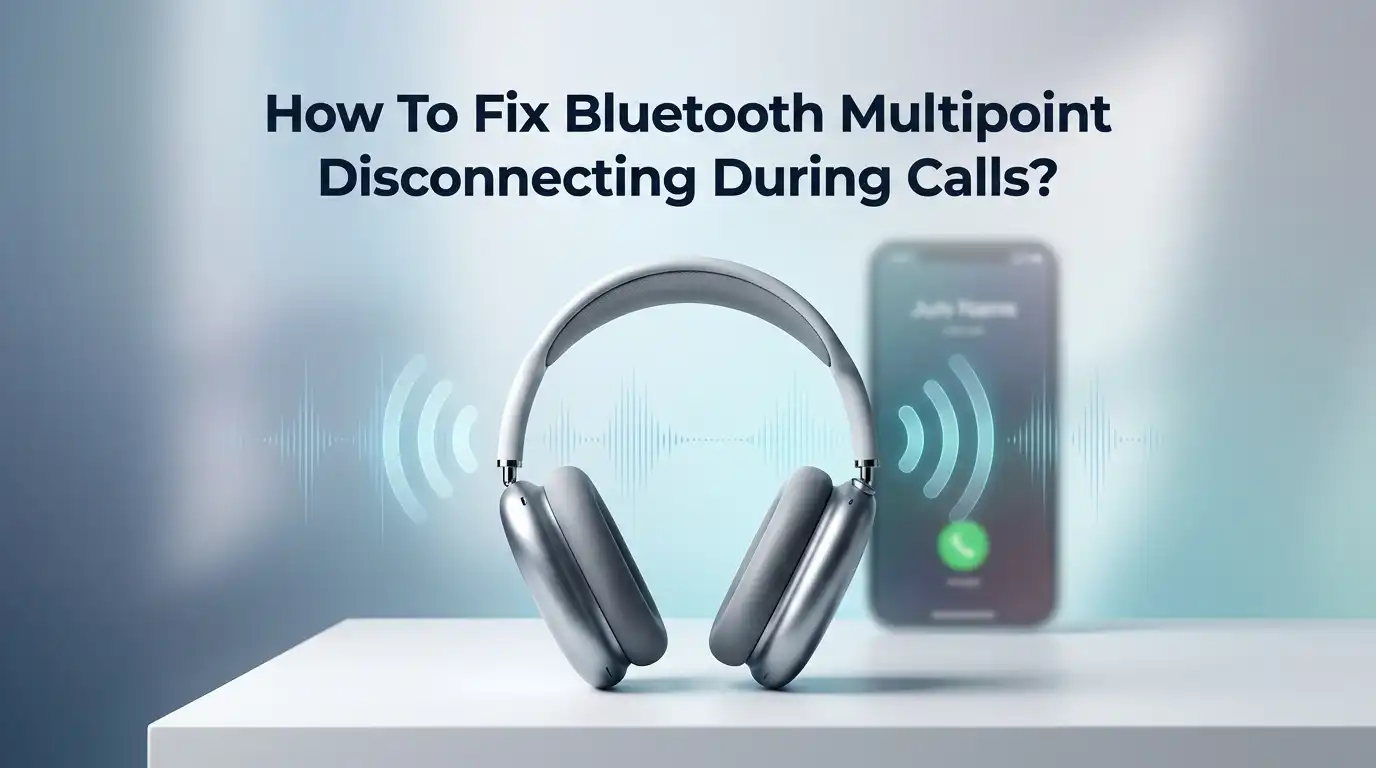
How To Fix Bluetooth Multipoint Disconnecting During Calls?
Bluetooth multipoint feels like magic until it fails you mid call. You are talking to a client, then the audio cuts out. Your voice jumps back to the phone speaker. The other person asks if you are still there.
This problem is common, and it is frustrating, but it is fixable. The good news is that most call drops happen for a few predictable reasons.
Once you understand why multipoint struggles during calls, you can stop the drops for good. This guide walks you through every practical fix, step by step, in plain language.
In a Nutshell
- Multipoint is not an official Bluetooth feature. It is a trick manufacturers build on top of Bluetooth profiles. That is why behavior differs so much between brands and why some setups drop calls more than others.
- Profile switching causes most drops. When a call starts, your headphones switch from the media profile (A2DP) to the call profile (HFP). Older devices suspend the connection during this handoff, which creates the cut out.
- Two devices is the safe limit. Adding a third device forces your headset into a fallback mode that discards call data, almost guaranteeing a drop on the next ring.
- Firmware and OS updates fix real bugs. Many call drops come from mismatched HFP versions. Updating both your phone and your headphones often solves the issue completely.
- Interference matters. Wi-Fi, USB 3.0 ports, and crowded signal areas share the same frequency band and can break your call audio.
- Role assignment beats auto switch. Setting one device for calls and one for media stops the uncoordinated handoffs that trigger disconnects.
Understand Why Multipoint Drops Calls In The First Place
Before you change any settings, you should know the real cause. Bluetooth multipoint is not an official Bluetooth specification. It is a feature that each manufacturer builds using standard Bluetooth tools called profiles.
Your headphones use one profile for music, called A2DP, and a different profile for calls, called HFP. When a call arrives, your headset must switch from one profile to the other.
This switch is where things break. Older headsets suspend the audio stream while they change profiles. That gap in the stream is the dropout you hear.
Because every brand handles this switch differently, some devices drop calls constantly while others barely stumble. Understanding this helps you pick the right fix instead of guessing.
Limit Your Multipoint To Only Two Devices
Many people connect three or more devices and expect flexibility. This choice actually harms call stability. Most headphones support stable multipoint with only two devices at once.
When you add a third source, the headset switches to a least recently used fallback mode. In this mode, it drops call state data entirely, which almost guarantees a disconnect on your next incoming call.
Go into your Bluetooth settings on every device you own. Remove or disconnect any extra devices so that only two remain paired at the same time.
Keep your phone as one of the two, since it handles calls. This single change fixes a surprising number of drop problems. Two device discipline is the most reliable rule for clean voice calls.
Pros: Simple, free, and effective for most users. Improves both call and media stability. Cons: You lose the convenience of quick switching across three or more gadgets.
Assign Clear Roles To Each Connected Device
Uncoordinated switching is a top cause of call drops. When two devices both try to grab the call profile, your headset gets confused. The fix is to give each device a clear job. Set your phone as the call device. Set your laptop or tablet as the media device.
On a laptop, open your Bluetooth or sound settings and disable the headset or hands free option for that connection. On a Mac, you can uncheck the setting that enables the device for calls.
This stops your laptop from stealing the call profile when a notification arrives. Your phone then keeps full control of voice calls, and the handoffs stop happening randomly.
Pros: Removes the main trigger for surprise disconnects. Keeps your workflow smooth. Cons: You give up the ability to take calls through your secondary device without changing settings again.
Turn Off Auto Switch In The Companion App
Most headphone brands offer a companion app with an auto switch or smart switch toggle. This feature sounds helpful, but it often causes the exact problem you are trying to solve.
Auto switch triggers uncoordinated profile handoffs. Your headset keeps trying to jump between devices, and each jump risks a dropped call.
Open your headphone brand app on your phone. Look for a setting named auto switch, smart switch, or multi connection switching. Turn it off. Then rely on manual switching instead.
Most headsets let you switch sources with a button press or a tap. Manual control keeps you in charge and stops the headset from guessing wrong during a live call.
Pros: Stops random mid call switching. Gives you predictable behavior. Cons: You must manually switch devices, which takes an extra second each time.
Update Your Headphone Firmware
Outdated firmware is a hidden cause of call drops. Manufacturers release firmware updates that fix Bluetooth handoff bugs and improve profile switching. Many multipoint call problems disappear after a firmware update. The fix lives in your headphone companion app.
Open the app and look for a firmware or software update section. Keep your headphones charged and near your phone during the update.
Do not close the app or power off the headset while it installs. After the update finishes, disconnect and reconnect your headphones once. Then test a call.
Check the manufacturer release notes rather than the marketing page. Look for mentions of HFP or call stability improvements. This tells you the update actually targets your problem.
Pros: Fixes deep software bugs that settings cannot reach. Often free and permanent. Cons: Updates can occasionally introduce new bugs, and the process takes a few minutes.
Update Your Phone And Computer Operating System
Your phone and computer run a Bluetooth stack, which is the software that manages connections. A big share of call failures come from mismatched HFP versions between your phone and your headset. Operating system updates often patch these version mismatches.
On Android, open Settings, then System, then Software update. On an iPhone, open Settings, then General, then Software Update. On a computer, run your system update tool. Install any pending updates and restart the device.
Newer OS versions include improved call profile negotiation. This helps your phone and headset agree on how to handle a call without dropping the stream. Pairing an updated phone with updated headphones gives you the smoothest result. Both sides need to be current for the fix to hold.
Pros: Improves Bluetooth reliability across all your devices. Adds security and feature benefits too. Cons: Large updates take time and storage, and behavior can change after an update.
Reduce Wireless Interference Around You
Bluetooth and Wi-Fi share the same 2.4 GHz frequency band. When that band gets crowded, your call audio suffers. Interference is a common but overlooked cause of mid call drops. Certain everyday devices flood the airwaves and break your connection.
Move away from your Wi-Fi router during calls. Keep your headset away from USB 3.0 ports and hubs, since they leak radio noise that disrupts Bluetooth.
Turn off Bluetooth on nearby devices you are not using. Microwave ovens, baby monitors, and wireless keyboards can also cause trouble.
Try moving to a different room and testing a call. If the drops stop, interference was your culprit. Keeping your phone in a shirt pocket rather than a back pocket also helps, because your body blocks the signal.
Pros: Costs nothing and often gives instant improvement. Cons: You cannot control interference everywhere, especially in busy offices or public spaces.
Reset The Bluetooth Cache On Your Phone
Your phone stores pairing history and service records for each Bluetooth device. Over time, this cached data can become stale and cause bad profile choices. A Bluetooth reset clears these stale records and lets your devices negotiate the call profile fresh.
On Android, open Settings, then System, then Reset options, then Reset Wi-Fi, mobile, and Bluetooth. Note that this removes saved Wi-Fi networks too. On an iPhone, turn Bluetooth fully off, restart the phone, then turn Bluetooth back on. Some users restart the phone two or three times for a full clear.
After the reset, pair your call critical device first, meaning your phone with your headset, then add the secondary device. This order helps your headset prioritize the call profile correctly.
Pros: Fixes corrupted pairing data that causes odd behavior. Cons: You lose saved Wi-Fi passwords and must re pair all devices.
Factory Reset Your Headphones The Right Way
Simply deleting and re pairing your headphones can make things worse. Legacy Bluetooth stacks store cached records that reinforce bad defaults. A full factory reset clears these records and gives you a clean start. This is different from just unpairing.
Check your headphone manual for the reset steps. A common method is to power off the headset, then hold the power button and volume down together for about ten seconds until the light flashes. Wait for the LED confirmation before releasing.
After the reset, pair your phone first, since it handles calls. Then add your second device. Do not enable auto switch during setup. This order sets the phone as the priority call source and reduces future handoff failures.
Pros: Removes deep cache problems that re pairing cannot fix. Cons: You must set up all connections and app settings again from scratch.
Prioritize The Phone As Your Only Call Endpoint
If your headphones are older and lack modern chipsets, you may never get perfect concurrent streaming. In that case, the smartest fix is to stop asking your headset to juggle calls from two sources. Route every call through your phone alone.
Keep your phone as the single call device. Send other audio, such as laptop notifications, through your phone using Wi-Fi calling or a voice app linked to your mobile. This bypasses Bluetooth call arbitration entirely, since only one device ever requests the call profile.
You can also set your secondary device to do not disturb during work calls. This removes the notification triggers that interrupt your stream. The approach is not fancy, but it is dependable for older hardware.
Pros: Extremely stable, even on budget headphones. Cons: Less flexible, and you must manage which device sends calls.
Choose Headphones That Support LE Audio Or True Dual Connection
Sometimes the hardware is the limit. Older headsets can only run one audio stream at a time, so they must suspend the connection during a call switch. Newer devices with LE Audio or advanced chipsets handle calls and media at the same time. These use modern profiles that replace the older A2DP and HFP system.
Look for support for Bluetooth 5.2 or higher with LE Audio, or vendor specific dual connection features. Devices built for these standards switch profiles without the dropout.
Closed ecosystems also perform better, since one company controls both the phone and the headset, as with Apple Seamless Device Switching or Samsung Dual Audio.
This is not a quick fix, but if your current headset keeps failing, better hardware ends the problem for good.
Pros: Solves the root cause at the hardware level. Future proof and higher quality. Cons: Requires spending money and checking specs carefully before buying.
Test Each Fix One At A Time
The final step ties everything together. Change one setting, then test a call, before you try the next fix. If you change many things at once, you will not know which one worked. This makes future troubleshooting harder and can leave you with settings you do not need.
Start with the easy fixes, such as limiting to two devices and turning off auto switch. Make a short test call after each change. Ask a friend to confirm your audio stays clear. If the drop stops, you found your fix and can stop there.
Keep a simple mental note of what you changed. This helps if the problem returns later. A calm, one step approach saves time and gives you real answers.
Pros: Pinpoints the exact cause. Avoids wasted effort. Cons: Takes patience and a few test calls to complete.
Final Thoughts
Bluetooth multipoint call drops feel random, but they follow clear rules. The core issue is profile switching between media and calls, made worse by too many devices, stale settings, and interference.
You now have a full toolkit to fix it. Start by limiting yourself to two devices and assigning clear roles. Then update your firmware and operating systems. Clear your caches, reduce interference, and test one change at a time.
If your hardware is simply too old, routing calls through your phone alone or moving to LE Audio hardware ends the trouble. Most people fix their drops with the first few steps. Work through them patiently, and your calls will stay clear and steady.
Frequently Asked Questions
Why does my headset switch back to music after a call ends?
This happens because multipoint defaults to resuming the last active media source. Your headset assumes you want your music back the moment the call finishes. You can disable auto resume in your headphone companion app. Turning off multipoint and using manual source selection also stops this behavior. A quick button press then puts you in control after every call.
Can too many paired devices cause call drops?
Yes, this is one of the most common causes. Most headsets stay stable with only two active connections. When you add a third device, the headset enters a fallback mode that discards call data. This almost guarantees a drop on your next incoming call. Keep only two devices connected at once, and make sure your phone is one of them for reliable voice calls.
Does the Bluetooth codec affect call quality?
No, your music codec does not control call audio. Calls use separate narrowband voice codecs regardless of whether your music uses AAC, LDAC, or aptX. However, headsets that support the mSBC codec offer lower call latency and clearer voice than older ones. So the codec affects call clarity, but changing your music codec setting will not fix a dropping call.
Will updating my phone alone fix the problem?
Sometimes, but not always. An OS update can fix your phone side of the call profile negotiation. The fix only works fully if your headphones also support the newer profile version. Check both sides. Update your phone through its software update menu and update your headset through its companion app. Matching both gives you the best chance of stopping the drops.
Is Wi-Fi really able to break my Bluetooth calls?
Yes, because Bluetooth and Wi-Fi share the 2.4 GHz frequency band. A crowded router, a USB 3.0 hub, or a microwave can flood that band and interrupt your call. Try moving away from your router and testing a call. If the drops stop, interference was the cause. Keeping devices you are not using switched off also helps clear the airwaves.