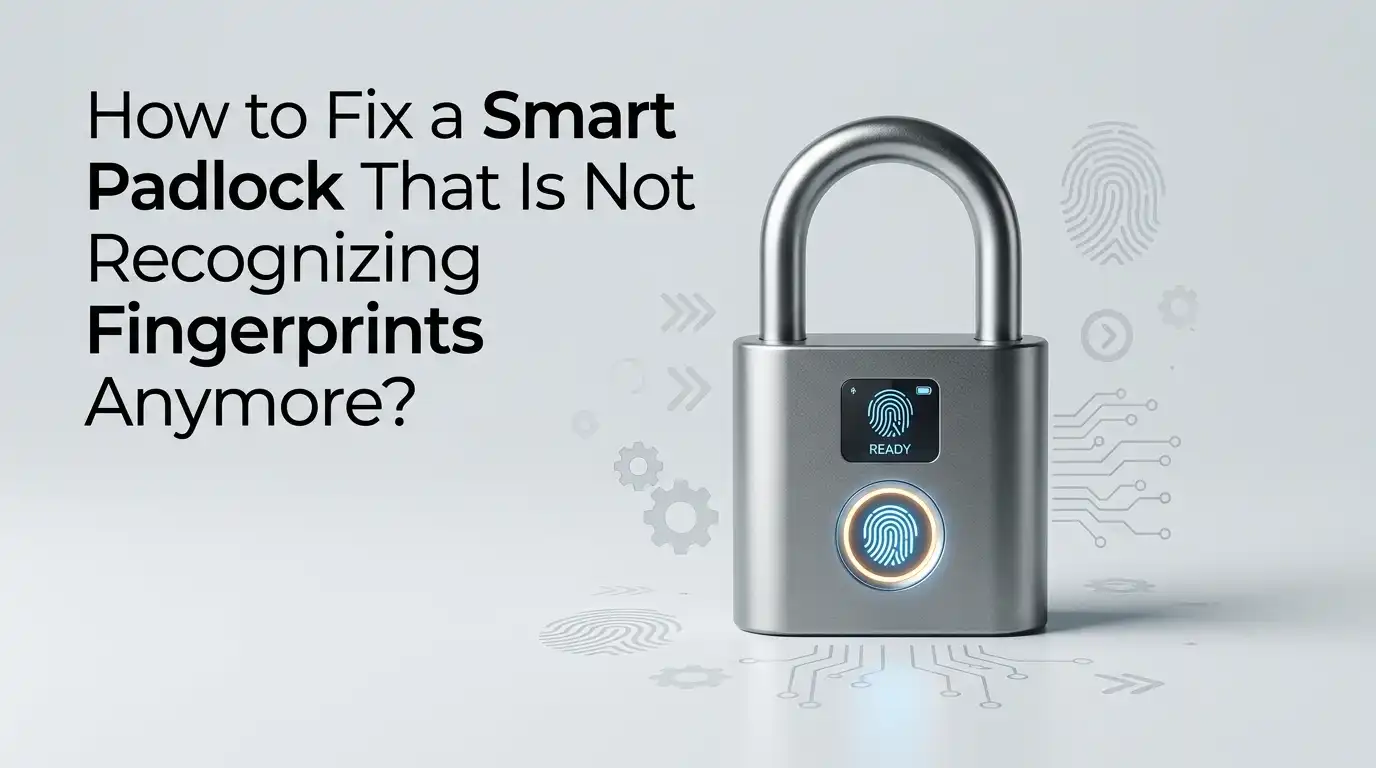
How to Fix a Smart Padlock That Is Not Recognizing Fingerprints Anymore?
Your smart padlock used to open with a single touch. Now it sits there, blinking red, refusing to read your finger no matter how many times you try.
Frustrating, right? You are not alone. Fingerprint padlocks can stop recognizing prints for many reasons, from a greasy sensor to a dying battery or even a software glitch.
This guide walks you through every practical step to bring your padlock back to life. Each section gives you clear actions, pros and cons, and tips to avoid the same problem again. Keep reading to save your padlock and your patience.
In a Nutshell
- Clean the sensor first. Most fingerprint failures come from dirt, oil, sweat, or moisture on the scanner surface. A soft microfiber cloth solves the issue in seconds.
- Check the battery health. A weak battery often makes the scanner behave oddly. Replace or recharge the battery before assuming the hardware is broken.
- Re enroll your fingerprints. Old prints stored in memory can become corrupted. Delete the saved prints and register them again for better accuracy.
- Factory reset when nothing works. A full reset clears bugs and stuck data. It restores the padlock to its original settings and gives the sensor a fresh start.
- Protect the lock from weather damage. Rain, dust, and extreme heat shorten sensor life. Use a silicone cover or shelter the lock when possible.
- Know when to replace the lock. If the sensor is cracked, burnt, or completely dead, repair may not be worth it. A new unit is sometimes the safest choice.
Understand Why Your Fingerprint Padlock Stops Working
Your smart padlock reads the tiny ridges and valleys of your finger using a small optical or capacitive sensor. When that sensor gets dirty, damaged, or confused by old data, it stops recognizing your print. Sometimes the problem is software. Sometimes it is hardware. Often it is just dirt.
Common causes include a dirty sensor, low battery, wet fingers, worn skin, scratched scanner surface, firmware bugs, or stored print corruption. Knowing the cause helps you fix the lock faster.
Before you panic or throw the lock away, run through the steps in this guide one by one. Most fixes take less than ten minutes and require no tools beyond a cloth and fresh batteries.
Clean the Fingerprint Sensor Properly
The number one reason a fingerprint padlock fails is dirt on the sensor. Skin oil, dust, sweat, food residue, and rain leave a thin film on the scanner. The lock then cannot read the ridges of your finger clearly.
Use a soft microfiber cloth lightly dampened with water or a small drop of isopropyl alcohol. Wipe the sensor in gentle circles. Avoid paper towels because they scratch the surface. Also clean your finger before testing again. Dry both the sensor and your finger fully before scanning.
Pros: This fix is free, fast, and safe. It solves around seventy percent of fingerprint issues in smart padlocks.
Cons: Cleaning will not help if the sensor is cracked or if the issue is software based. You may need to clean often if the lock sits outdoors.
Check and Replace the Battery
A weak battery is the second biggest reason smart padlocks fail to read fingerprints. Low power makes the scanner slow, dim, or completely unresponsive. The lock may even reject valid prints to save energy.
Open the battery compartment and check the charge. If your padlock uses a built in rechargeable battery, plug it in with a USB cable for at least two hours. If it uses AAA or button cells, replace them with fresh ones from a trusted brand. Avoid mixing old and new batteries.
Pros: New batteries restore full power to the scanner. The fix is cheap and quick. Most users see instant improvement after a swap.
Cons: Rechargeable batteries lose capacity over time and may need full replacement after two or three years. Some sealed padlocks make battery access difficult without tools.
Dry Your Finger and the Sensor
Moisture confuses fingerprint sensors. Wet fingers reflect light differently, and water droplets on the scanner block ridge detection. This is a frequent issue for padlocks used outdoors, in gyms, or near pools.
Wipe your finger with a dry towel before scanning. Then dry the sensor with the same towel. If the lock has been in rain, leave it in a warm dry place for a few hours. Never use a hair dryer on high heat because it can damage internal parts. A fan or low warm air is safer.
Pros: Drying is free and prevents long term damage. It also stops corrosion inside the lock.
Cons: Drying offers only a temporary fix if you keep using the lock in wet places. You may need a waterproof cover for permanent outdoor use.
Re Enroll Your Fingerprints
Stored fingerprint data can get corrupted over time. Software updates, power loss, or scanner wear may change how the lock reads your finger. The original scan no longer matches your current print, so the lock keeps rejecting you.
Open the admin menu using your master code or admin print. Delete all saved fingerprints. Then enroll each finger again from scratch. Press the same finger from different angles during enrollment, including the tip, center, and sides. This gives the lock more data points to match against.
Pros: Re enrollment fixes recognition errors that cleaning cannot solve. It also improves speed and accuracy. You can add backup fingers during the process.
Cons: You lose all saved prints, so every user must enroll again. The process takes ten to fifteen minutes for a full household.
Update the Firmware Through the App
Many modern smart padlocks connect to a phone app over Bluetooth. The app often releases firmware updates that fix scanner bugs, improve recognition, and patch security flaws. An outdated firmware can cause random failures.
Open the lock’s app on your phone. Pair the padlock if it is not already connected. Look for a settings menu with options like device info, firmware version, or check for updates. Run the update and keep the lock close to your phone until it finishes. Do not interrupt the process.
Pros: Firmware updates often bring back lost features and fix known bugs. They are free and improve long term reliability.
Cons: Not all padlocks support updates. Some cheaper models have no app at all. A failed update can sometimes brick the lock, so always keep the battery full during the process.
Perform a Factory Reset
When cleaning, battery swaps, and re enrollment fail, a factory reset is your next move. This wipes all settings, prints, and codes from the lock memory. The padlock then returns to its original state, just like when you bought it.
Find the reset button. It is usually inside the battery compartment or under a small pinhole. Press and hold it for ten to twenty seconds until you hear a beep or see a flashing light. Some locks need you to enter a master code first. Check your user manual for exact steps.
Pros: A reset clears deep software glitches that nothing else fixes. It often revives locks that seem completely dead.
Cons: You lose every saved fingerprint and code. You must set up the lock from scratch. Backup keys or admin codes are needed to enter reset mode on some models.
Inspect the Sensor for Physical Damage
If the scanner glass is cracked, scratched, or chipped, no software fix will help. Physical damage breaks the optical path between your finger and the sensor inside. Even tiny hairline cracks can stop recognition.
Look closely at the sensor under bright light. Check for cracks, burn marks, sticky residue, or loose edges. Press the sensor gently. If it wobbles or feels soft, the internal part may be loose. Avoid pressing too hard because that can worsen the damage.
Pros: Spotting damage early saves you from wasting time on other fixes. You can decide if repair or replacement is worth it.
Cons: Sensor replacement is hard for most users. Spare parts are rare for cheap padlocks. Repair costs sometimes match the price of a new lock.
Use a Backup Method to Open the Lock
While you fix the fingerprint scanner, you still need to open the lock. Most smart padlocks include backup unlock methods so you are not stuck outside. Knowing these helps you stay calm and keep using the lock during repair.
Common backups include a PIN code, a physical key slot, a Bluetooth app unlock, or an RFID card. Try each one to confirm what works. If you have lost your backup key or code, contact the manufacturer with proof of purchase. They can often help you reset the lock.
Pros: Backups stop you from being locked out. They also help during enrollment after a factory reset.
Cons: Carrying a backup key defeats some of the convenience of a smart lock. PIN codes can be forgotten if not used often.
Protect the Padlock from Weather and Dust
Outdoor use is hard on fingerprint padlocks. Rain, dust, snow, salt air, and sunlight slowly wear down the sensor and electronics. Even locks marked as waterproof can fail after long exposure.
Use a silicone cover over the sensor when the lock is not in use. Store the lock indoors when possible. Wipe it dry after rain. Keep it out of direct sunlight because heat damages batteries and screens. For gates or sheds, install a small roof or hood above the lock.
Pros: Good protection doubles or triples the life of the lock. It also keeps the sensor clean longer.
Cons: Covers cost extra and can be lost. They also add a small step to using the lock each time.
Check Finger Condition and Placement
Sometimes the problem is not the lock at all. Cuts, dry skin, calluses, wet hands, sunscreen, lotion, or food residue on your finger can block the sensor. Workers, swimmers, and chefs face this often.
Wash and dry your finger before scanning. If your skin is too dry, rub a tiny amount of moisturizer and wait a minute. Place your finger flat and centered on the sensor. Do not press too hard or too lightly. Hold for one full second.
Pros: Fixing your finger condition is free and works right away. It also reminds you to enroll multiple fingers as backups.
Cons: People with worn fingerprints from heavy manual work may never get reliable scans. They should use a PIN backup instead.
Contact the Manufacturer or Replace the Lock
If you have tried every step and the scanner still fails, it is time to contact support. Most brands offer a one or two year warranty on smart padlocks. They may repair, replace, or refund your unit.
Have your order number, model name, and a short video of the issue ready. This speeds up the support process. If your warranty has expired and repair costs too much, buying a new lock may be smarter. Choose a model with strong waterproof ratings and good reviews.
Pros: Warranty support often gets you a free fix. A new lock gives you fresh hardware and the latest features.
Cons: Support response times vary. Replacement means setting up new prints and codes from scratch. Costs add up if you replace often.
Frequently Asked Questions
Why does my smart padlock suddenly stop reading my fingerprint?
The most common reasons are a dirty sensor, low battery, wet finger, or corrupted stored print data. Clean the scanner, replace the battery, and re enroll your finger to fix most cases.
Can rain damage a fingerprint padlock?
Yes, even waterproof padlocks can fail after long rain exposure. Water seeps into seals over time and damages the sensor. Use a silicone cover and dry the lock after wet weather.
How often should I re enroll my fingerprints?
Re enroll every six to twelve months or whenever recognition starts to slow. Skin changes with age, weather, and work, so fresh scans keep the lock accurate.
Will a factory reset delete my settings forever?
Yes, a factory reset erases all fingerprints, codes, and user data. You must set up the padlock again from scratch. Always note your backup code before resetting.
Can I repair a cracked fingerprint sensor at home?
Most cracked sensors cannot be fixed at home without special tools and spare parts. Contact the manufacturer for repair, or replace the padlock if the warranty has expired.
Why does my lock work for one finger but not another?
Each finger has a unique print, and not all are enrolled equally well. Re enroll the failing finger using multiple angles during the setup process for better accuracy.
Is it safe to use alcohol to clean the sensor?
Yes, a small drop of isopropyl alcohol on a microfiber cloth is safe for most sensors. Avoid soaking the lock or using harsh chemicals like bleach or ammonia.