Why Is My Streaming Stick Overheating Behind the Television Panel?
Your streaming stick gets hot. You feel the heat on the back of your TV. The screen freezes, apps crash, or a red warning light blinks at you. This problem frustrates millions of viewers every single day. The good news is that you can fix it at home with simple steps.
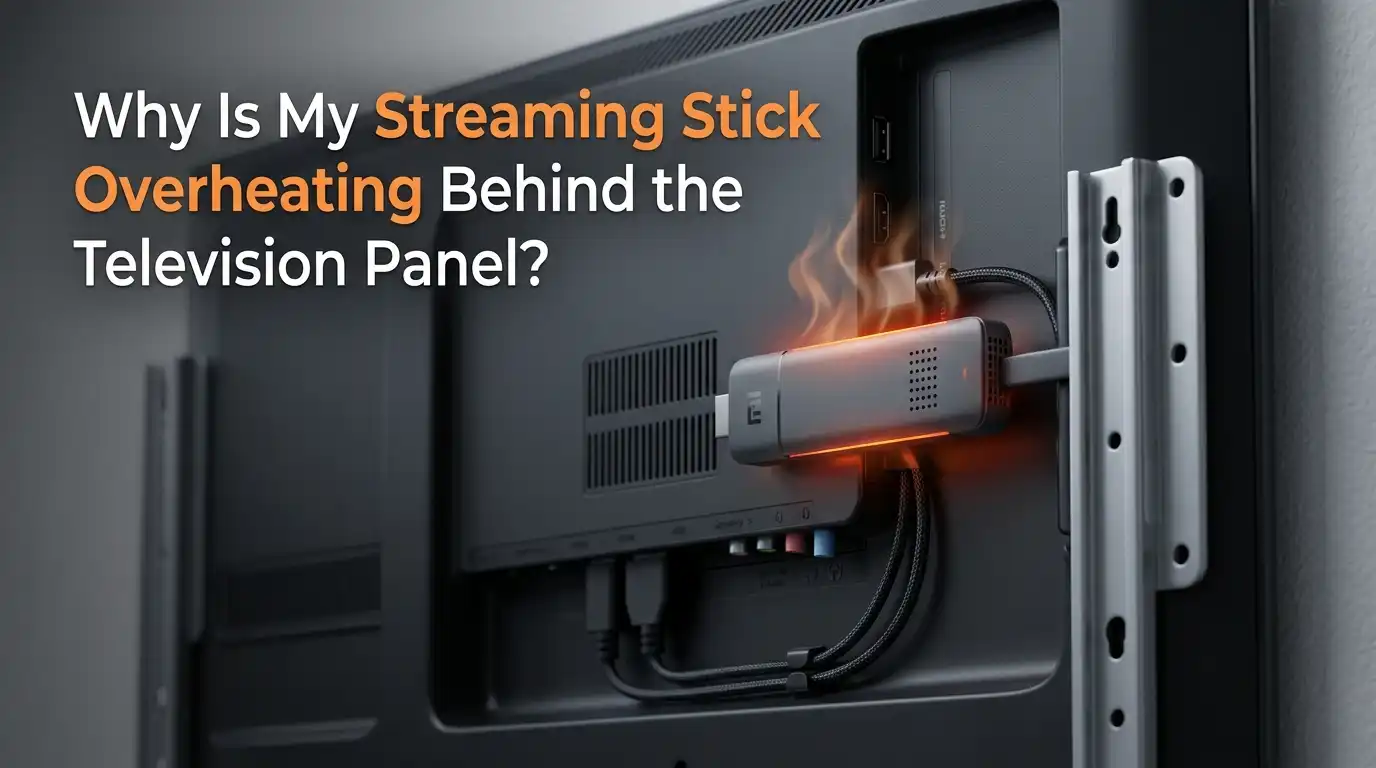
Heat builds up behind a television panel for clear reasons. The space is tight. Airflow is poor. The TV itself throws off warmth from its own electronics.
Your tiny streaming stick sits right in the middle of that hot zone. Over time, this heat damages the chip inside and shortens the life of the device.
In a Nutshell:
- Poor airflow is the top cause. When your stick plugs straight into a flat HDMI port behind the TV, hot air gets trapped against the panel. The stick cannot release heat fast enough.
- An HDMI extender cable solves most heat problems. This short cable moves the stick away from the back of the TV. Roku, Amazon, and Google all offer free or low cost extenders for this exact reason.
- The TV itself adds heat. Modern LED, QLED, and OLED panels run warm during use. Your streaming stick sits in that warm pocket and absorbs even more heat.
- Software issues make heat worse. Outdated firmware, too many background apps, and 4K streaming all push the processor harder. A hotter processor means a hotter shell.
- Power supply matters more than people think. Plugging the stick into the TV USB port often gives weak power. This forces the stick to work harder and heat up faster.
- Prevention beats repair every time. Good ventilation, regular reboots, and smart placement keep your stick cool for years. Once the chip burns out, no fix will bring it back.
What Overheating Looks Like on a Streaming Stick
Your streaming stick gives clear signals when it gets too hot. The most common sign is a red light on the device. Roku sticks flash a steady red warning. Fire TV sticks freeze or restart on their own.
You might also see a message on screen. It often reads “Your device is overheating” or “Please move to a cooler location.” Some sticks just shut down without any warning at all.
Touch the stick after use. If it feels hot enough to make you pull your hand back, it has crossed a safe limit. A warm stick is normal. A burning hot stick is not. Apps loading slowly, buffering during 4K playback, and random reboots all point to the same heat issue.
Why the Space Behind a TV Traps So Much Heat
The back of your television is one of the hottest spots in your living room. Modern flat panels push out heat through vents on the rear and top. This warm air rises and pools in the small gap between the TV and the wall.
Your streaming stick lives right inside that pocket. It plugs into an HDMI port that sits flush against the panel. Air cannot move freely around the device. The plastic shell traps heat instead of releasing it.
Wall mounted TVs make this worse. The gap between the TV and the wall can be less than two inches. Heat from the panel, heat from the stick, and zero airflow combine to create a tiny oven. Even a cool room cannot save the stick once it sits in this trap.
The Role of HDMI Extender Cables
An HDMI extender is a short cable that adds a few inches of distance between your stick and the TV port. This small change makes a huge difference. The stick now hangs free in open air instead of pressing against the hot panel.
Roku gives these extenders away for free if you contact their support team. Amazon and Google offer them in the box with newer models. You can also buy generic versions at any electronics shop.
Pros of HDMI extenders:
- Quick fix that takes thirty seconds to install
- Improves Wi-Fi signal by moving the stick away from TV metal shielding
- Costs little or nothing
- Works with every streaming stick brand
Cons of HDMI extenders:
- The stick hangs visible behind the TV, which some people dislike
- Very cheap cables can cause signal drops on 4K HDR content
- Adds one more cable to manage during setup
Checking Your Power Source First
Many overheating problems start with weak power. The streaming stick needs steady voltage to run cool. A weak power source forces the processor to work harder, which creates more heat.
Most sticks ship with a wall adapter. Use that adapter. Plug it into a wall socket, not a power strip with many other devices. The USB port on your TV often gives only half the power the stick needs. This is a common mistake.
If you must use the TV USB port, check the port label. Look for one marked 5V/1A or higher. Older TVs often supply only 500mA, which is not enough for 4K sticks.
Pros of using the wall adapter:
- Full power keeps the processor cool
- Stick boots faster and runs smoother
- Stays on even when the TV powers down
Cons of using the wall adapter:
- Needs a free wall outlet near the TV
- Adds another cable to your setup
How Room Temperature and Sunlight Affect Your Stick
Your streaming stick lives inside your room, so room conditions matter. A hot room means a hot stick. Direct sunlight on the back of the TV is one of the worst causes of overheating. Even ten minutes of afternoon sun can push the panel to dangerous levels.
Check where your TV sits. Is it near a window? Does sunlight hit the wall behind it? Move the TV or close the curtains during peak sun hours. Keep the room below 80 degrees Fahrenheit when you stream for long sessions.
Avoid placing the TV near heat sources. Fireplaces, radiators, kitchen appliances, and gaming consoles all add warmth. A console like a PS5 or Xbox sits hot and blows warm air right toward your stick. Give every device its own breathing room.
Good airflow in the room also helps. A ceiling fan or open window moves warm air away from the TV zone.
The Impact of Wall Mounting on Heat Buildup
Wall mounted TVs look clean, but they create the worst conditions for streaming sticks. The flat mount pushes the TV close to the wall. Some mounts leave less than one inch of clearance. This blocks every vent on the back of the panel.
Heat has nowhere to go. It builds up behind the screen and roasts your streaming stick. The HDMI ports on the side or bottom edge get the worst of it.
You have a few choices here. Switch to a tilting mount that lets the TV lean forward a few degrees. This opens up the top vent. Use a longer HDMI extender cable so the stick hangs below the TV in open air.
Pros of a tilting mount:
- Better airflow without losing the clean look
- Reduces glare on the screen
- Easy to install on most walls
Cons of a tilting mount:
- Costs more than a flat mount
- The TV sits slightly further from the wall
Cleaning Dust From the HDMI Port and Stick
Dust builds up inside HDMI ports over months and years. This dust blocks the small contacts and traps heat against the stick. A clean port runs cooler and gives a better connection.
Unplug the stick before you clean anything. Use a can of compressed air. Spray short bursts into the HDMI port on the TV and into the connector on the stick. Hold the can upright to avoid spraying liquid.
Wipe the outside of the stick with a dry microfiber cloth. Do not use water or cleaning sprays. Liquid can seep into the vents and damage the board inside.
Clean your setup every three to six months. Homes with pets, smokers, or open windows collect dust faster. A two minute clean can add years to the life of your stick.
Software Updates and Background Apps
Heat is not always a physical problem. Old software can make your stick work harder than it needs to. Manufacturers release updates that improve power use and cooling. Skipping these updates leaves your stick running on old code.
Check for updates in the settings menu. On Roku, go to Settings, then System, then System Update. On Fire TV, go to Settings, then My Fire TV, then About, then Check for Updates. Google TV and Chromecast follow a similar path.
Close apps you do not use. Some apps keep running in the background and eat up memory. A full memory means a hot processor. Reboot the stick once a week to clear the cache and start fresh.
Pros of regular updates:
- Fixes known overheating bugs
- Improves streaming quality
- Adds new features for free
Cons of regular updates:
- Some updates slow down older sticks
- Takes a few minutes to install
When to Lower the Streaming Resolution
4K HDR streams push your stick to its limits. The processor decodes more data, the Wi-Fi chip works harder, and the whole device heats up faster. If your stick overheats during 4K playback but stays cool on HD, the resolution is the cause.
Drop the resolution to 1080p in the settings. You will lose some sharpness, but the stick will run much cooler. Most viewers cannot see the difference on screens under 55 inches anyway.
Turn off auto frame rate matching if you do not need it. This feature switches the output to match each video, which makes the stick work harder. A steady 1080p output at 60Hz is the coolest way to stream.
Pros of lowering resolution:
- Big drop in heat output
- Smoother playback on weak Wi-Fi
- Less data use each month
Cons of lowering resolution:
- Lower picture quality on large screens
- HDR effects may disappear
Using a Small USB Fan for Heavy Streamers
Some people stream all day long. A movie marathon, a sports event, or a gaming session can run a stick hot for hours. A small USB powered fan can keep the stick cool during these long sessions.
You can find tiny fans made for streaming sticks online. They clip onto the stick or sit nearby and blow air across the shell. Plug them into a USB port on the TV or into the wall adapter.
This fix sounds extreme, but it works very well. The fan adds almost no noise and uses very little power. Heavy streamers and people in hot climates benefit the most from this trick.
Pros of a USB fan:
- Keeps temperature low even during marathon sessions
- Cheap and easy to set up
- Works alongside an HDMI extender
Cons of a USB fan:
- Adds another small device to the setup
- Uses one extra USB port
- Some models produce a faint hum
When to Replace Your Streaming Stick
Sometimes heat damage is already done. If your stick overheats even after every fix above, the chip inside may be failing. Older sticks from five or more years ago often cannot keep up with modern apps. The processor runs at full speed all the time, which means constant heat.
Watch for warning signs. Random reboots, slow menu response, apps that crash often, and a stick that feels hot even when idle all point to a dying device. Replacing the stick is cheaper than dealing with daily frustration.
Newer models use better chips that run cooler and faster. They also support newer Wi-Fi standards, which lowers heat from the wireless side. Look for a model that matches your TV resolution and your internet speed.
Pros of replacing the stick:
- Fresh hardware with better cooling
- Access to newer apps and features
- Stronger Wi-Fi performance
Cons of replacing the stick:
- Costs more than other fixes
- Needs new setup and login on every app
Frequently Asked Questions
Is it normal for a streaming stick to feel warm?
Yes, a warm stick is normal during use. The processor inside gives off heat as it decodes video. A stick should feel warm to the touch but never burning hot. If you cannot hold your finger on it, the device has crossed a safe limit and needs a cooling fix.
Can overheating permanently damage my streaming stick?
Yes, repeated overheating shortens the life of the chip inside. Each heat cycle wears down the small parts on the board. Over time, the stick will fail and stop turning on at all. Fixing the airflow early saves you from buying a new stick later.
Will an HDMI extender slow down my streaming quality?
A good quality extender will not slow anything down. Cheap cables can drop the signal on 4K HDR content. Use the free extender from the maker of your stick, or buy one rated for high speed HDMI. The short distance has no real effect on speed.
Why does my stick overheat only when I stream 4K?
4K content pushes the processor to its highest level. More data means more heat. The stick was built to handle 4K, but only with good airflow. Add an extender, clean the port, and use the wall adapter to give the stick the best chance of staying cool during 4K playback.
How often should I reboot my streaming stick?
Reboot your stick once a week for best results. This clears the memory and resets background apps. A weekly reboot keeps the processor from working too hard. You can unplug the power for thirty seconds and plug it back in, or use the restart option in the settings menu.
Can I leave my streaming stick plugged in all the time?
Yes, you can leave it plugged in. Most sticks enter a low power sleep mode when not in use. They wake up faster than they would from a full power off state. Just make sure the area behind the TV has good airflow so the stick stays cool even at idle.