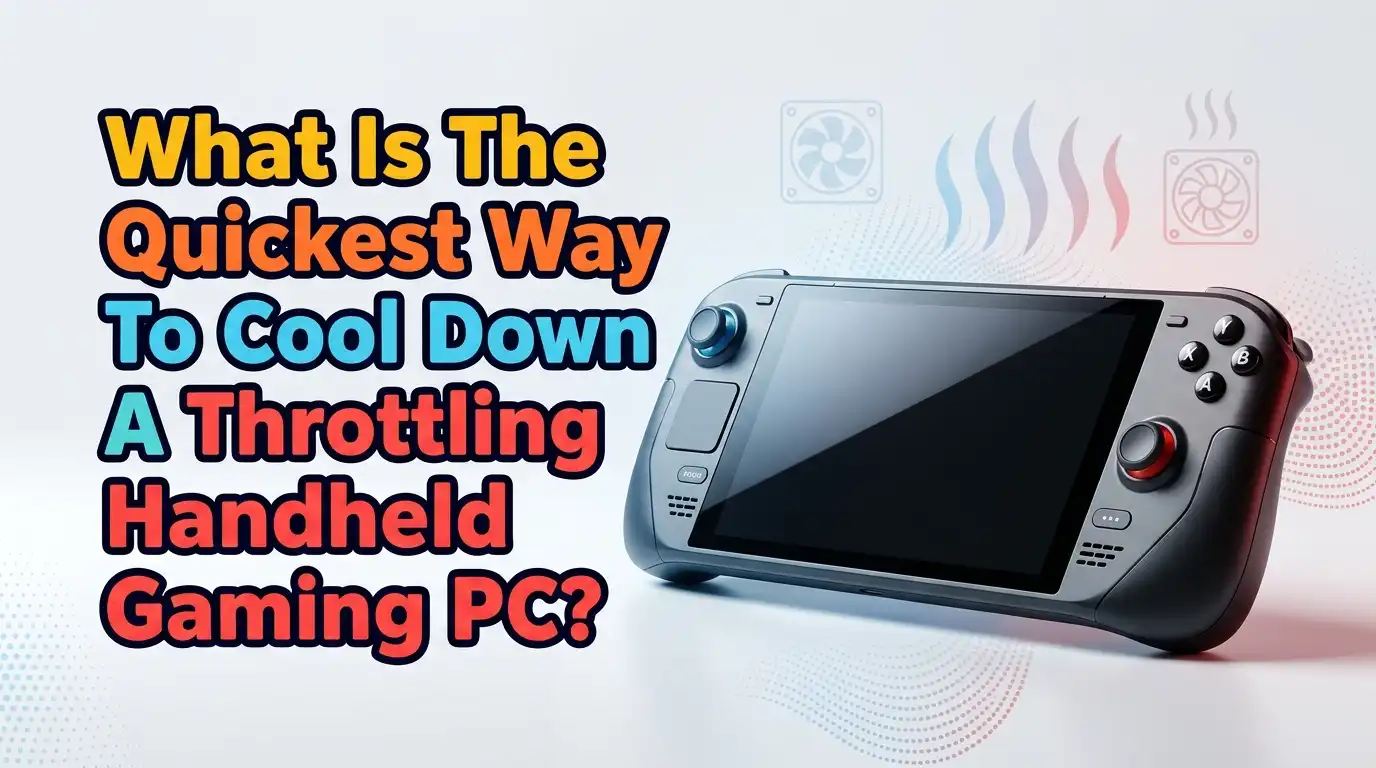
What Is The Quickest Way To Cool Down A Throttling Handheld Gaming PC?
Your handheld gaming PC just stuttered mid boss fight. The frame rate dropped. The back of the device feels like a hot pancake. Sound familiar? Thermal throttling is the silent killer of smooth gameplay, and it hits handheld PCs harder than any other gaming device because of their tiny chassis and packed internals.
The good news is you do not need to send your device to a repair shop. You can cool it down in minutes using a handful of simple tricks. Some methods take seconds. Others take a few minutes of tinkering. All of them work.
This guide walks you through the fastest fixes first, then dives into longer term solutions. By the end, you will know exactly how to bring your Steam Deck, ROG Ally, Legion Go, or any other handheld back from the edge of meltdown. Let us get into it.
In a Nutshell:
- Lower your TDP first. Dropping the wattage from 25W to 15W cuts heat output dramatically and only costs you a few frames in most games. This is the single fastest software fix available.
- Clear the vents in seconds. Dust and finger placement block 40 percent or more of airflow. A quick puff of compressed air or shifting your grip can drop temps by 5 to 8 degrees Celsius almost instantly.
- Switch to performance mode for the fan, not the chip. Manual fan curves push more air through the heatsink without raising power draw. Most handhelds let you do this through their built in software.
- Cap your frame rate. Locking games to 40 or 30 FPS reduces GPU load, which lowers heat. Your battery will thank you too.
- Cool the room, not just the device. Ambient temperature matters a lot. Playing in a 30 degree room means your handheld starts hot and stays hot. A fan blowing across your lap works wonders.
- Undervolt for the long term. Shaving 15 to 30 millivolts off your CPU keeps performance high while slashing heat output. It takes ten minutes to set up and pays off forever.
Why Handheld Gaming PCs Throttle So Easily
Handheld gaming PCs cram desktop class chips into a space smaller than a paperback book. The AMD Z1 Extreme, Ryzen Z2, and similar APUs pull between 15 and 30 watts. That is a lot of heat for such a small device.
When the internal temperature crosses around 95 degrees Celsius, the chip automatically lowers its clock speed to protect itself. This is called thermal throttling. You feel it as stutter, frame drops, and sluggish menus.
The cooling system inside most handhelds uses one tiny fan, a small heatsink, and a heat pipe. It works fine for short sessions. Long sessions in warm rooms push it past its limit. Knowing why it happens makes the fix obvious: you either reduce the heat being made, or you help the cooling system move it away faster.
Step 1: Lower Your TDP Immediately
The fastest way to cool down a throttling handheld is to drop the Thermal Design Power setting. TDP controls how many watts your chip is allowed to use. Less power means less heat.
On the Steam Deck, swipe in the Quick Access menu and lower the TDP slider to 10 or 12 watts. On the ROG Ally, press the Command Center button and pick Silent mode. On the Legion Go, use Legion Space to drop to a lower performance profile.
You will lose some frames, but only the ones above your screen refresh rate anyway. Most games still feel smooth.
Pros: Works in under five seconds. No risk. Reverses instantly.
Cons: Demanding AAA titles may drop below playable frame rates.
This single change can pull your temperature down by 10 to 15 degrees in under a minute. Try it before anything else.
Step 2: Cap Your Frame Rate to Reduce GPU Load
Your GPU pumps out heat in direct proportion to how hard it works. If a game runs at 90 FPS but your screen only shows 60, you are making heat for nothing.
Open your handheld’s frame rate limiter. Set it to match your screen refresh rate, or go lower. Capping at 40 FPS is a sweet spot for most modern games. It feels smooth, looks great, and keeps your APU breathing easy.
For older or less demanding games, push the cap down to 30 FPS. You will be shocked at how cool the device stays.
Pros: Massive temperature drop. Better battery life as a bonus.
Cons: Fast paced shooters feel less responsive at lower caps.
Combine this with TDP reduction and you have the two most powerful cooling tools on any handheld, both available without installing anything extra.
Step 3: Set a Manual Fan Curve
Most handhelds run quiet fan profiles by default to reduce noise. That is great for libraries, terrible for cooling. Switching to a custom fan curve forces the fan to spin faster at lower temperatures.
On the ROG Ally, open Armoury Crate, head to the fan settings, and pull the curve upward. Aim for 80 percent fan speed at 70 degrees Celsius instead of the default 50 percent. On the Steam Deck, tools like Decky Loader plus the FanControl plugin let you do the same.
The fan gets louder. That is the trade off. But your chip stays well below the throttle ceiling.
Pros: Pulls hot air out faster. No performance loss at all.
Cons: Higher fan noise. Slightly more battery drain from the fan motor.
A more aggressive fan curve is the simplest hardware level fix you can make. It uses parts your device already has.
Step 4: Clear the Vents and Check Your Grip
This sounds basic, but it works shockingly well. Block the vents and even the best cooling system fails. Many handhelds have intake or exhaust grills in places where your hands naturally rest.
Look at your device. Find the vent slots. Now check where your palms and fingers sit while gaming. If they cover the openings, adjust your grip or use a stand.
Next, grab a can of compressed air. Hold the fan steady with a toothpick so it does not spin freely, and blow short bursts through the vents. Dust buildup is the silent killer of cooling performance.
Pros: Free. Takes thirty seconds. Drops temps right away.
Cons: Compressed air must be used carefully to avoid damaging the fan bearings.
Doing this once a month keeps airflow at peak efficiency.
Step 5: Use a Cooling Stand or External Fan
External cooling helps a lot when you are docked or playing tabletop. A small USB powered fan blowing across the back of the device can drop surface temperatures by 5 to 10 degrees Celsius.
You do not need a fancy product. A cheap desk fan pointed at your handheld works just as well as a dedicated cooling stand. The key is moving ambient air across the chassis so heat radiates away faster.
If you play handheld in a hot room, this trick alone can keep you out of the throttle zone for entire gaming sessions.
Pros: Strong cooling boost. Useful for long sessions. Cheap to set up.
Cons: Less practical when playing on the go. Adds another device to charge or plug in.
Tabletop play with an external fan is the closest thing to a desktop cooling experience you can get from a handheld.
Step 6: Undervolt Your CPU and GPU
Undervolting reduces the voltage going to your chip without lowering the clock speed. The chip does the same work using less electricity, which means less heat for the same performance.
On AMD based handhelds, you can undervolt through the BIOS or through tools like Universal x86 Tuning Utility. Start with a small offset, around minus 15 millivolts, and test stability with a benchmark.
If the system stays stable, push to minus 25 or minus 30 millivolts. Many users see temperature drops of 8 to 12 degrees Celsius with no performance loss.
Pros: Free permanent improvement. Better battery life. Quieter fan.
Cons: Requires testing for stability. A bad undervolt can crash games.
This is the single best long term fix on this list. Once tuned, it works in the background forever.
Step 7: Repaste with High Quality Thermal Compound
Factory thermal paste on handhelds is often mediocre. After a year or two, it dries out and loses effectiveness. Replacing it with a quality compound like PTM7950 or a top tier paste can transform thermals.
This requires opening your device, so it voids most warranties. Watch a teardown video specific to your model first. You will need a precision screwdriver set, isopropyl alcohol, and patience.
Apply a thin even layer to the APU die, reassemble carefully, and you can see temperature drops of 10 to 20 degrees Celsius under load.
Pros: Massive cooling improvement. Works with all other fixes.
Cons: Voids warranty. Risk of damaging the device. Takes 30 to 60 minutes.
Repasting is the most rewarding DIY upgrade you can do on a handheld, but only attempt it if you are comfortable with small electronics work.
Step 8: Play in a Cooler Environment
Ambient temperature has a direct effect on internal temperature. A handheld pulling air from a 30 degree Celsius room can never cool below that baseline. The room is the heatsink for the heatsink.
Move to an air conditioned room. Open a window. Sit near a ceiling fan. Even small changes in ambient temperature translate to lower internal temps.
Avoid playing in direct sunlight, on warm bedding, or under thick blankets. These trap heat against the device and choke airflow.
Pros: Costs nothing. Helps every other cooling method work better.
Cons: Not always possible when traveling or in summer heat.
If your room sits above 28 degrees Celsius, expect throttling no matter what other tricks you use. Cool the air first, then cool the device.
Step 9: Update BIOS and Firmware
Manufacturers regularly release BIOS and firmware updates that improve thermal behavior. The Lenovo Legion Go, for example, received multiple updates that changed its thermal policy and reduced overheating significantly.
Check your device manufacturer’s support page once a month. Install official updates only. Read patch notes for mentions of thermal, cooling, or fan improvements.
Sometimes a single firmware update fixes throttling that no amount of tweaking could solve. It is the easiest win you might be missing.
Pros: Free. Officially supported. Often improves stability too.
Cons: Updates occasionally introduce new bugs. Always read user feedback first.
Keeping your firmware current is basic maintenance every handheld owner should do, and it costs nothing but a few minutes of download time.
Step 10: Reduce In Game Graphics Settings
Cranking every setting to ultra makes your GPU work overtime. Lowering a few key settings reduces heat with almost no visual impact.
The biggest heat producers are shadow quality, ray tracing, volumetric effects, and anti aliasing. Drop these to medium or low. Resolution is another big one. Running at 900p instead of 1080p can drop GPU load by 20 percent or more.
Use FSR or other upscaling features. They render the game at a lower internal resolution and upscale, which cuts heat dramatically while still looking sharp.
Pros: Free. Gives you direct control per game.
Cons: Visual quality takes a small hit.
This approach lets you keep high TDP and still avoid throttling. Smart graphics tuning is the gamer’s secret weapon against thermal limits.
Step 11: Add a Rear Heatsink or Cooling Mod
Some users attach passive heatsinks or even active fan mods to the back of their handhelds. These products stick on with thermal pads and pull heat away from the chassis.
A passive copper heatsink can drop back panel temperatures by 3 to 6 degrees Celsius. Active mods with their own fan can do even more, sometimes 8 to 10 degrees.
Watch installation guides specific to your device. Make sure the heatsink does not block the existing vents.
Pros: Noticeable improvement. Easy to install. Reversible.
Cons: Adds bulk and weight. Some mods need their own power source.
Passive cooling mods are a great middle ground between doing nothing and opening your device for a repaste.
Step 12: Limit Background Processes and Bloatware
Windows handhelds suffer from bloat. Background apps eat CPU cycles, and every cycle generates heat. Closing them frees up thermal headroom.
Open Task Manager. Sort by CPU usage. End anything you do not need while gaming. Disable startup programs you never use. Turn off Xbox Game Bar overlay if you are not using it.
Switch your handheld to a clean gaming mode if it has one. The Steam Deck’s gaming mode is excellent for this. ROG Ally and Legion Go users can use their built in launchers to skip the Windows desktop entirely.
Pros: Free. Improves battery life. Reduces CPU load.
Cons: Takes a few minutes to set up properly.
A lean system runs cooler and faster, full stop. Treat your handheld like a console, not a desktop.
Frequently Asked Questions
How hot is too hot for a handheld gaming PC?
Anything above 95 degrees Celsius on the CPU or GPU triggers throttling. Aim to keep temps below 85 degrees Celsius during gaming for the best long term performance and battery health. External chassis temperatures above 50 degrees feel uncomfortable to hold.
Does putting my handheld in front of an air conditioner damage it?
Direct cold airflow is fine. The risk is condensation if you move the device from a very cold spot to a warm humid room quickly. Water droplets can form inside. Keep the air conditioner’s air flowing across the device, not blasting frozen air directly onto cold metal.
Can I use a vacuum cleaner to clean the vents?
No. Vacuums create static electricity that can damage internal components. Use compressed air instead, and always hold the fan blades still while spraying so they do not over spin and break their bearings.
Will undervolting damage my handheld?
A safe undervolt does no harm. Going too aggressive only causes crashes, not damage. Start with small offsets, test stability, and back off if you see instability. The chip itself is protected by built in safeguards.
Why does my handheld throttle even at low TDP settings?
Usually this points to blocked vents, dried thermal paste, or a failing fan. Check airflow first, then consider a repaste. Firmware bugs can also cause this, so update your BIOS before assuming a hardware fault.
Are cooling pads worth it for handheld PCs?
Yes, especially during tabletop play or docked sessions. They drop temps by 5 to 10 degrees Celsius in most cases. For true handheld use, a small clip on fan or external desk fan works just as well.
How often should I clean my handheld’s vents?
Once a month for heavy users, once every three months for casual play. Dust buildup is gradual but devastating. A quick burst of compressed air keeps your cooling system at full strength.