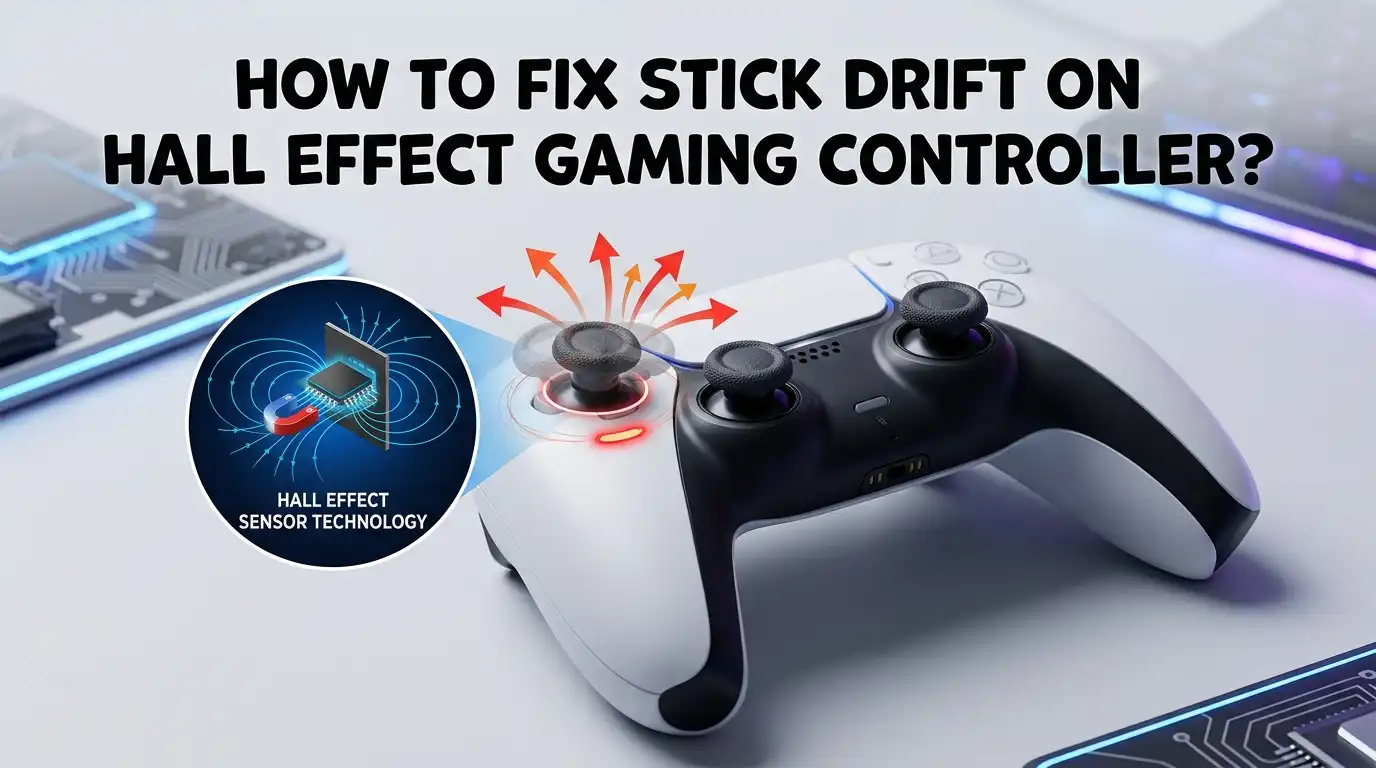
How To Fix Stick Drift On Hall Effect Gaming Controller?
You bought a hall effect gaming controller to escape stick drift forever. But now your character moves on its own, your aim pulls sideways, and frustration is setting in. The good news?
Hall effect controllers rarely suffer from the same type of drift that kills standard potentiometer controllers. The bad news?
They can still develop minor drift from calibration errors, firmware bugs, magnet misalignment, or worn centering springs. The even better news? Most of these problems have simple fixes you can do at home in minutes.
Key Takeaways
- Hall effect stick drift is usually a calibration or software problem, not a hardware failure. Unlike standard potentiometer controllers where physical wear grinds down carbon tracks, hall effect sensors detect movement through magnetic fields with no physical contact. This means the fix is often much simpler than you might expect.
- Recalibration solves most hall effect drift issues. Many hall effect controllers have a built in recalibration function. A quick reset of the center position brings the joystick back to accurate readings. This single step resolves drift for the majority of users.
- Dead zone adjustments offer an instant workaround. Setting a dead zone of 2% to 5% in your game or controller settings ignores tiny input errors around the stick’s resting position. This is the fastest fix available and works while you troubleshoot deeper causes.
- Firmware updates can fix drift caused by software bugs. Controller manufacturers release firmware patches that improve sensor accuracy and calibration algorithms. Always check for the latest firmware before opening your controller or changing hardware.
- Magnet misalignment and spring wear are the main hardware causes. If your hall effect stick drifts after a drop or months of heavy use, the magnet inside the joystick may have shifted. Worn centering springs can also prevent the stick from returning to true center, which the sensor then reads as input.
- A full stick module replacement is the last resort and is rarely needed. Hall effect joystick modules are built to last over a million cycles. Hardware replacement should only happen after all other fixes have failed.
What Causes Stick Drift On Hall Effect Controllers
Hall effect joysticks work by using a magnet and a magnetic sensor to detect stick position. No parts physically touch during movement. This removes the friction wear that destroys standard potentiometer joysticks. However, drift can still appear from other sources.
The most common cause is calibration offset. The controller stores a reference point for the joystick center position. If this reference shifts due to a power glitch, firmware error, or even temperature changes, the controller reads a false input when the stick sits at rest.
Worn centering springs represent another source of drift. The spring mechanism that snaps the stick back to center has nothing to do with the hall effect sensor itself. Over time, springs lose tension and the stick rests slightly off center. The sensor accurately reads this off center position and reports it as movement. This is technically not sensor drift but mechanical wear in the stick housing.
Physical impact or drops can shift the magnet inside the joystick assembly. Even a small change in the magnet’s resting position throws off sensor readings. Metallic dust near the sensor can also interfere with magnetic field detection in rare cases.
How To Recalibrate Your Hall Effect Controller
Recalibration is the single most effective fix for hall effect stick drift. This process resets the center reference point so the sensor knows where “zero input” actually is. Most hall effect controllers include a calibration function.
For controllers with built in calibration: Check your controller’s manual for the specific button combination. Many controllers use a sequence like holding a specific button while connecting the USB cable. Some brands include a calibration option inside a companion app on PC or phone.
For PC users: Open “Set up USB game controllers” in Windows. Select your controller and click Properties. Go to the Settings tab and choose Calibrate. Follow the on screen steps to set center position and full range of motion. Move both sticks slowly in complete circles during calibration to set accurate boundaries.
For console users with companion apps: Connect your controller via USB. Open the manufacturer’s app and look for the calibration or stick settings menu. Follow the prompts to recenter and set the range of motion. Save your changes.
Pros: Free, fast, solves most drift cases, does not void warranty.
Cons: May need to repeat after firmware updates, some controllers lack a built in calibration option.
How To Adjust Dead Zones To Mask Minor Drift
Dead zone adjustment is the quickest workaround for minor stick drift. A dead zone is a small area around the center of the joystick where input is ignored. Setting a dead zone of 2% to 5% filters out tiny unwanted signals that cause drift.
In game settings: Most modern games include dead zone sliders in their controller settings menu. Look under Controller, Input, or Accessibility sections. Start at 3% and increase by 1% at a time until drift disappears. Keep the dead zone as low as possible to preserve stick sensitivity.
In controller companion apps: Some hall effect controllers let you set dead zones at the hardware level through their PC or mobile apps. This applies the dead zone across all games without needing to change each game’s settings individually.
In Steam: Open Steam, go to Settings, then Controller. Select your controller and adjust the dead zone under the Joystick settings. Steam’s input system applies these settings to every game you launch through its library.
Pros: Instant fix, no hardware changes, works across platforms.
Cons: Reduces stick sensitivity near center, can affect precision aiming, does not fix the root cause.
How To Update Controller Firmware
Firmware updates often contain calibration improvements and bug fixes that address stick drift directly. Controller manufacturers refine their sensor algorithms over time, and a firmware update can eliminate drift that appeared after a previous software change.
Step 1: Visit the manufacturer’s website and download the latest companion app or firmware tool for your controller model. Common apps include GameSir, GuliKit, and 8BitDo updater tools.
Step 2: Connect your controller to a PC or phone using a USB cable. Wireless updates are available on some controllers but USB is more reliable for firmware flashing.
Step 3: Open the companion app. It should detect your controller and show the current firmware version. Compare this version to the latest available version on the manufacturer’s website.
Step 4: Click update and wait for the process to finish. Do not disconnect the controller during the update. A failed firmware flash can brick the controller.
Pros: Fixes software caused drift, improves overall performance, free.
Cons: Requires a PC or compatible device, small risk of bricking if interrupted, not all manufacturers release frequent updates.
How To Clean Around The Hall Effect Joystick
While hall effect sensors do not suffer from the same debris problems as potentiometers, dust and particles can still affect performance. Metallic dust in particular can interfere with magnetic field readings. Cleaning the area around the joystick is a simple maintenance step.
Step 1: Power off the controller completely. Remove batteries if possible.
Step 2: Use a can of compressed air to blow around the base of the thumbstick. Rotate the stick in all directions while spraying to reach debris trapped underneath.
Step 3: Dip a cotton swab in 90% or higher isopropyl alcohol. Gently clean around the stick base. The alcohol evaporates quickly and leaves no residue.
Step 4: Let the controller dry completely for at least 10 minutes before powering it back on. Never use water or household cleaners as these can damage electronic components.
Pros: Simple, cheap, requires no disassembly, good preventive maintenance.
Cons: Does not fix calibration or spring issues, limited effectiveness for internal debris.
How To Fix Magnet Misalignment Inside The Joystick
If your controller was dropped or took a hard impact, the magnet inside the hall effect joystick may have shifted. This changes the magnetic field pattern the sensor reads and causes drift. Fixing this requires opening the controller.
Step 1: Remove all screws from the back shell of the controller. Use the correct screwdriver (usually Phillips or Torx) to avoid stripping the screws.
Step 2: Carefully separate the front and back shells. Disconnect the ribbon cables and battery connector gently.
Step 3: Locate the joystick module. The magnet sits on the stick shaft, usually visible as a small disc or ring near the top of the module. Check if the magnet has shifted or rotated from its original position.
Step 4: Reposition the magnet so it sits centered and level above the hall effect sensor. Some joystick modules have a small clip or notch that holds the magnet in place. Make sure the magnet snaps back into this position securely.
Step 5: Reassemble the controller, reconnect all cables, and test the joystick using an online gamepad tester before fully closing the shell.
Pros: Fixes impact caused drift permanently, restores original accuracy.
Cons: Voids warranty on most controllers, requires opening the controller, risk of damage during disassembly.
How To Test Your Controller For Stick Drift
Before and after any fix, you need a reliable way to measure whether drift exists and how severe it is. Online gamepad testing tools give you real time visual feedback on your joystick’s resting position and movement accuracy.
Visit a gamepad testing website like Gamepad Tester in your browser. Connect your controller via USB or Bluetooth. The site will show two circles representing your left and right joysticks. A perfectly centered stick will show the dot sitting exactly at the crosshair center.
Watch the dot for 30 seconds without touching the controller. Any consistent movement away from center indicates drift. Note which direction the drift occurs and how far the dot moves. A drift of less than 2% is normal for most controllers and can be masked with a dead zone setting. A drift above 5% suggests a calibration or hardware issue that needs direct attention.
Repeat this test after each fix to confirm whether your solution worked. Testing on multiple games also helps because some games apply their own dead zones that may hide underlying drift.
How To Replace The Centering Spring
The centering spring is a small metal component inside the joystick module that pulls the stick back to center after you release it. If this spring wears out or loses tension, the stick rests slightly off center. The hall effect sensor then reads this offset as input.
Step 1: Open the controller and locate the joystick module using the disassembly steps described earlier.
Step 2: Remove the thumbstick cap and access the spring mechanism inside the module. The spring is usually a small flat piece of metal that sits under the stick shaft.
Step 3: Compare the old spring to a replacement spring. If the old spring looks bent, stretched, or flattened, it needs replacement. Replacement springs are available from controller repair suppliers.
Step 4: Install the new spring, making sure it sits flat and centered. Reassemble the module and test the stick’s return to center before closing the controller.
Pros: Fixes mechanical drift at the source, restores proper centering behavior.
Cons: Requires full disassembly, replacement springs can be hard to find for some models, voids warranty.
How To Use Software Calibration Tools
Several free software tools allow you to recalibrate and test your hall effect joystick without opening the controller. These tools communicate directly with the controller’s firmware to reset center position and adjust sensor sensitivity.
Windows USB Game Controller Calibration: Access this through the Windows Control Panel. It lets you set a new center point and test the full range of motion for each axis. This calibration applies at the operating system level and affects all games.
Manufacturer companion apps from brands like GuliKit, GameSir, and 8BitDo offer more advanced calibration options. These apps let you adjust sensitivity curves, set hardware level dead zones, and run diagnostic tests on each stick.
Steam Input: Steam’s controller configuration tool provides per game calibration. You can set dead zones, adjust sensitivity, and even remap stick inputs to compensate for drift. This works with nearly every controller Steam recognizes.
Pros: No hardware changes needed, free tools available, adjustable settings for different games.
Cons: Software calibration may reset after updates, some tools only work on PC, does not fix physical hardware problems.
When To Replace The Entire Hall Effect Stick Module
If recalibration, dead zone adjustments, firmware updates, and cleaning all fail, the joystick module itself may need replacement. This is rare with hall effect sticks because the sensor has no wear parts. But a damaged sensor, cracked circuit board, or permanently shifted magnet can make replacement necessary.
Step 1: Order a compatible hall effect joystick module for your specific controller model. Make sure the module matches the pin layout and dimensions of your current unit.
Step 2: Open the controller and desolder the old module from the circuit board. Use a quality soldering iron and desoldering wick or pump to remove solder cleanly without damaging the board pads.
Step 3: Position the new module and solder each pin carefully. Check for cold solder joints or bridges between pins. A single bad connection can cause drift or complete stick failure.
Step 4: Reassemble the controller and run a full calibration on the new module before testing in games.
Pros: Completely resolves hardware failure, new module lasts for years.
Cons: Requires soldering skills, risk of board damage, voids warranty, module cost varies by brand.
How To Prevent Stick Drift On Hall Effect Controllers
Prevention is easier than repair. A few simple habits keep your hall effect controller working at peak accuracy for years.
Store your controller properly. Never leave it face down with pressure on the thumbsticks. Use a stand, case, or shelf where the sticks hang freely. Constant pressure on the stick can weaken the centering spring over time.
Keep your controller clean. Wipe your hands before gaming sessions. Use compressed air monthly to blow debris away from the stick base. This takes 30 seconds and prevents particle buildup that could interfere with the magnetic sensor.
Avoid drops and impacts. The magnet alignment inside a hall effect joystick is precise. A hard drop can shift the magnet just enough to introduce drift. Treat your controller with care, especially during intense gaming moments.
Run periodic calibration checks. Every few months, connect your controller to a gamepad testing website and verify the sticks return to true center. If you notice minor offset developing, recalibrate before it becomes noticeable during gameplay.
Hall Effect Drift vs Potentiometer Drift: Understanding The Difference
Many gamers assume all stick drift is the same. It is not. Potentiometer drift and hall effect drift have completely different causes and require different solutions.
Potentiometer joysticks use a metal wiper that physically scrapes across a carbon resistive track. Every stick movement wears down this track. After hundreds of hours, the worn track sends incorrect voltage readings to the controller. This is permanent physical damage. The only real fix is replacing the entire potentiometer module.
Hall effect joysticks detect position through magnetic fields. Nothing touches during operation. Drift in hall effect controllers almost always comes from calibration errors, firmware bugs, or mechanical issues with the centering spring rather than sensor failure. These problems are fixable without replacing the sensor.
Potentiometer drift pros: Cheap modules to replace, widely available parts.
Potentiometer drift cons: Guaranteed to happen eventually, permanent damage, frequent replacement needed.
Hall effect drift pros: Usually software fixable, sensor lasts indefinitely, rare occurrence.
Hall effect drift cons: Hardware fixes require soldering, replacement modules can be harder to source for some brands.
Common Mistakes To Avoid When Fixing Hall Effect Drift
People often make the problem worse by skipping basic steps or applying fixes meant for potentiometer controllers.
Do not apply contact cleaner spray directly into the joystick module. This fix works for potentiometer sticks because it cleans the resistive track. Hall effect sensors do not have a resistive track. Excess liquid can damage the circuit board or sensor.
Do not over tighten screws during reassembly. Stripped screw holes and cracked shells are common results of using too much force. Tighten screws until snug and stop.
Do not skip the calibration step after reassembly. Any time you open a controller and disturb the joystick module, the sensor may need recalibration. Test and calibrate before closing the shell completely.
Do not ignore firmware updates. Many users troubleshoot hardware for hours when a simple firmware update would have fixed the problem in minutes. Always check for updates first.
Do not force the magnet back into position. If the magnet inside the joystick has shifted, gently reposition it. Forcing it can crack the sensor or break the magnet.
Frequently Asked Questions
Can hall effect controllers get stick drift?
Yes, but it is much less common than potentiometer drift. Hall effect sensors do not wear down from use because there is no physical contact between the sensing components. Drift on hall effect controllers usually comes from calibration errors, firmware bugs, or worn centering springs rather than sensor failure. A 2% to 3% dead zone setting eliminates minor offset in most cases.
How do I recalibrate my hall effect controller?
Most hall effect controllers include a recalibration function accessible through a button combination or a companion app on PC or mobile. You can also calibrate through the Windows game controller settings by selecting your device and running the calibration wizard. During calibration, move both sticks slowly in full circles to set accurate range boundaries.
Is hall effect really better than potentiometer for stick drift?
Hall effect technology eliminates the primary cause of stick drift, which is friction wear on resistive carbon tracks inside potentiometer modules. Lab tests show hall effect sensors maintain accuracy for over a million cycles while potentiometer sticks can start drifting after a few hundred hours of heavy use. For long term reliability, hall effect is the clear winner.
Why does my new hall effect controller already have slight drift?
No joystick has a mathematically perfect center position. A tiny offset of 1% to 2% is normal for any controller, including hall effect models. This small offset does not worsen over time like potentiometer drift. Setting a minimal dead zone of 2% to 3% hides this offset completely without affecting gameplay responsiveness.
Do I need soldering skills to fix hall effect stick drift?
For most cases, no. Recalibration, dead zone adjustments, firmware updates, and cleaning fix the majority of hall effect drift issues without opening the controller. Soldering is only needed if the joystick module itself is damaged or if you are replacing the entire stick assembly, which is rare with hall effect controllers.
Can a firmware update fix stick drift on my controller?
Yes, firmware updates frequently include improved calibration algorithms and sensor tuning that can resolve drift. Always check the manufacturer’s website or companion app for the latest firmware version before attempting hardware fixes. This is one of the simplest and most overlooked solutions for hall effect stick drift.