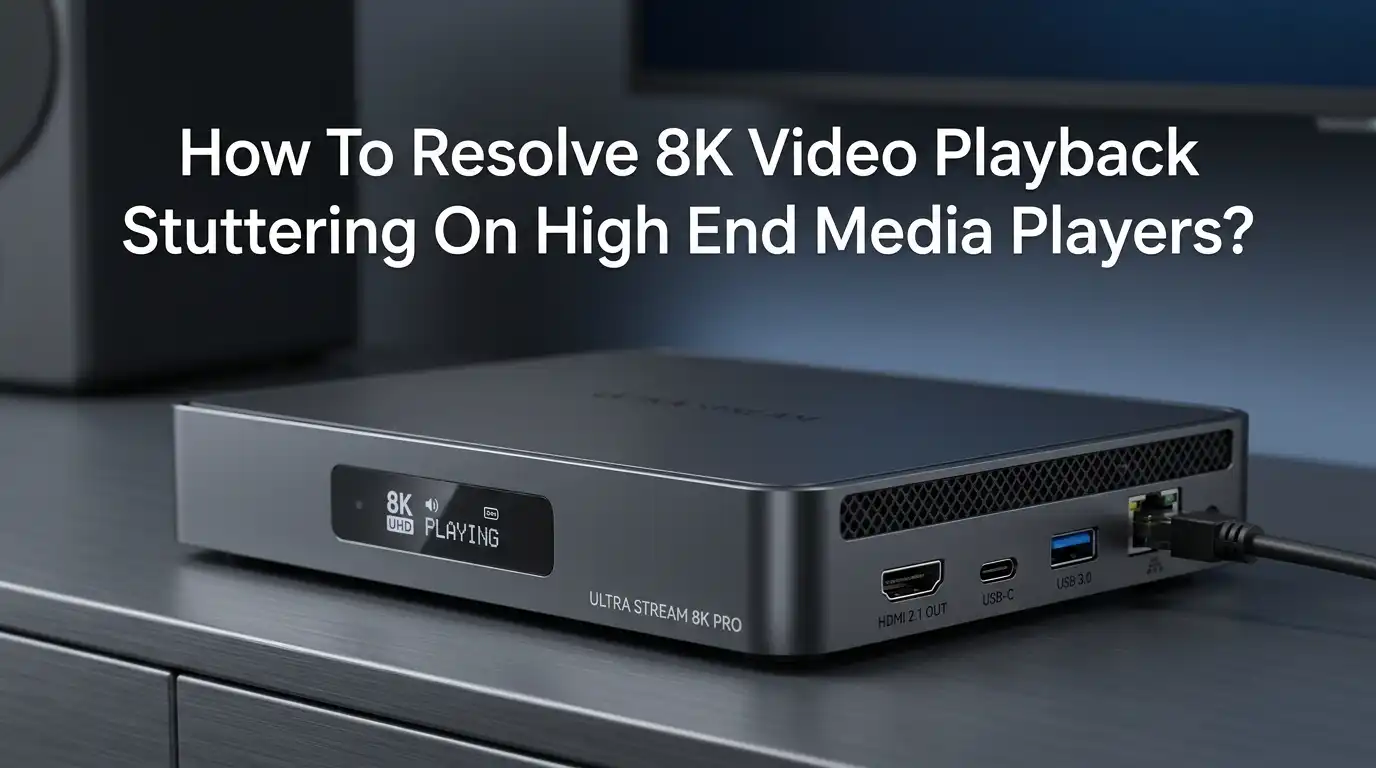
How To Resolve 8K Video Playback Stuttering On High End Media Players?
You just downloaded a stunning 8K video. You hit play. And instead of crisp, smooth visuals, you get choppy frames, audio sync issues, and frustrating lag. Sound familiar? You are not alone.
8K video files are massive. They pack four times the pixels of 4K and sixteen times the detail of 1080p.
That kind of data needs serious processing power, the right codecs, proper storage speed, and a well configured media player. Miss even one piece of this puzzle, and stuttering is almost guaranteed.
Key Takeaways
- 8K video stuttering usually comes from hardware, software, or storage bottlenecks. Your system may have the raw power, but if the media player cannot access the GPU or the right codec is missing, playback will choke. Always check all three areas before assuming you need a hardware upgrade.
- Hardware acceleration is the single most important setting for smooth 8K playback. Without it, your CPU tries to decode billions of pixels per second on its own. Enable GPU based decoding in your media player settings to offload that work to your graphics card, which is built for this exact task.
- The codec your 8K file uses matters a lot. HEVC (H.265) and AV1 are the two most common codecs for 8K content. Each requires specific hardware decoder support from your GPU. An NVIDIA RTX 3080 or newer, AMD RX 7900 XT, or Intel Arc A770 can handle AV1 8K at 60fps through hardware decoding.
- Your storage device must deliver enough read speed. 8K files encoded at high bitrates can exceed 100 Mbps. A traditional hard drive maxes out around 100 MB/s and may struggle. An NVMe SSD with 2000 MB/s or higher read speed removes this bottleneck entirely.
- Choosing the right media player and configuring it correctly makes a huge difference. MPC HC with madVR, PotPlayer, and mpv often outperform VLC for 8K content because they offer better control over hardware decoding and rendering pipelines.
- Software decoding on a fast CPU is a valid backup plan. A modern 8 core, 16 thread processor like the AMD Ryzen 7 5800X can software decode 8K at 60fps with about 70% CPU load if hardware decoding is unavailable or broken.
Why Does 8K Video Stutter On Powerful Systems
8K resolution means 7680 x 4320 pixels per frame. At 60 frames per second, the decoder must process over 33 million pixels every single frame. This creates a data throughput demand that pushes even high end systems to their limits.
The most common reason for stuttering on a capable system is that the media player defaults to CPU software decoding instead of using the GPU. Your graphics card may sit idle at 2% usage while your processor maxes out at 100%. This mismatch causes dropped frames and visible lag.
Another frequent issue is missing codec support. Windows does not include HEVC or AV1 codecs by default. Without them, the system either falls back to slow software decoding or refuses to play the file entirely.
Pros of identifying the root cause first: You avoid spending money on unnecessary upgrades. Cons: Diagnosis can take some trial and error if multiple issues overlap.
Check Your Hardware Requirements First
Before you adjust any settings, confirm your hardware can actually handle 8K. A minimum GPU for 8K hardware decoding includes the NVIDIA RTX 3080, AMD RX 7900 XT, or Intel Arc A770. These cards have dedicated AV1 and HEVC hardware decoders capable of 8K at 60fps.
Your CPU also matters for the software side of playback. An Intel Core i7 11th gen or newer, or an AMD Ryzen 7 5800X or better, provides enough threads for smooth decoding even without full GPU acceleration.
RAM should be at least 32 GB for 8K work. Anything below 16 GB will cause system slowdowns during heavy decode operations. Also check your display cable. HDMI 2.1 or DisplayPort 1.4 with DSC is required to output 8K signals.
Pros of a hardware check: Saves hours of software troubleshooting. Cons: You may discover an expensive upgrade is needed.
Install The Required Video Codecs
Many 8K files use HEVC (H.265) or AV1 encoding. Windows does not include these codecs out of the box. Without them, your media player cannot decode the file, or it falls back to a slow generic decoder that causes stutter.
To install HEVC support, open the Microsoft Store and search for HEVC Video Extensions. For AV1, search for AV1 Video Extension in the same store. This free extension enables hardware accelerated AV1 decoding across most players and browsers.
Once installed, restart your media player. The player should now detect and use the hardware decoder built into your GPU. You can verify this by opening Task Manager during playback and checking the GPU Video Decode usage under the Performance tab.
Pros of installing codecs: Free fix that often resolves the issue immediately. Cons: HEVC extension from Microsoft may require a small purchase, though free alternatives exist through device manufacturer packages.
Enable GPU Hardware Acceleration In Your Media Player
This is the fix that solves stuttering for the majority of users. Most media players have a hardware acceleration option, but it is sometimes disabled by default or set to the wrong GPU.
In VLC, go to Tools, then Preferences, then Input/Codecs. Change the Hardware accelerated decoding dropdown from Disable to D3D11 Video Acceleration or DXVA 2.0. This tells VLC to use your GPU for decoding instead of the CPU.
In PotPlayer, press F5 to open Preferences. Go to Filter Control, then Video Decoder. Select Built in DXVA Decoder and enable it for H.265 and AV1. Make sure the correct GPU is selected if your system has both integrated and dedicated graphics.
In MPC HC, go to View, then Options, then Internal Filters. Enable the DXVA decoder for HEVC and AV1 formats. Pair this with the MPC Video Renderer or madVR for the best results.
Pros of hardware acceleration: Drops CPU usage from 100% to around 10% and eliminates most stuttering. Cons: Some older GPUs may partially support the codec, causing visual artifacts instead of clean playback.
Force Your Media Player To Use The Dedicated GPU
On laptops and systems with both integrated and dedicated graphics, the media player often defaults to the weaker integrated GPU. This alone causes severe stuttering because Intel UHD or AMD integrated graphics lack the decode power for 8K.
On Windows, go to Settings, then System, then Display, then Graphics. Click Browse and add your media player executable. Then set it to High Performance, which forces it to use the dedicated NVIDIA or AMD GPU.
For NVIDIA users, there is an additional step. Open NVIDIA Control Panel, go to Manage 3D Settings, then Program Settings. Add your player and set the preferred GPU to your NVIDIA High Performance Processor.
One useful trick from community forums is to rename the media player executable (for example, mpc-hc64.exe to mpc-hc64_v2.exe) and then add the renamed file. This bypasses stubborn driver profiles that lock certain apps to integrated graphics.
Pros of GPU assignment: Instantly fixes stuttering caused by wrong GPU selection. Cons: Requires manual setup for each media player you use.
Optimize Your Storage For 8K File Playback
An 8K video encoded at a high bitrate can demand read speeds above 150 MB/s sustained. If you store the file on a traditional spinning hard drive, the drive may not deliver data fast enough. This causes buffering pauses and frame drops that look like stuttering.
Move your 8K video files to an NVMe SSD. Modern NVMe drives deliver read speeds between 2000 and 7000 MB/s. This is far more than any 8K file needs, and it removes storage as a bottleneck entirely.
If you use a SATA SSD, you get about 500 MB/s, which is still enough for most 8K files. But avoid playing 8K files from external USB drives unless they use a USB 3.2 Gen 2 or Thunderbolt connection. USB 2.0 maxes out at 60 MB/s, which is too slow.
Pros of SSD storage: Eliminates buffering and seek time delays completely. Cons: NVMe drives cost more per gigabyte than traditional hard drives.
Adjust VLC Settings For Better 8K Performance
VLC is the most popular free media player, but its default settings are not ideal for 8K. A few quick changes can improve playback quality significantly.
First, increase the file caching value. Go to Tools, then Preferences, and click Show All at the bottom left. Under Input/Codecs, find the File caching (ms) setting and increase it from the default 300 to 1500 or 2000 milliseconds. This gives VLC a larger buffer to preload frames.
Second, change the Skip the loop filter option to All under Input/Codecs, then FFmpeg. This reduces decode overhead by skipping an optional visual quality pass that is hard to notice at 8K.
Third, switch the video output module. Go to Video, then Output Modules, and select DirectX (Direct3D11) video output. This uses a more modern rendering pipeline that handles high resolution content better.
Pros of VLC tweaks: Free and easy to do. Cons: VLC still tends to stutter more than MPC HC or PotPlayer with 8K files, even after optimization.
Configure MPC HC With MadVR For Best Results
Many experienced users consider MPC HC paired with madVR the gold standard for high resolution video playback. This combination gives you fine control over decoding, rendering, and scaling.
Install MPC HC and then download madVR separately. Place the madVR files in their own folder and run the install.bat file. Open MPC HC, go to View, then Options, then Playback, then Output. Select madVR as the video renderer.
Inside madVR settings (accessible by right clicking during playback, then Filters, then madVR), set the rendering to match your GPU capability. For 8K, keep the scaling algorithms on their default or low settings to avoid overloading the GPU with extra processing.
Also install LAV Filters alongside MPC HC. LAV Filters provide a reliable DXVA2 or D3D11 hardware decoder for HEVC and AV1. Enable the hardware decoder in LAV Video settings and select your dedicated GPU.
Pros of MPC HC plus madVR: Finest control over playback quality and performance. Cons: Setup is more involved than a single click install, and configuration mistakes can cause worse performance.
Update Your GPU Drivers Regularly
Outdated GPU drivers are a silent cause of 8K playback problems. GPU manufacturers frequently update their video decode engines to improve codec support, fix bugs, and increase stability at high resolutions.
For NVIDIA cards, download the latest Game Ready or Studio drivers from the NVIDIA website. Studio drivers are often more stable for media playback. For AMD cards, install the latest Adrenalin drivers. For Intel Arc, update through the Intel Driver Support Assistant.
After updating, restart your system. Then test playback again. Many users report that a single driver update resolved their 8K stuttering completely, especially on newer GPUs where early drivers had incomplete AV1 decode support.
Do not rely on Windows Update for GPU drivers. It often installs older or generic versions that lack full hardware decode support.
Pros of driver updates: Free and often fixes the issue immediately. Cons: Occasional driver bugs can introduce new problems, so keep the previous version as a backup.
Lower The Playback Resolution As A Quick Workaround
If your hardware simply cannot handle 8K after all optimizations, you can downscale the file or reduce playback resolution as a temporary fix. This is not ideal, but it gives you smooth playback while you plan for upgrades.
In most media players, you can resize the output window. Playing the 8K file in a 4K or 1080p window reduces the rendering load. The decoder still processes the full 8K stream, but the GPU does less work for scaling and display.
A better approach is to transcode the file to 4K using a tool like FFmpeg or HandBrake. This reduces the decode workload by 75% and produces a file that plays smoothly on almost any modern system. Use hardware encoding (NVENC for NVIDIA, AMF for AMD) to speed up the conversion.
Pros of downscaling: Guaranteed smooth playback on weaker hardware. Cons: You lose the 8K detail that made you want the file in the first place.
Close Background Applications To Free Up Resources
8K decoding uses almost every available resource on your system. Background applications that consume CPU, GPU, or RAM can push your system past its limit and trigger frame drops.
Before playing 8K video, close web browsers with many tabs open, file sync tools like OneDrive or Google Drive, and any active downloads. Check Task Manager for processes using more than 5% CPU or any significant GPU usage.
Also disable hardware accelerated features in other apps. Chrome and Edge use GPU resources even when minimized. Discord, Slack, and Spotify can also consume GPU cycles for their interfaces. Closing or disabling hardware acceleration in these apps frees up decode capacity for your media player.
Set your Windows power plan to High Performance or Ultimate Performance. Balanced mode throttles CPU and GPU speeds to save power, which directly hurts 8K decode performance.
Pros of closing background apps: Immediate performance boost at no cost. Cons: Inconvenient if you need to multitask during playback.
Use Software Decoding As A Backup Strategy
If hardware decoding fails or produces artifacts, software decoding on a fast CPU is a reliable alternative. A modern processor with 8 or more cores and 16 threads can handle 8K at 60fps purely through CPU power.
In testing, an AMD Ryzen 7 5800X decoded 8K AV1 content at 60fps in Firefox with hardware acceleration disabled, using about 70% CPU capacity. An AMD Ryzen 9 5900X managed the same task at 40% load with zero dropped frames.
To enable software decoding, go to your media player settings and disable or turn off DXVA, D3D11, or any hardware decode option. The player will fall back to FFmpeg software decoding, which uses your CPU instead.
This method works best when your GPU does not support the specific codec or when driver issues cause hardware decode crashes.
Pros of software decoding: Works regardless of GPU codec support. Cons: High CPU usage means your system may be sluggish for other tasks during playback, and power consumption increases significantly.
Verify Your Display Connection And Refresh Rate
A detail that many people overlook is the display cable and refresh rate configuration. Even if decoding works perfectly, a bottleneck in the display pipeline causes visible stutter.
8K at 60fps requires HDMI 2.1 or DisplayPort 1.4 with Display Stream Compression (DSC). Older HDMI 2.0 cables max out at 8K 30fps. Using the wrong cable silently limits your refresh rate and creates uneven frame pacing.
In Windows Display Settings, confirm your monitor runs at its maximum supported refresh rate. Right click the desktop, select Display Settings, then Advanced Display. Check the refresh rate dropdown and select the highest available option.
Also verify that your GPU driver control panel does not override the display refresh rate. In NVIDIA Control Panel, go to Change Resolution and confirm both the resolution and refresh rate match your display specifications.
Pros of checking the display chain: Fixes a common hidden cause of stutter. Cons: Upgrading to HDMI 2.1 cables or a compatible monitor adds extra cost.
FAQs
Can VLC Play 8K Video Without Stuttering?
VLC can play 8K video, but it often struggles compared to MPC HC or PotPlayer. VLC uses more system resources for its processing pipeline. With hardware acceleration enabled, increased file caching, and the D3D11 output module selected, VLC performs better. However, for consistent 8K smoothness, MPC HC with madVR or PotPlayer with DXVA decoding gives better results.
What GPU Do I Need For Smooth 8K Video Playback?
For hardware accelerated 8K playback at 60fps, you need an NVIDIA RTX 3080 or newer, an AMD RX 7900 XT, or an Intel Arc A770. These GPUs have dedicated AV1 and HEVC hardware decoders that handle 8K without relying on the CPU. Older GPUs like the RTX 3060 can handle 8K at 30fps but may drop frames at 60fps.
Is An NVMe SSD Required For 8K Video Playback?
An NVMe SSD is not strictly required, but it is strongly recommended. A SATA SSD with 500 MB/s read speed works for most 8K files. However, NVMe drives eliminate any chance of storage bottlenecks, especially with very high bitrate content. Traditional hard drives are not recommended because their 100 MB/s read speed can cause buffering pauses.
Why Does My 8K Video Play Smoothly In A Browser But Stutter In A Media Player?
Browsers like Chrome and Edge use optimized hardware decode pipelines tied directly to your GPU through the operating system. Media players sometimes default to CPU software decoding or use the integrated GPU on dual GPU systems. Fix this by enabling hardware acceleration in the player settings and forcing it to use your dedicated GPU through Windows Graphics Settings or the NVIDIA Control Panel.
Can I Software Decode 8K Video Without A Powerful GPU?
Yes. A fast 8 core, 16 thread CPU like the AMD Ryzen 7 5800X or Intel Core i7 12700 can software decode 8K at 60fps. Disable hardware acceleration in your media player to force software decoding. CPU usage will be high (70% or more), but playback can be smooth. This is a good solution if your GPU lacks the required codec support for AV1 or HEVC at 8K resolution.
Does The Video Codec Affect 8K Playback Performance?
Absolutely. AV1 offers better compression but requires newer GPUs for hardware decoding. HEVC (H.265) is more widely supported across older GPUs. VP9 is used by some YouTube 8K streams and requires different decoder support. The codec determines which hardware decoder your GPU uses and how much processing power the decode operation demands. Always check the file codec with a tool like MediaInfo before troubleshooting playback issues.