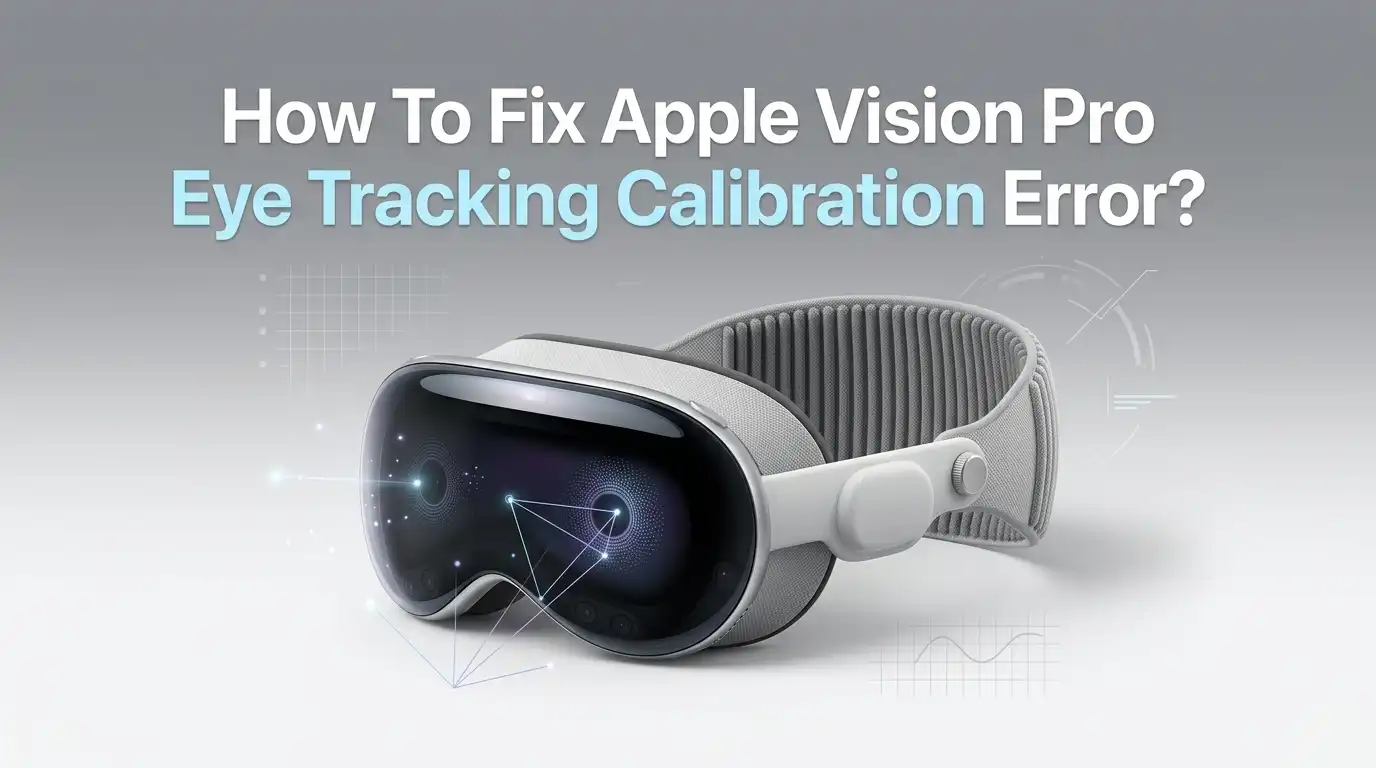
How To Fix Apple Vision Pro Eye Tracking Calibration Error?
Eye tracking sits at the heart of every interaction on the Apple Vision Pro. When the calibration fails, the headset becomes frustrating to use.
Buttons miss your gaze, scrolling jumps around, and simple taps feel impossible. Many owners face this issue within days of unboxing, and others see it after a software update or a light seal swap.
The good news is that most calibration errors have quick, repeatable fixes you can do at home. This guide walks you through every working solution, from basic setup tweaks to deeper accessibility tools.
In a Nutshell
- Quadruple press the top button to instantly redo eye and hand setup. This is the fastest fix when tracking drifts during a session.
- Lighting matters a lot. The Vision Pro needs bright, even light on your face. Avoid backlighting, dim rooms, and direct sunlight on the sensors.
- Light Seal fit and lens cleanliness are common hidden causes. A loose seal, smudged lenses, or wrong size cushion can break calibration even when settings look fine.
- ZEISS Optical Inserts must be paired correctly in Settings. Third party inserts often fail calibration and Apple does not officially support them.
- Realign Displays first, then redo eye setup. This two step combo solves most stubborn errors that a single recalibration cannot fix.
- Restart, update, and reset as a last resort. A visionOS update or a full device reset clears deep software bugs that block eye setup completely.
Why The Apple Vision Pro Eye Tracking Calibration Error Happens
The Vision Pro uses infrared cameras and LEDs inside the headset to track tiny eye movements. When something blocks or confuses these sensors, calibration fails. The error message often reads “Eye setup didn’t work” or “Move Apple Vision Pro down”.
Common triggers include smudged inner lenses, poor lighting, eyelash extensions, watery eyes, and a misaligned Light Seal. Software bugs after a visionOS update can also break the eye setup flow. Sometimes the issue is physical, like the headset sitting too high on your nose. Other times it is digital, like a corrupted calibration profile.
Knowing the trigger helps you pick the right fix. Hardware issues need physical adjustments. Software issues need a reset or update. Most users solve the problem in under five minutes once they identify the cause.
Quick Fix: Quadruple Press The Top Button
This is the fastest and most effective solution for sudden calibration errors. Press the top button four times in a row while wearing the Vision Pro. The device will instantly launch the eye and hand setup wizard.
You complete hand setup first, then eye setup. Look at each green dot, pinch your fingers, and let the system relearn your gaze. The whole process takes about thirty seconds.
This shortcut works without going into Settings, which is helpful when tracking is so off that you cannot even tap menus. Many users keep this trick handy for daily use.
Pros: Super fast, no menu navigation, works mid session.
Cons: Only fixes minor drift, not deep software errors. You must redo it each time the issue returns, which can feel repetitive on bad days.
Redo Eye Setup From The Settings Menu
If the quadruple press does not stick, try a full setup through Settings. Open Settings, tap Eyes and Hands, then tap Redo Eye Setup. You can also say “Siri, set up eyes” to launch it hands free.
Take your time during this process. Sit in a well lit room and keep your head still. Look directly at each dot without moving your face. Pinch slowly and confidently.
A clean, careful setup often beats a rushed one. Many users report that forcing their eyes to align too perfectly with the dots actually makes calibration worse. Glance naturally instead of staring hard.
Pros: More thorough than the shortcut, fixes most tracking drift.
Cons: Takes a few minutes, requires you to navigate menus that may be hard to tap if tracking is already broken.
Realign The Displays Before Recalibrating
Display alignment and eye tracking work together. If the screens are not centered to your eyes, calibration will keep failing. Go to Settings, Eyes and Hands, then Realign Displays.
Use the Digital Crown and the top button as the on screen guide instructs. Press until the visual snaps into clear focus. Always release between presses, never hold the buttons down.
After realigning the displays, immediately redo eye setup. This two step combo solves stubborn errors that a single recalibration cannot fix. Many users on Apple forums confirm this is the magic sequence.
Pros: Fixes the root cause when displays drift out of alignment, especially after travel or drops.
Cons: Slightly technical, takes patience, and the button combinations can feel awkward at first.
Check Your Lighting Conditions
Lighting is the single biggest factor in eye tracking accuracy. The Vision Pro uses infrared sensors that work best with soft, even, ambient light. Too dark, and it cannot see your eyes. Too bright or backlit, and the sensors get washed out.
Avoid sitting with a window directly behind you. Turn on overhead lights or a soft lamp in front of your face. Direct sunlight on the headset can also overheat sensors and cause errors.
Try moving to a different room and starting eye setup again. Many users find that calibration which fails in a dim bedroom works perfectly in a bright living room. Lighting fixes more problems than people expect.
Pros: Free, easy, often instantly effective.
Cons: Not always practical at night or in dim spaces, and some users may not notice subtle lighting issues until they test multiple rooms.
Clean The Inner Lenses And Sensors
Smudges, dust, and skin oil on the inner lenses confuse the eye tracking sensors. Use the microfiber polishing cloth that came with your Vision Pro. Wipe the inner lenses gently in circular motions.
Never use water, alcohol wipes, or harsh cleaners on the lenses. These can damage the coating and make tracking worse over time. If smudges remain, slightly dampen the cloth with clean water only.
Also check the area around the lenses for stray eyelashes or makeup. Mascara flakes are a common hidden culprit. Clean lenses often restore tracking without any software fix at all.
Pros: Quick, costs nothing, and prevents long term sensor damage.
Cons: Easy to forget as a maintenance habit, and improper cleaning materials can make the problem worse.
Adjust The Light Seal And Fit
A poorly fitted Light Seal lets stray light leak in and shifts the headset on your face. Both break eye tracking. Check that the seal sits flush against your skin all the way around.
If the headset slides down, tighten the band. If it pinches, loosen it slightly. The Vision Pro should rest evenly across your forehead and cheeks, not tilted up or down.
Some users find that a different Light Seal size fixes recurring calibration errors. If your seal feels too tight or too loose, visit an Apple Store for a refit. The right cushion depth changes how close your eyes sit to the lenses, which directly affects tracking.
Pros: Permanently solves fit related calibration issues.
Cons: Getting a new Light Seal can take time, and refits may require an in person visit.
Open Your Eyes Wide During Setup
The Vision Pro needs to see your full iris and pupil. Squinting, droopy eyelids, or partly closed eyes all cause setup to fail. During calibration, open your eyes as wide as you naturally can.
Eyelash extensions, fake lashes, heavy mascara, and eye decorations like rhinestones interfere with sensors. Remove them before setup if possible. Tired eyes after a long day also track worse than rested eyes.
If you have naturally hooded eyes, try tilting your chin slightly down so your eyelids open more. Some users also find that taking a few deep breaths and relaxing before setup leads to a cleaner calibration.
Pros: Costs nothing, often fixes setup failures instantly.
Cons: Not a permanent fix for users with medical eye conditions, and can feel uncomfortable to hold wide eyes for the full session.
Handle Glasses And Optical Inserts Correctly
You cannot wear glasses inside the Vision Pro. Glasses block the sensors and prevent calibration. If you need vision correction, use ZEISS Optical Inserts that snap onto the lenses magnetically.
After inserting them, you must scan the QR code on the inserts in Settings. Go to Settings, Eyes and Hands, Vision Prescription, and pair them. Without pairing, eye tracking will fail every time.
Third party optical inserts often cause calibration errors and are not officially supported by Apple. Many users on forums report that switching back to ZEISS inserts fixes their tracking instantly. Contact lenses also work and avoid the insert issue entirely.
Pros: ZEISS inserts give clear vision and reliable tracking.
Cons: Inserts cost extra, take time to order, and prescriptions can change.
Restart Your Apple Vision Pro
A simple restart clears temporary software glitches that block eye tracking. Press and hold the top button and the Digital Crown together until the power off slider appears. Drag the slider, wait thirty seconds, then power back on.
After restart, the system reloads sensor drivers and clears memory. Many calibration errors that seem serious vanish after this single step. It is the digital equivalent of a deep breath for your headset.
If a restart does not help, try a forced restart by holding both buttons until the Apple logo appears. This is a stronger reset that fixes deeper hangs.
Pros: Easy, free, and fixes a wide range of glitches.
Cons: Interrupts your session, and chronic issues will return without a deeper fix.
Update visionOS To The Latest Version
Apple regularly patches eye tracking bugs in visionOS updates. Go to Settings, General, Software Update, and install any available version. Connect to strong WiFi and a charger before starting.
Some calibration errors are caused by known bugs in older visionOS builds. Updating often fixes them without any other steps. Check the release notes for mentions of eye tracking improvements.
If you just updated and tracking suddenly broke, the update itself may be the cause. In that case, redo eye setup right after the update finishes. New visionOS versions sometimes need a fresh calibration profile to work properly.
Pros: Fixes bugs at the source, improves overall device performance.
Cons: Updates can take twenty minutes or more, and rare new bugs can appear.
Use Dwell Control As A Backup
If eye tracking still struggles after every fix, Dwell Control is a powerful accessibility tool. It lets you select items by holding your gaze on them for a set time. No pinching needed.
Turn it on at Settings, Accessibility, Interaction, Dwell Control. Set the dwell time to one or two seconds. You can also adjust the tolerance for eye movement so small drifts do not break selection.
Dwell Control is useful for users with hand mobility issues, but it also helps anyone whose eye tracking remains slightly imprecise after recalibration. It turns rough tracking into reliable input.
Pros: Works around poor calibration, great for accessibility needs.
Cons: Slower than pinch input, and you may select things you only meant to glance at.
Reset Your Apple Vision Pro As A Last Resort
When nothing else works, a full reset may be needed. Go to Settings, General, Transfer or Reset Apple Vision Pro, then Erase All Content and Settings. This wipes the device and forces a clean eye setup from scratch.
Back up your data to iCloud first. The reset takes about fifteen minutes. After it finishes, you redo the entire pairing and calibration process like the first day you got the headset.
This step solves deep software corruption in the calibration profile that no other fix can reach. If even this fails, the issue is likely hardware, and you should contact Apple Support or visit a Genius Bar.
Pros: Fixes the most stubborn errors, gives a fresh start.
Cons: Takes time, erases personal data, and is overkill for minor problems.
When To Contact Apple Support
If you have tried every fix and calibration still fails, the problem may be hardware. Damaged sensors, a faulty internal cable, or a cracked lens all need professional repair.
Book a Genius Bar appointment or call Apple Support directly. Have your serial number ready. If your Vision Pro is still under warranty or covered by AppleCare Plus, repairs are often free or low cost.
Describe the exact error message and every fix you already tried. This helps technicians diagnose faster. Hardware eye tracking failures are rare, but they do happen, especially after drops or long term wear.
Pros: Permanent fix, expert diagnosis, possible free repair.
Cons: Takes days, may require shipping, and out of warranty repairs cost money.
Frequently Asked Questions
How often should I recalibrate eye tracking on Vision Pro?
Most users only need to calibrate once and forget about it. If you change Light Seals, share the device, or notice drift, redo it. Daily recalibration usually points to a fit or lighting issue that needs a deeper fix.
Can I use Vision Pro without eye tracking?
Yes, but the experience is limited. Dwell Control and pointer accessibility features let you navigate without normal eye tracking. Most app interactions still need at least basic gaze input to feel natural.
Why does eye setup fail every time I try?
The most common reasons are poor lighting, smudged lenses, eyelash interference, or a tilted headset. Try eye setup in a bright room with clean lenses and the headset pulled slightly away from your face.
Does Guest Mode need its own calibration?
Yes. Each guest must complete a quick eye and hand setup. Their calibration does not overwrite yours. Open Control Center, tap Guest User, then start the session.
Will a visionOS update reset my eye calibration?
Sometimes. Major updates can clear calibration profiles. Always redo eye setup right after a big visionOS update to keep tracking sharp.
Can dry eyes affect calibration?
Yes. Dry, watery, or red eyes change how light reflects off your iris. Use eye drops if needed and rest your eyes for a few minutes before retrying setup.