How To Resolve Interference Issues With 6GHz Wireless Audio Transmitters?
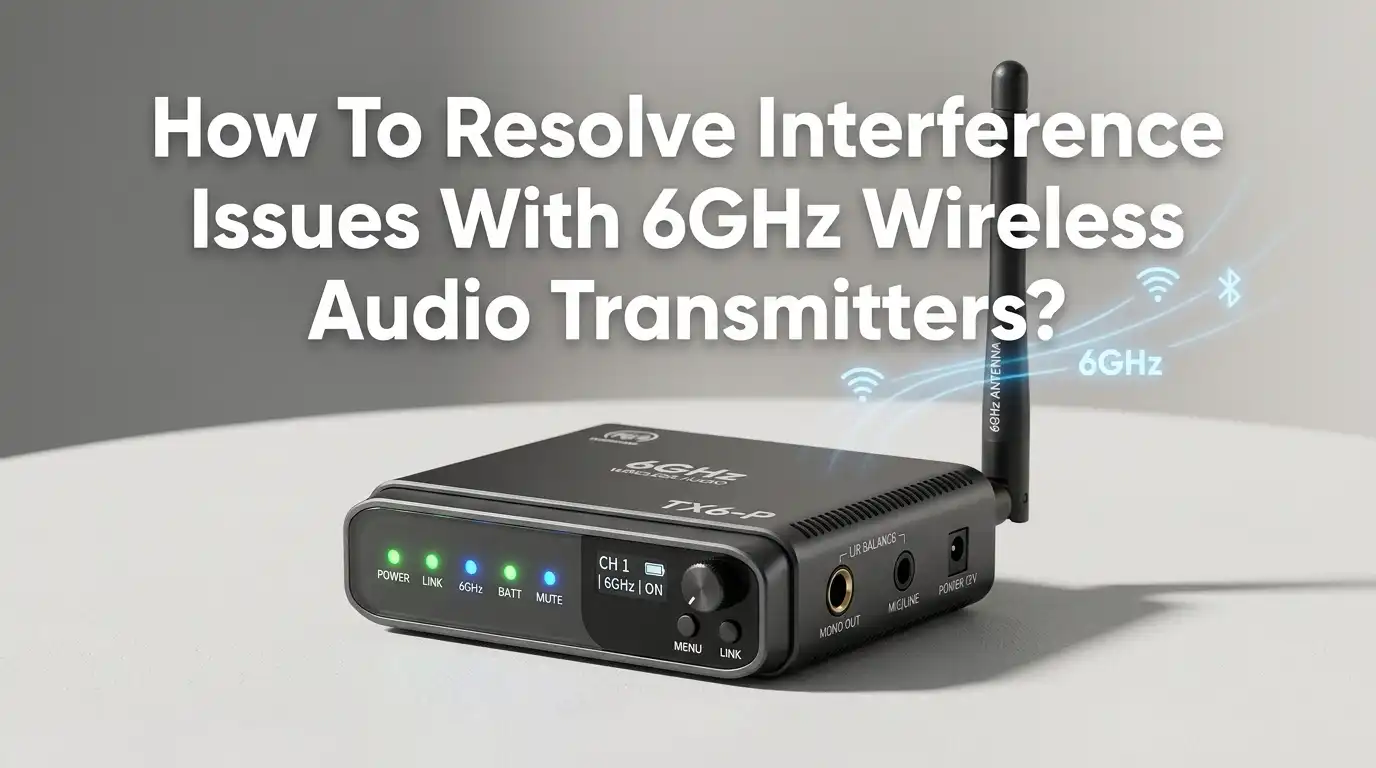
The 6GHz frequency band has opened up exciting possibilities for wireless audio. It promises less crowding, wider channels, and cleaner signals. But interference issues still creep in and cause dropouts, static, and frustrating audio glitches that can ruin a live event or recording session.
If you have ever dealt with sudden audio cuts, unexplained noise, or weak signal strength from your 6GHz wireless audio transmitter, you are not alone.
The 6GHz band shares space with Wi-Fi 6E and Wi-Fi 7 devices, licensed microwave links, and other unlicensed equipment. This creates a real challenge for audio professionals and hobbyists alike.
In a Nutshell
- The 6GHz band is powerful but shared. Your wireless audio transmitter operates in a spectrum that the FCC opened for unlicensed use, which means Wi-Fi routers, access points, and other devices now compete for the same airspace. Understanding this shared environment is the first step to solving interference.
- Line of sight matters more than you think. The 6GHz frequency does not pass through walls and obstacles as well as lower frequencies. Physical barriers between your transmitter and receiver can cause dropouts faster than you might expect. Antenna placement and positioning play a critical role in signal quality.
- Frequency coordination is essential. Running multiple wireless audio systems without proper channel planning almost guarantees interference. Use scanning tools and frequency coordination software to find clean channels before every setup.
- Your antenna setup can make or break performance. Poor antenna placement, mismatched antenna types, and “antenna farming” (clustering many antennas together behind a rack) are among the most common causes of signal problems. Strategic antenna deployment solves many issues instantly.
- Firmware updates and power settings are often overlooked. Many users skip firmware updates or leave transmitter power at factory defaults. Both of these habits can create or worsen interference. Adjusting output power and keeping software current are quick wins that cost nothing.
- Environmental scanning saves time and frustration. A quick RF environment scan before each session helps you identify potential interference sources early. This one habit can prevent most problems before they start.
Understanding The 6GHz Frequency Band For Wireless Audio
The 6GHz band spans from 5.925 GHz to 7.125 GHz, offering approximately 1200 MHz of usable spectrum. The FCC opened this band for unlicensed use in 2020, and it has quickly become popular for both Wi-Fi and professional audio applications. This band provides significantly more room than the older 2.4GHz and 5GHz bands.
For wireless audio, the 6GHz band means wider channels, lower latency, and less legacy device congestion. However, it also means sharing space with Wi-Fi 6E routers, Wi-Fi 7 access points, and existing licensed microwave links. The Automated Frequency Coordination (AFC) system helps manage this shared use, but interference can still occur when devices overlap in frequency or physical proximity.
The 6GHz signals have shorter range and are more easily absorbed by walls, furniture, and even human bodies compared to lower frequency bands. This physical behavior directly affects how you should set up and troubleshoot your wireless audio systems.
Common Causes Of Interference With 6GHz Audio Transmitters
Several specific sources commonly cause interference on the 6GHz band for wireless audio. Wi-Fi 6E and Wi-Fi 7 routers are the most frequent offenders because they operate in the same frequency range and are becoming increasingly common in homes, offices, and venues.
Other wireless audio systems operating nearby on the same or adjacent channels create co-channel and adjacent channel interference. This is especially problematic at large events where multiple production teams share the same venue space.
Physical obstacles like metal structures, concrete walls, and large crowds weaken signals at 6GHz more aggressively than at lower frequencies. Even a closed equipment rack can block enough signal to cause dropouts. Nearby electronic devices such as LED video walls, digital video transmitters, and even some lighting equipment can also generate RF noise that bleeds into the 6GHz range.
How To Identify The Source Of Your Interference Problem
Before you can fix interference, you need to find it. Start with a spectrum analyzer or RF scanning tool. Many modern wireless audio receivers have built in scan functions that show you which frequencies are busy and which are clean. Run a full band scan at your venue before setting up any equipment.
Listen for patterns in the interference. Constant static usually points to a nearby device operating on the same frequency. Intermittent dropouts often indicate multipath interference or a moving obstacle between transmitter and receiver. Bursts of noise can suggest a device that transmits periodically, such as a Wi-Fi access point.
Walk the venue with your receiver while monitoring signal strength. Note where dropouts happen. Check for Wi-Fi routers, LED walls, digital signage, and other electronic equipment near your operating area. Document everything you find so you can plan your frequency and antenna strategy around these sources.
Pros: Spectrum scanning gives you precise data and saves time. Cons: Quality spectrum analyzers can be expensive, and interpreting the data requires some experience.
Optimizing Antenna Placement For Stronger Signals
Antenna placement is one of the most impactful changes you can make. The golden rule is to maintain a clear line of sight between your transmitter antenna and your receiver antenna. At 6GHz, signals are easily blocked by physical objects, so this rule matters even more than at lower frequencies.
Place receiver antennas at a height of at least two meters (roughly seven feet) to clear the heads of a standing audience. Human bodies absorb RF energy efficiently, and a crowd between your transmitter and receiver will weaken your signal significantly.
Angle diversity antennas in a V shape rather than pointing them straight up. This improves reception from different directions and reduces multipath cancellation. Never place antennas inside closed racks, behind metal equipment, or in contact with metal structures like trussing.
Pros: Proper placement is free and immediately effective. Cons: Venue layouts sometimes limit your placement options, and you may need antenna cable extensions that introduce some signal loss.
Choosing The Right Frequency Channels To Avoid Conflicts
Frequency coordination is critical to clean audio. Start by running an auto scan on your receiver to find the least congested channels. Most professional wireless audio systems include this feature. If you run multiple wireless systems, coordinate all channels together to prevent intermodulation distortion.
Avoid frequencies that overlap with active Wi-Fi 6E networks in your venue. If possible, ask the venue’s IT team which 6GHz Wi-Fi channels are in use and plan your audio frequencies around them. Professional frequency coordination software can calculate compatible frequency sets for large multi-channel deployments.
Leave guard bands between your audio channels and any known Wi-Fi activity. A buffer of at least 20 MHz between your audio channel and the nearest Wi-Fi channel reduces the risk of adjacent channel interference significantly.
Pros: Good frequency planning prevents most interference before it happens. Cons: It requires time, preparation, and sometimes coordination with venue IT staff.
Adjusting Transmitter Power Settings For Clean Audio
Many users leave their transmitter output power at the maximum setting, thinking more power means better signal. This approach often creates more problems than it solves. High transmitter power can overload nearby receivers, cause intermodulation products, and increase interference with other systems in the area.
Start with the lowest power setting that gives you reliable coverage across your performance area. If you experience dropouts at low power, increase gradually until the signal is stable. This method minimizes your RF footprint and reduces the chance of interfering with other equipment.
In small venues or close range setups, reducing transmitter power to 10 or 25 milliwatts may be enough. For larger spaces, you may need 50 to 100 milliwatts. Always test your actual coverage area after adjusting power to confirm the signal reaches every position your performers will use.
Pros: Lower power means less interference and longer battery life. Cons: You need to test coverage carefully to avoid dropouts at the edges of your performance area.
Updating Firmware And Software On Your Equipment
Manufacturers regularly release firmware updates that fix bugs, improve signal processing, and add better interference handling to wireless audio equipment. Skipping these updates means you miss out on improvements that could solve your exact problem.
Check the manufacturer’s website for the latest firmware version for both your transmitter and receiver units. Download and install updates before every major event or production. Many updates include improved frequency agility, better squelch algorithms, and enhanced compatibility with the latest Wi-Fi standards sharing the 6GHz band.
Also update any frequency coordination software you use. These tools rely on current databases of active frequencies in your region. An outdated database could lead you to select a channel that is now occupied by a new Wi-Fi installation or licensed microwave link.
Pros: Firmware updates are usually free and quick to install. Cons: Occasional updates can change settings or behavior, so always test after updating.
Managing Wi-Fi 6E And Wi-Fi 7 Coexistence
Wi-Fi 6E and Wi-Fi 7 devices are the biggest new neighbors in the 6GHz band. These networks use wide channels (up to 160 MHz or even 320 MHz for Wi-Fi 7) and can produce strong signals that interfere with wireless audio equipment operating nearby.
Talk to the venue’s network administrator before your event. Ask them to temporarily disable 6GHz Wi-Fi in the immediate performance area if possible, or at least identify which specific channels the network uses. Some enterprise Wi-Fi systems support scheduling, so the 6GHz band could be turned off during your show.
If disabling Wi-Fi is not an option, position your audio frequencies in a portion of the 6GHz band that the Wi-Fi network does not use. The AFC system assigns specific channels to Wi-Fi access points based on location, so there are often clean gaps between active Wi-Fi channels where your audio can operate without conflict.
Pros: Direct coordination with IT staff provides the most reliable solution. Cons: Not all venues have cooperative IT departments, and some networks cannot be modified.
Reducing Multipath Interference In Your Setup
Multipath interference happens when your audio signal bounces off walls, ceilings, and other surfaces before reaching the receiver. The reflected signals arrive slightly delayed and can cancel out the direct signal, causing dropouts or distortion.
Diversity receivers help fight multipath by using two antennas spaced apart. The receiver automatically switches to whichever antenna has the stronger signal at any moment. Make sure your diversity antennas are separated by at least one wavelength (roughly 5 centimeters at 6GHz) and ideally much more.
Reduce reflections by positioning antennas away from large metal surfaces and glass walls. In venues with heavy reflections, directional antennas can help by focusing the reception pattern on the performance area and rejecting signals arriving from reflective surfaces behind or to the sides.
Pros: Diversity receiving is very effective and built into most professional systems. Cons: Directional antennas narrow your coverage area and require more precise aiming.
Dealing With Interference From Video And Lighting Equipment
LED video walls, digital video transmitters, and some modern lighting fixtures generate significant RF noise that can bleed into the 6GHz range. Large LED panels are especially problematic because they contain thousands of rapidly switching circuits that create broadband electromagnetic interference.
Keep your wireless audio receiver antennas at least three meters away from LED walls and video processing equipment. If you cannot achieve that distance, position a physical barrier or use directional antennas aimed away from the noise source.
Digital video transmission systems, particularly those used for camera feeds, often operate at 5.8GHz. While this is technically below the 6GHz audio band, strong video transmitters can produce harmonics and spurious emissions that reach into 6GHz territory. Coordinate with the video team to ensure their frequencies do not conflict with your audio channels.
Pros: Physical separation is simple and effective. Cons: Stage and venue layouts sometimes force audio and video equipment into close quarters.
Using Shielding And Filtering Techniques
When you cannot eliminate an interference source, shielding and filtering provide a physical defense for your equipment. RF shielding involves placing barriers between the noise source and your audio equipment that block unwanted electromagnetic energy.
Metal enclosures, RF absorbing materials, and shielded cable assemblies all reduce interference. Use high quality shielded coaxial cable for any antenna extensions. Poor quality cable not only loses signal but can also pick up interference like an antenna itself.
Band pass filters installed between your antenna and receiver reject signals outside your operating frequency range. This can be especially helpful when a strong Wi-Fi signal or video transmitter near your operating frequency is causing problems. A good filter blocks the interfering signal while allowing your audio signal to pass cleanly.
Pros: Shielding provides reliable protection against known interference sources. Cons: Filters can introduce slight signal loss, and quality RF shielding materials add cost and weight to your setup.
Building A Pre-Event Interference Prevention Checklist
Prevention is always easier than troubleshooting during a live event. Create a standard checklist that you follow before every setup. This habit will save you from most interference problems before they have a chance to disrupt your audio.
Start by arriving early and running a full RF scan of the venue. Note all active signals in the 6GHz range. Contact the venue’s IT department and ask about Wi-Fi networks, installed wireless systems, and any other RF equipment in the building. Walk the performance area and identify potential physical obstacles and reflective surfaces.
Set up your antenna system with clear line of sight. Coordinate frequencies across all your wireless channels and any other wireless audio teams at the event. Test every transmitter and receiver pair at full performance range before the audience arrives. Document your settings so you can quickly restore them if something changes during the event.
Pros: A checklist catches problems early when they are easy to fix. Cons: It requires extra time before the event, which can be challenging on tight production schedules.
Troubleshooting Persistent Interference Step By Step
If you have tried the solutions above and still face interference, follow this systematic troubleshooting process. First, isolate the problem by turning off all wireless systems except the one with issues. If the problem disappears, you have an internal conflict. If it remains, the source is external.
Next, change your operating frequency to a completely different part of the 6GHz band. If the interference follows you across frequencies, the source is likely broadband noise from electronic equipment rather than a specific RF transmitter. Narrow down the source by turning off nearby equipment one at a time until the interference stops.
Check your cables and connectors. A damaged coaxial cable or loose connector can cause intermittent dropouts that mimic interference. Swap cables one at a time to rule them out. Finally, try a different physical location for your receiver and antennas. Even moving a few meters can make a dramatic difference in a multipath environment.
Pros: Systematic isolation identifies the root cause reliably. Cons: This process takes time and may not be practical during a live event.
Frequently Asked Questions
What causes interference with 6GHz wireless audio transmitters?
The most common causes include Wi-Fi 6E and Wi-Fi 7 networks operating in the same frequency band, other wireless audio systems on nearby channels, physical obstacles that block or reflect signals, and electromagnetic noise from LED video walls and digital video equipment. The 6GHz band is shared between licensed and unlicensed users, which increases the chance of frequency overlap and signal conflict.
Can Wi-Fi 6E routers interfere with my wireless microphone system?
Yes. Wi-Fi 6E routers operate in the same 5.925 to 7.125 GHz frequency range as 6GHz wireless audio transmitters. A strong Wi-Fi signal on the same or adjacent channel can overpower your audio signal and cause dropouts, static, or complete signal loss. Coordinating your audio frequencies around active Wi-Fi channels is the best way to prevent this problem.
How far should I place my receiver antennas from other electronic equipment?
A minimum distance of three meters between your receiver antennas and sources of RF noise like LED walls, video transmitters, and Wi-Fi access points is a good starting point. For very strong interference sources, increase that distance further. Always maintain clear line of sight between transmitter and receiver antennas and keep antennas elevated above audience head height.
Does reducing transmitter power really help with interference?
Yes. Running your transmitter at the minimum power needed for reliable coverage reduces your RF footprint. This means your signal is less likely to interfere with other systems, and other systems are less likely to overload your receivers. Lower power also extends battery life, which is a welcome bonus during long events.
How often should I update firmware on my wireless audio equipment?
Check for firmware updates at least once per month and always before a major event. Manufacturers frequently release updates that improve interference handling, fix bugs, and add compatibility with new wireless standards. Keeping your equipment current ensures you benefit from the latest improvements in signal processing and frequency management.
What is the AFC system and how does it affect my wireless audio?
The Automated Frequency Coordination system is an FCC managed service that assigns specific 6GHz channels to Wi-Fi access points based on their geographic location. The AFC checks which frequencies are available without causing harmful interference to licensed users. For wireless audio professionals, understanding which AFC channels are active in your venue helps you choose clean frequencies for your audio transmitters.