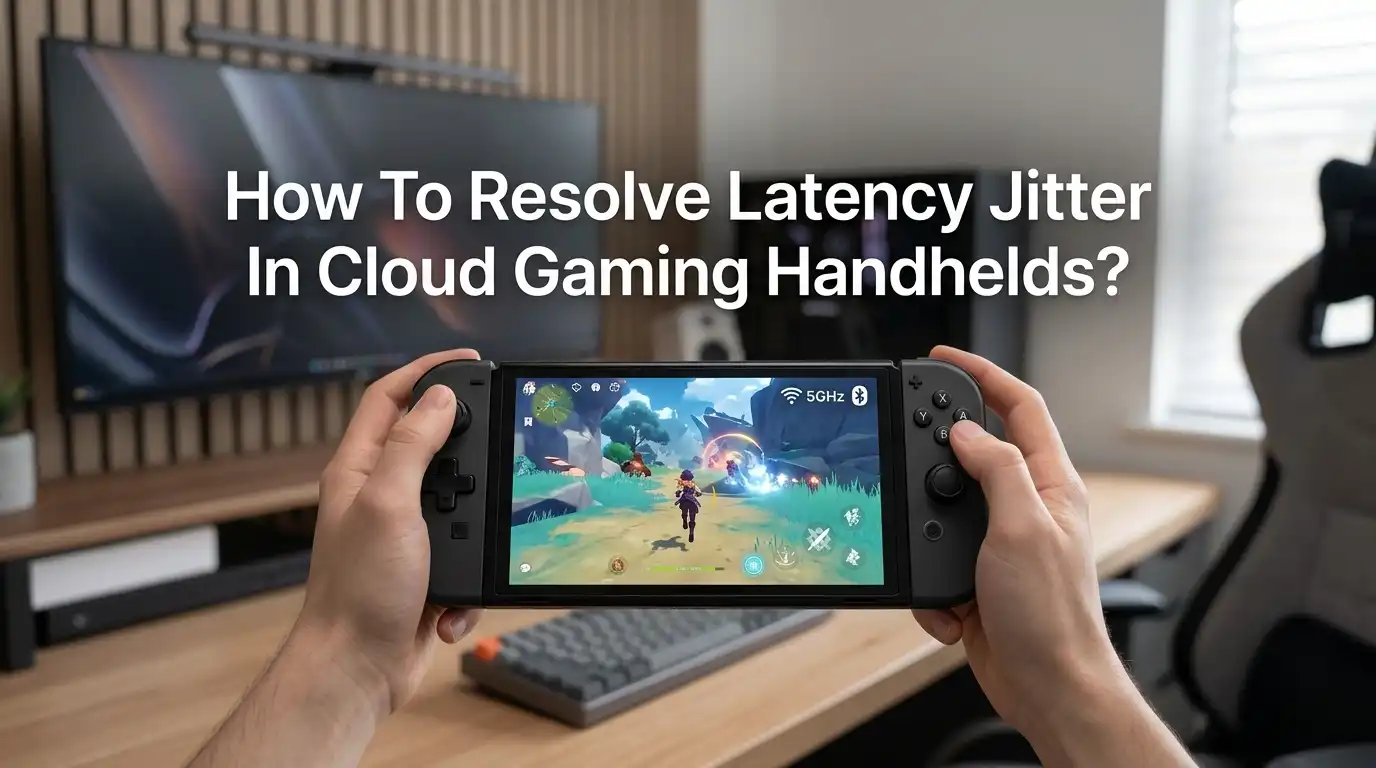
How To Resolve Latency Jitter In Cloud Gaming Handhelds?
Cloud gaming handhelds offer freedom from bulky consoles, but jitter can ruin every match. You press a button, and the screen reacts a second later. Frames stutter. Audio crackles. The game feels unplayable.
Latency jitter happens when data packets arrive at uneven intervals from the cloud server to your handheld. Even a small variation of 15 milliseconds can break your aim or cause input drops. The good news is most jitter problems come from fixable issues at home.
This guide walks you through every cause and solution. You will learn how to test your connection, tune your router, pick the right band, and stop background apps from stealing bandwidth.
Key Takeaways
- Jitter should stay below 10 ms for a smooth cloud gaming session. Anything above 30 ms causes visible stutter, frame drops, and delayed inputs on your handheld.
- The 5 GHz or 6 GHz Wi-Fi band beats 2.4 GHz by a huge margin. Switching bands often cuts jitter in half and removes interference from microwaves, baby monitors, and neighbor networks.
- A wired Ethernet adapter delivers 1 to 3 ms latency with almost zero jitter. If your handheld supports USB-C Ethernet dongles, this single change fixes most lag spikes instantly.
- Quality of Service, called QoS, prioritizes game traffic on your router. Enabling it can shave 10 to 30 ms off your ping during family streaming or downloads.
- Server region choice matters more than speed. Picking a data center within 500 miles of your home keeps jitter low even on slower internet plans.
- Background apps and updates cause sudden ping spikes. Closing them and disabling auto updates on your handheld stops random jitter mid game.
What Latency Jitter Actually Means In Cloud Gaming
Jitter is the variation in time between data packets reaching your handheld. Latency is the total delay. Both are measured in milliseconds. Low latency with high jitter still feels broken because packets arrive out of order.
Your handheld expects a steady stream of frames from the cloud server. When jitter rises, frames bunch up, then arrive in bursts. This makes the picture freeze for a split second, then jump ahead. Audio also desyncs.
A healthy cloud gaming session has ping under 40 ms and jitter under 10 ms. Competitive shooters need even tighter numbers. Once you understand the difference, you can target the real problem instead of blaming the game itself.
Run A Proper Speed And Jitter Test First
You cannot fix what you do not measure. Open your handheld browser and run a test on speedtest.net or waveform.com/tools/bufferbloat. The second site shows jitter under load, which matters most.
Look at three numbers. Download speed should be above 25 Mbps for 1080p streaming. Ping should stay under 40 ms. Jitter should stay under 10 ms. If any number fails, you found a clue.
Many cloud gaming services include their own network test inside the app. GeForce Now has one built into the settings menu. Xbox Cloud Gaming shows a connection indicator at the top of the screen during play. Use these tools because they ping the actual game server, not a generic test point.
Pros: Free, fast, and shows the real problem.
Cons: Results change throughout the day, so test multiple times.
Switch Your Handheld To The 5 GHz Or 6 GHz Band
Most handhelds default to whichever Wi-Fi band has the strongest signal. The 2.4 GHz band has the strongest signal but the worst jitter. It shares space with Bluetooth, microwaves, and dozens of neighbor networks.
Go to your handheld Wi-Fi settings. Forget the current network. Then reconnect, choosing the network name that ends in 5G or 6G if your router broadcasts them separately. Some routers use a single name for all bands. In that case, log in to your router admin page and split them.
The 6 GHz band, used by Wi-Fi 6E and Wi-Fi 7, has even less interference. Cloud gaming jitter drops to under 5 ms on a clean 6 GHz channel.
Pros: Free fix, huge improvement, no extra hardware.
Cons: 5 GHz has shorter range. Walls weaken the signal fast.
Use A Wired Ethernet Connection With A USB-C Adapter
Wi-Fi will always have more jitter than a cable. A simple USB-C to Ethernet adapter plugs into your handheld and delivers a stable wired connection. Steam Deck, ROG Ally, and Legion Go all support this method.
Buy a 2.5 Gbps adapter for future proofing, though a basic 1 Gbps adapter handles cloud gaming with ease. Plug one end into your router or a wall jack. The other end goes into your handheld dock or USB-C port directly.
Wired connections deliver latency between 1 and 3 ms with jitter close to zero. This single change removes most network problems in one step. You can still hold the handheld comfortably with a long cable.
Pros: Eliminates jitter, immune to Wi-Fi interference.
Cons: Limits mobility, requires a dock or dongle, costs around 15 to 30 dollars.
Enable QoS On Your Router For Game Traffic Priority
Quality of Service tells your router to send game packets before video streams or downloads. Most routers from the past five years support QoS in some form. Log in to your router admin panel, usually at 192.168.1.1 or 192.168.0.1.
Look for a section called QoS, Game Mode, or Traffic Prioritization. Add your handheld device by name or MAC address. Set its priority to Highest or Gaming. Save the settings and reboot the router.
Some routers, like ASUS, TP-Link Archer, and Netgear Nighthawk, have a one-click gaming preset. This single toggle can cut ping spikes by 10 to 30 ms when other devices are streaming Netflix or downloading updates.
Pros: Free, works for every device on the network, lasts after reboot.
Cons: Setup screens vary by brand, weak routers may slow overall speeds slightly.
Pick The Closest Cloud Server Region Manually
Most cloud gaming apps auto pick a server, but the choice is not always the best. A server 2,000 miles away can add 50 ms of pure latency before any local issue. You want a data center within 500 miles of your home.
In GeForce Now, go to Settings and check the Server Location. Xbox Cloud Gaming does not let you choose directly, but a stable connection helps it pick the right one. PlayStation Plus streaming and Boosteroid both show server options in account settings.
If you are in an unsupported region, do not use a free VPN. Free VPNs add 100 ms or more of jitter. A paid gaming VPN with servers near the cloud data center performs much better.
Pros: Major latency drop, easy to test by switching regions.
Cons: Limited server choices, some games are region locked.
Close Background Apps And Pause Auto Updates
Your handheld may be downloading game updates, syncing cloud saves, or running browser tabs in the background. Each one steals bandwidth and adds jitter to your cloud session. Always check the system tray before launching a cloud game.
On Steam Deck, go to Settings, then Downloads, and pause any active updates. On Windows handhelds, open Task Manager with the on screen keyboard and end heavy tasks like OneDrive sync or Windows Update. Disable cloud photo backup on Android handhelds too.
Pros: Frees up bandwidth instantly, costs nothing.
Cons: You may forget and miss important system updates later.
Change Your DNS To A Faster Public Server
Your internet provider gives you a default DNS server. It is often slow and adds small delays to every connection. Switching to Cloudflare 1.1.1.1 or Google 8.8.8.8 makes name lookups faster and more consistent.
On most handhelds, open Wi-Fi settings, tap the connected network, and choose Manual DNS. Enter 1.1.1.1 as primary and 1.0.0.1 as secondary. Save and reconnect.
This will not lower your raw ping much, but it does smooth out connection setup time. It also helps the cloud gaming app find the best server faster when you launch a session.
Pros: Free, takes 30 seconds, also boosts general browsing.
Cons: Small impact compared to band switching or Ethernet.
Move Closer To Your Router Or Add A Mesh Node
Wi-Fi signal weakens with distance and walls. A weak signal causes packet loss, and packet loss causes jitter spikes. If you play in a back bedroom or basement, your handheld may be working hard just to stay connected.
First, try playing one room closer to the router as a test. If jitter drops, you found the issue. The long term fix is a mesh Wi-Fi system. A mesh node placed near your gaming spot acts as a relay.
Wi-Fi 6 and Wi-Fi 6E mesh kits handle cloud gaming traffic with very low jitter. Connect the mesh nodes with Ethernet backhaul where possible for the best results.
Pros: Solves dead zones, helps every wireless device at home.
Cons: Mesh kits cost 150 to 400 dollars, setup takes an hour.
Disable Wi-Fi Scan Throttling And Power Saving
Many handhelds, including the Logitech G Cloud and several Android tablets, throttle Wi-Fi to save battery. This throttling causes random ping spikes and jitter mid game. Most users never know the setting exists.
On Android based handhelds, enable Developer Options by tapping the build number seven times in Settings. Then find Wi-Fi scan throttling and turn it off. Also disable adaptive battery for the cloud gaming app.
On Windows handhelds, open Device Manager, find your wireless adapter, and set the power management mode to maximum performance. This keeps the radio active and stable during play.
Pros: Big jitter reduction on affected devices, completely free.
Cons: Slightly more battery drain, requires digging through hidden menus.
Upgrade Your Internet Plan Or Switch To Fiber
Sometimes the problem really is your internet plan. Cable and DSL connections often have higher jitter than fiber. A 100 Mbps fiber line will outperform a 500 Mbps cable line for cloud gaming every time.
Call your provider and ask about fiber availability at your address. If fiber is not available, ask if a business class cable plan is offered. Business plans usually have lower jitter and better support response.
Look at your bufferbloat score on waveform.com. A grade of A or B means your line is gaming ready. A grade of C or worse means the line itself is the bottleneck, no matter what you do at home.
Pros: Permanent fix, helps work from home and streaming too.
Cons: Higher monthly cost, fiber not available everywhere.
Lower Your Stream Resolution And Bitrate Settings
If nothing else works, lower the video quality. A 720p stream uses less bandwidth than 1080p and is far less sensitive to small jitter spikes. Most cloud gaming apps let you cap the resolution and bitrate.
In GeForce Now, go to Settings and pick Balanced or Data Saver mode. In Xbox Cloud Gaming, the app adjusts automatically, but you can use a clearer connection to keep it at 1080p. Drop the frame rate cap from 120 to 60 if your handheld supports high refresh streaming.
The game will look slightly softer, but it will play smoothly. A stable 720p beats a stuttering 1080p every time.
Pros: Instant fix, works on any network.
Cons: Lower visual quality, not ideal for detailed games.
Restart Your Modem, Router, And Handheld Weekly
Network gear builds up small errors over time. Memory fills, routing tables get messy, and jitter creeps in. A simple weekly reboot clears the slate and restores normal performance.
Unplug your modem first, wait 30 seconds, then plug it back in. Wait two minutes. Then do the same for your router. Finally, reboot the handheld. This three step reset solves most slow build up jitter issues.
You can schedule automatic reboots on many modern routers. Set it for 4 a.m. when nobody is gaming. Your connection will feel fresh every morning without any effort.
Pros: Free, fast, prevents many issues before they start.
Cons: Brief downtime during reboot, easy to forget.
Frequently Asked Questions
What is a good jitter level for cloud gaming on a handheld?
A jitter level below 10 ms is ideal. Between 10 and 30 ms you may notice small stutters during fast action. Above 30 ms the game feels unplayable, with frequent freezes and delayed inputs.
Does using a VPN reduce or increase jitter?
Most free VPNs increase jitter by adding extra hops and overloaded servers. A paid gaming VPN with a server close to the cloud data center can sometimes reduce jitter, especially in regions with poor ISP routing. Always test both with and without the VPN.
Why does my cloud gaming session jitter only at night?
Evening hours are peak internet usage time. Your neighbors stream movies and download games, which congests local network nodes. Switching to a less crowded 5 GHz channel or upgrading to fiber usually fixes peak hour jitter.
Can a USB-C Ethernet adapter really fix jitter on a handheld?
Yes. A wired connection bypasses Wi-Fi interference completely. Latency drops to 1 to 3 ms and jitter falls close to zero. This is the single most effective fix for any handheld that supports USB-C networking.
Is Wi-Fi 6 worth buying for cloud gaming?
Wi-Fi 6 routers handle game traffic much better than older Wi-Fi 5 models. They use OFDMA to send data to multiple devices at once, which lowers jitter. If your handheld supports Wi-Fi 6 or 6E, the upgrade is worth it.
Does closing background apps actually help cloud gaming?
Yes, especially on handhelds with limited RAM. Background syncing, cloud backups, and auto updates all use bandwidth and CPU cycles. Closing them frees resources for the cloud gaming stream and keeps jitter stable.
Should I prioritize fixing jitter or fixing latency first?
Fix jitter first. A stable connection with slightly higher latency feels better than an unstable connection with low average latency. Once jitter is under 10 ms, then work on lowering total ping by picking closer servers and using Ethernet.

Welcome to The File Fix. I’m Millie, and I review tech so you don’t have to suffer buyer’s remorse.
Navigating the endless sea of Amazon devices and gadget releases can feel like a full-time job. That’s why I do the heavy lifting. I dig past the unreliable 5-star reviews and shiny spec sheets to test how these devices actually hold up in the real world. Whether you’re looking for the best budget earbuds, a reliable power bank, or the latest smart home gear, you’ll find honest, no-nonsense breakdowns here.