How To Change DNS Servers On A Router To Fix Slow Loading Speeds?
Slow loading pages drain your patience fast. You click a link. You wait. The little circle keeps spinning. Sometimes the problem is not your internet plan at all. The real culprit hides in your DNS settings.
Your DNS server acts like a phone book for the internet. It turns website names into numbers your router understands. When that phone book is slow, every page you open feels sluggish. Even fast connections can crawl when the DNS lags behind.
The good news is simple. You can fix this yourself. You do not need a technician. You do not need to buy anything. You only need a few minutes and your router login.
In a Nutshell:
- DNS works like a translator. It changes website names into IP addresses. A slow DNS means slow page loads, even when your download speed looks fine.
- Your ISP DNS is often the weak link. Internet providers assign their own DNS by default. These servers are sometimes overloaded, slow, or far away from you.
- Free public DNS servers are faster. Options like Cloudflare (1.1.1.1), Google (8.8.8.8), and Quad9 (9.9.9.9) respond in milliseconds. They sit on big global networks.
- Changing DNS on your router fixes every device at once. Phones, laptops, smart TVs, and tablets all benefit. You set it once and forget it.
- The process is reversible and safe. You write down your old settings first. If something feels off, you switch right back in under a minute.
- DNS does not raise your raw speed. It cuts the wait before a page starts loading. Downloads stay the same, but browsing feels snappy and quick.
What A DNS Server Actually Does
Think of the internet as a giant city. Every website lives at a specific address. That address is a string of numbers called an IP address. Humans hate remembering numbers, so we use names like google.com instead.
The DNS server bridges that gap. When you type a website name, your router asks the DNS, “What is the number for this name?” The DNS replies, and your page starts loading.
This happens for every single page you open. It also happens for every image, script, and ad on that page. So one slow lookup multiplies into many delays.
A fast DNS answers in a few milliseconds. A slow one takes hundreds of milliseconds. That gap is small per request but huge over a full browsing session.
Why Your Current DNS Might Be Slowing You Down
Most people never touch their DNS settings. Your internet provider sets one by default the moment you connect. That default DNS is often the problem.
ISP servers handle millions of users at once. During busy hours they get crowded. Crowded servers respond slowly, and your pages stall before they even begin to load.
Distance matters too. If the DNS server sits far from your home, each request travels a long way. That round trip adds time to every lookup you make.
Some ISP DNS servers also log your activity or redirect failed searches to ad pages. This adds delay and hurts your privacy. Switching to a clean public DNS solves both issues at once.
Signs That Your DNS Is The Real Problem
Before you change anything, confirm the DNS is the issue. Not every slow connection comes from DNS. A quick check saves you time.
The clearest sign is a delay before a page loads. The browser sits idle for a second or two, then everything appears fast. That pause points straight at DNS.
Another clue is mixed performance. Your speed test shows good numbers, yet websites still feel slow. Speed tests skip the DNS lookup, so they hide the real bottleneck.
You can also test directly. Open a website by typing its IP address instead of its name. If that loads instantly while the name version drags, your DNS is the weak link. This simple trick confirms the cause.
Best Free Public DNS Servers To Use In 2026
You have several strong free options. All of them beat most ISP servers on speed and reliability. Here are the top picks with their addresses.
Cloudflare (1.1.1.1 and 1.0.0.1) ranks as one of the fastest. Tests across the globe often show it answering in under five milliseconds. It also promises strong privacy and does not sell your data.
Google Public DNS (8.8.8.8 and 8.8.4.4) is rock solid and worldwide. It rarely goes down and gives accurate results everywhere.
Quad9 (9.9.9.9 and 149.112.112.112) adds security. It blocks known malicious websites automatically, which protects your devices.
OpenDNS (208.67.222.222 and 208.67.220.220) offers filtering and parental controls. Pick the one that fits your needs.
Pros And Cons Of Changing DNS On The Router
Setting DNS on your router is the smart choice for most homes. Still, it helps to weigh both sides before you start.
Pros:
- One change covers everything. Every device on your network uses the new DNS automatically. You skip setting each phone and laptop one by one.
- It saves time. New gadgets get the fast DNS the moment they connect.
- It works for guests too. Anyone on your Wi-Fi enjoys the speed boost without any setup.
Cons:
- You need router access. Some ISP routers lock these settings, which blocks the change.
- A wrong entry affects all devices. If you mistype the address, the whole network loses internet until you fix it.
- Some routers hide DNS deep in menus. Finding the right page can take patience on older models.
Overall, the benefits clearly outweigh the drawbacks for most users.
How To Find Your Router Login Details
You access your router through a web page. To reach it, you need its IP address and your login details. These are easy to find.
Most routers use 192.168.1.1 or 192.168.0.1 as their address. Type that into your browser bar and press enter. The login screen should appear within seconds.
Your username and password often sit on a sticker on the router itself. Look on the bottom or back of the device. Common defaults are “admin” for both fields.
If you changed the password before and forgot it, you can reset the router. Hold the reset button for ten seconds, but remember this wipes all your custom settings. Use this only as a last resort.
Step By Step Guide To Change DNS On Your Router
Now for the main task. Follow these steps slowly and you will finish in minutes. Write down your old DNS values before you change anything.
First, open your browser and type your router IP address. Log in with your username and password. The router dashboard appears.
Second, look for the DNS settings. They often live under WAN, Internet, Network, or LAN sections. Brands like TP-Link place them under Advanced then Network.
Third, find the option that says “Use the following DNS addresses.” Select it instead of “automatic” or “obtain from ISP.”
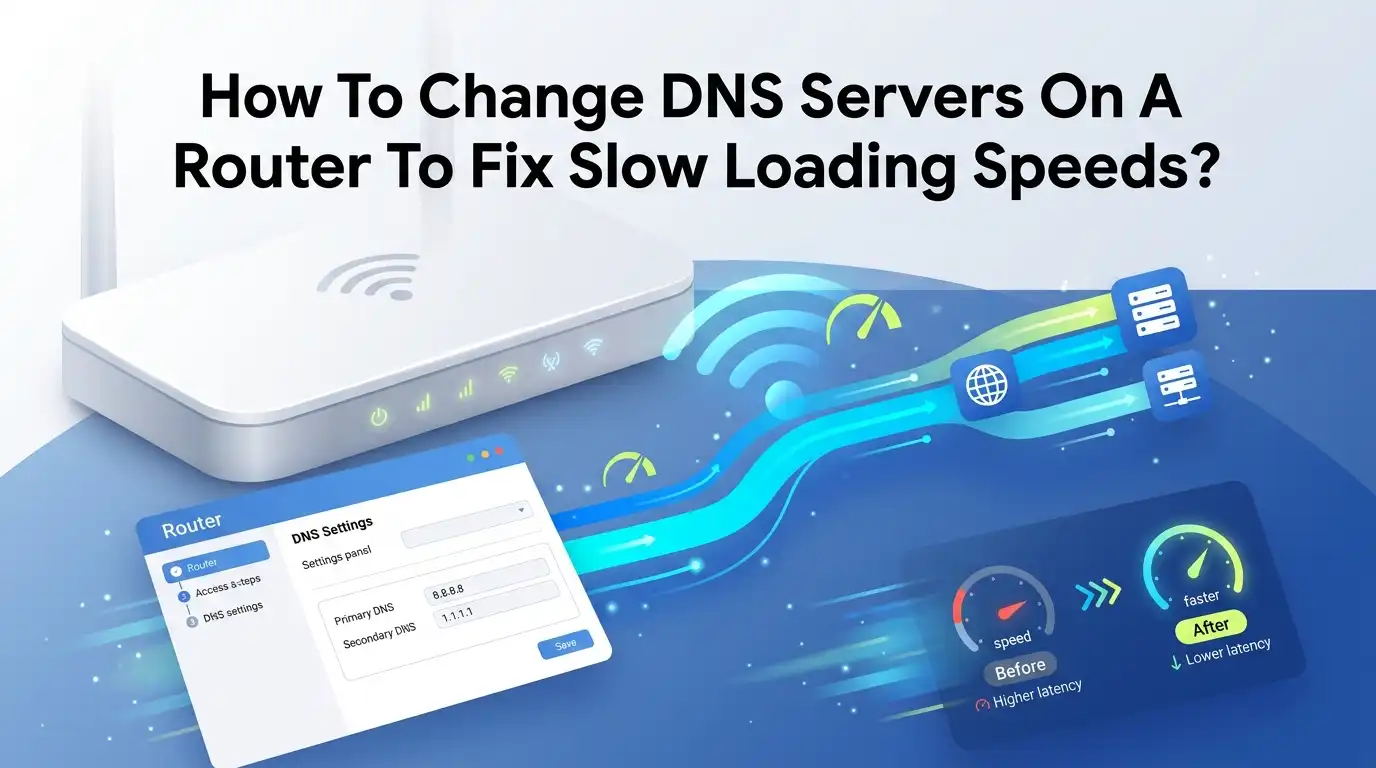
Fourth, enter your new servers. Type your primary DNS in the first box and the secondary in the second box. For example, 1.1.1.1 and 1.0.0.1.
Fifth, click Save or Apply. Your router may reboot. Once it restarts, the new DNS is active for all devices.
What To Do If Your Router Hides DNS Settings
Some routers, especially those from internet providers, lock the DNS fields. This is frustrating but not the end of the road. You still have options.
First, try logging in with an admin or super user account. ISP routers sometimes hide settings behind a higher access level. Check your provider support page for those details.
Second, look for a “bridge mode” option. This lets you connect your own router behind the ISP one. Your own router then controls the DNS freely.
Third, you can set DNS on each device instead. This takes more effort but works on phones, computers, and tablets directly. The settings sit under the Wi-Fi or network menu on each gadget.
If nothing works, call your ISP. Ask them to unlock the DNS fields for you. Many will do it on request.
How To Test If Your New DNS Is Faster
Changing the DNS is only half the job. You want proof it actually helps. Testing takes just a few minutes and removes all doubt.
Start with a simple browsing check. Open several websites you visit often. Notice how quickly each one starts to load. The delay before the page appears should now be shorter.
For hard numbers, use a free DNS benchmark tool. These tools test many DNS servers from your location and rank them by speed. They show you exactly which server responds fastest for your area.
You can also use a command on your computer. Run a lookup command for a website and check the response time. Lower numbers mean a faster DNS. Compare the new result with your old one to see the difference.
Pros And Cons Of Popular DNS Providers
Each DNS provider has strengths and trade offs. Knowing them helps you pick the right one for your home.
Cloudflare (1.1.1.1):
- Pros: Often the fastest, strong privacy, no data selling.
- Cons: No built in content filtering on the basic version.
Google (8.8.8.8):
- Pros: Extremely reliable, accurate results, available everywhere.
- Cons: Google collects some query data, which privacy fans dislike.
Quad9 (9.9.9.9):
- Pros: Blocks malicious sites, good privacy, free security layer.
- Cons: Filtering may occasionally block a safe site by mistake.
OpenDNS:
- Pros: Parental controls and content filtering included.
- Cons: Slightly slower than Cloudflare in some regions.
Choose based on what you value most. Speed, privacy, and security each pull you toward a different pick.
Common Mistakes To Avoid When Changing DNS
Small errors can cause big headaches. Avoid these traps and your change goes smoothly. A little care prevents most problems.
The biggest mistake is mistyping the address. One wrong digit breaks your internet for the whole network. Double check every number before you save.
Another error is forgetting the secondary DNS. The secondary acts as a backup if the first one fails. Leaving it blank risks downtime if the primary server has trouble.
Some people forget to write down the old settings. If the new DNS misbehaves, you want the original values handy. Always note them first.
Lastly, do not mix servers from different providers without reason. Using Cloudflare primary and Google secondary works, but matching pairs from one provider keeps things clean and predictable.
How To Restore Your Old DNS Settings
Maybe the new DNS does not feel right. Maybe a website stops loading. Restoring your old setup is quick and painless. You stay in full control.
Log back into your router using the same address and password as before. Go to the same DNS settings page where you made the change.
You have two choices here. You can set the option back to “Obtain DNS automatically” or “Get from ISP.” This returns control to your provider.
Or you can type in the old DNS values you wrote down earlier. This is why noting them first matters so much. Enter them in the primary and secondary boxes.
Click Save and let the router restart. Within a minute your network runs on the old DNS again. Nothing is permanent, so feel free to experiment.
Final Thoughts On Speeding Up Your Browsing
Slow loading does not always mean a bad internet plan. Often a tired DNS server holds you back. Switching to a faster public DNS is one of the easiest wins you can grab.
The whole process costs nothing and takes only minutes. You log in, swap two addresses, and save. Suddenly pages start loading the moment you click.
Remember that DNS does not boost your raw download speed. It cuts the wait before pages begin. For everyday browsing, that wait is what makes the internet feel slow or fast.
Try Cloudflare or Google first. Test the result. If you like it, keep it. If not, switch back in seconds. You hold all the control, and your faster internet starts now.
Frequently Asked Questions
Does changing DNS really make my internet faster?
It makes browsing feel faster. DNS cuts the delay before a page loads. Your download and upload speeds stay the same, but websites open quicker because lookups finish faster.
Is it safe to use free public DNS servers?
Yes, the major ones are very safe. Cloudflare, Google, and Quad9 run trusted, secure networks. Some even block harmful sites. Always use the official addresses to stay protected.
Will changing DNS on my router affect all my devices?
Yes, and that is the main benefit. Every device on your Wi-Fi uses the new DNS automatically. Phones, laptops, smart TVs, and tablets all get the faster lookups at once.
What is the difference between primary and secondary DNS?
The primary DNS handles your requests first. The secondary DNS acts as a backup. If the primary fails, your router switches to the secondary so your internet keeps working.
Can I break my internet by changing the DNS?
Only if you type a wrong address. A typo can cut your connection until you fix it. The change is fully reversible, so you can restore your old settings in under a minute.
How often should I change my DNS server?
Rarely. Once you find a fast, reliable DNS, you can leave it for years. You might recheck once a year or if you notice your browsing slowing down again.