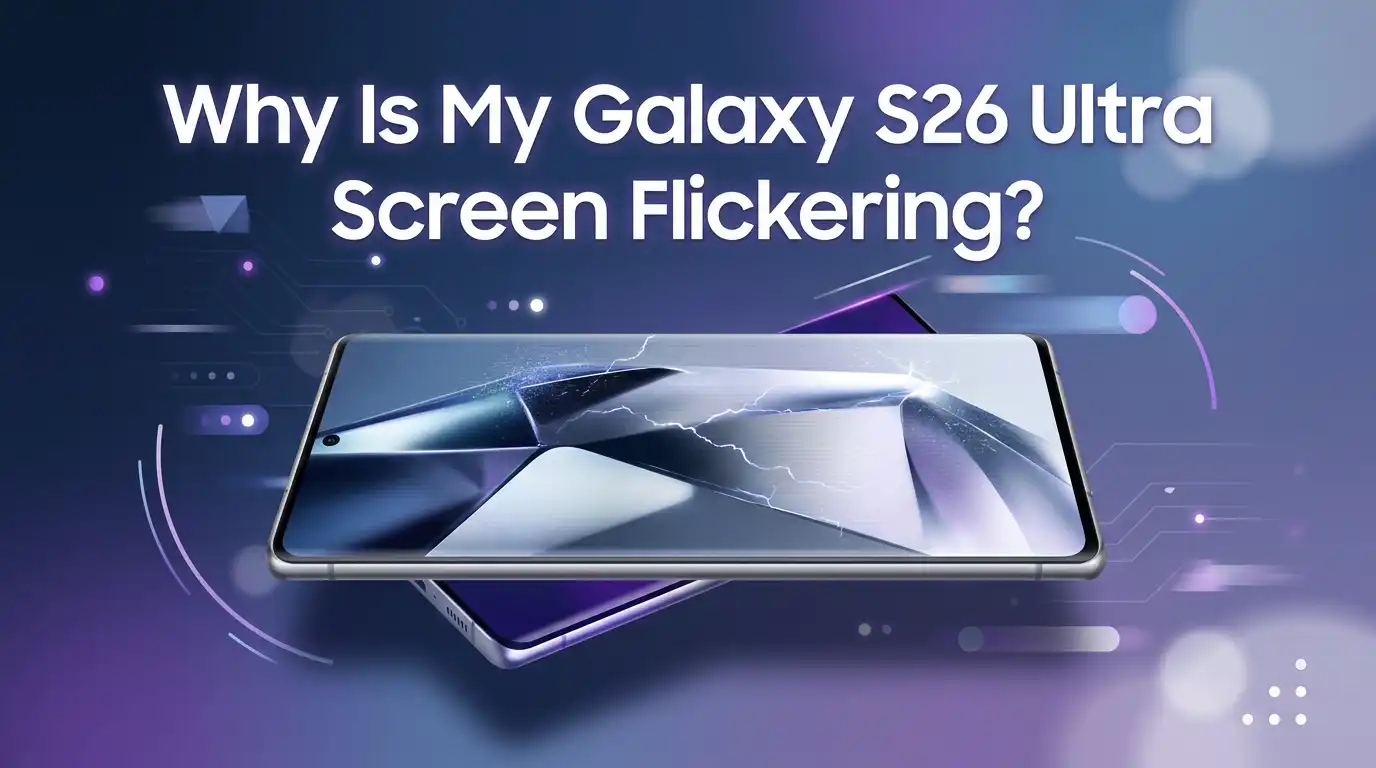
Why Is My Galaxy S26 Ultra Screen Flickering?
Your Galaxy S26 Ultra has a stunning 6.9 inch Dynamic AMOLED screen. It shines bright, shows deep colors, and refreshes smoothly at 120Hz.
So it feels scary when that beautiful display starts to flicker, flash, or blink. One moment everything looks perfect. The next moment the screen jumps, dims, or shows strange lines.
Do not panic. Screen flickering is a common problem, and most of the time it is not serious. In many cases you can fix it yourself in a few minutes. Sometimes a simple restart solves it. Other times you need to change a setting or remove a bad app.
Key Takeaways
- Most flickering is a software problem, not broken hardware. A simple restart or software update fixes it in the majority of cases. Try these two steps before anything else.
- Adaptive Brightness is a top cause. This feature adjusts your screen light automatically. On AMOLED panels it can create visible flicker, especially at low brightness. Turning it off often helps right away.
- Bad apps trigger flicker too. Third party apps sometimes fight with your display. Safe Mode helps you find the guilty app fast, so you can remove it.
- Overlay features like blue light filters can cause glitches. Eye Comfort Shield and screen overlays sometimes clash with the display. Turning them off is worth a try.
- Clearing cache and updating apps removes small bugs that build up over time. These steps are safe and never delete your personal files.
- If nothing works, it may be hardware. Water, drops, or a factory defect can damage the panel. A factory reset is the last software step, and Samsung Support is your final stop.
What Causes Screen Flickering on the Galaxy S26 Ultra?
Before you fix a problem, it helps to know the cause. Screen flickering on your S26 Ultra usually comes from one of two areas. It is either a software issue or a hardware issue.
Software causes include bad app updates, system bugs, wrong display settings, and overlay features. These are the most common reasons. The good news is that software problems are easy to fix at home.
Hardware causes include water damage, a hard drop, a loose display cable, or a factory defect. These are less common but more serious. They usually need repair.
Your AMOLED panel also uses something called PWM, or pulse width modulation, to control brightness. At low brightness the screen flickers very fast to dim itself. Some eyes notice this. This is normal panel behavior, not a fault, but the fixes below can still reduce it.
Restart Your Galaxy S26 Ultra First
Always start with the simplest fix. A restart clears the temporary memory and stops small glitches. It is the fastest way to solve a flickering screen, and it works more often than you think.
To restart, press and hold the Side button and the Volume Down button together. Wait for the power menu to appear. Then tap Restart and let the phone reboot fully.
If the screen flickers too much to see the menu, do a forced restart instead. Hold the Side button and Volume Down button for about ten seconds. The phone will shut down and turn back on by itself.
Pros: This method is free, fast, and safe. It never deletes any data. It fixes many minor bugs instantly.
Cons: A restart does not fix deeper issues. If the flickering comes from a bad app, a broken setting, or hardware damage, the problem will return. Still, always try this first.
Update Your Software to the Latest Version
Samsung releases software updates often. These updates fix bugs, patch security holes, and improve display performance. A known flicker bug is sometimes fixed in a single update. So keeping your phone current is very important.
To check, open Settings. Scroll down and tap Software update. Then tap Download and install. Your phone will search for a new version. If one appears, install it and let the phone restart.
Connect to Wi Fi and charge your phone before you start. Updates can be large and take some time. Do not turn off the phone during the process.
Pros: Updates fix real bugs at the system level. They are free and official from Samsung. They often solve flicker issues that no other fix can.
Cons: You must wait for Samsung to release the fix. If no update is available yet, this step will not help right now. Rarely, a new update can also cause new bugs, though this is uncommon.
Turn Off Adaptive Brightness
Adaptive Brightness is one of the biggest causes of screen flicker on Samsung phones. This feature changes your screen light based on the room around you. On an AMOLED panel, that constant adjusting can look like flickering or pulsing.
To turn it off, open Settings and tap Display. Find the Adaptive brightness toggle and switch it off. Now set your brightness by hand using the slider.
If the flicker only shows at low brightness, slide the brightness bar higher. Low brightness triggers the PWM dimming that many eyes can see. A brighter screen reduces this effect.
Pros: This fix is quick and often works within seconds. It gives you full manual control over your screen. It directly targets a very common flicker cause.
Cons: You lose the automatic light adjustment. You must change brightness yourself when you move between dark and bright places. Your battery may drain a bit faster if you keep brightness high all the time.
Check for a Bad App Using Safe Mode
A third party app is often the hidden reason behind flickering. Some apps place overlays on your screen or clash with the display. Safe Mode helps you test this. It runs your phone with only the built in apps, so every downloaded app stays off.
Press and hold the power button until the power off screen appears. Then tap and hold the Power off icon until the Safe mode option shows. Tap Safe mode to enter it.
Now watch the screen. If the flickering stops in Safe Mode, a downloaded app is the cause. Restart to exit Safe Mode, then remove your recent apps one by one until the flicker is gone.
Pros: This method finds the guilty app with certainty. It costs nothing and does not delete your data. It clearly separates a software problem from a hardware problem.
Cons: Testing each app takes patience. You may need to remove and reinstall several apps. Safe Mode itself does not fix anything, it only helps you diagnose.
Remove or Update Problem Apps
Once Safe Mode points to an app, deal with it directly. Start by updating the app, because a newer version may already fix the bug. Open the Play Store, tap your profile icon, then tap Manage apps and device. Update any app with a pending update.
If updating does not help, remove the app. Press and hold the app icon, then tap Uninstall. Remove the most recent apps first, since new apps often cause new problems.
Blue light filter apps, screen recorder apps, and overlay tools are common troublemakers. Watch these types closely when you test.
Pros: This fix targets the exact source of the flicker. Updating keeps useful apps working. Removing a bad app gives a permanent fix with no cost.
Cons: You may lose an app you liked. You will need to find a safer alternative. Testing which app is at fault can feel slow if you have many apps installed.
Disable Eye Comfort Shield and Blue Light Filters
Eye Comfort Shield lowers blue light to protect your eyes at night. It is a helpful feature, but it can sometimes clash with your display and cause flickering or color shifts. Turning it off is a quick test worth doing.
Open Settings and tap Display. Find Eye comfort shield and switch it off. Watch the screen for a few minutes to see if the flicker stops.
Also check any third party blue light apps you may have installed. These add an overlay on top of your screen. That overlay can fight with the panel and create glitches.
Pros: This fix is simple and fast. It quickly rules out a common cause. You can turn the feature back on if it was not the problem.
Cons: Without a blue light filter, screen time at night may feel harder on your eyes. You may want to find another way to reduce eye strain, such as lowering brightness in the evening.
Turn Off Reduce Animations and Developer Options
Sometimes a setting inside Developer Options changes how your screen draws images. This can lead to flicker or lag. If you or someone else turned on these options, that may be your cause.
Open Settings, scroll to Developer options, and switch the whole menu off with the toggle at the top. If you do not see this menu, it was never enabled, so you can skip this step.
You can also try Settings, then Accessibility, then Visibility enhancements, and turn on Reduce animations. Fewer animations mean less strain on the display, which sometimes calms the flicker.
Pros: This fix targets hidden settings that many users forget about. It is free and reversible. It can stop flicker caused by wrong display draw settings.
Cons: Most users never touch Developer Options, so this may not apply to you. Reducing animations makes the phone feel slightly less smooth, though many people do not mind.
Clear the System Cache Partition
Your phone stores temporary files to run faster. Over time these files can get corrupted and cause display bugs, including flickering. Clearing the cache partition removes these files safely. It does not delete your photos, apps, or personal data.
Turn off your phone first. Then hold the Volume Up button and the Side button together while the phone boots. Release them when the Samsung logo appears. This opens the Android Recovery menu.
Use the volume keys to move to Wipe cache partition. Press the Side button to select it. Confirm, then choose Reboot system now.
Pros: This clears out corrupted files without touching your data. It often fixes odd display glitches. It is a safe deep clean for your system.
Cons: The button steps can feel tricky the first time. The recovery menu looks technical and may worry new users. It may not help if the cause is an app or a setting.
Wipe the Cache of Specific Apps
If the flicker only happens inside one app, that app may have a corrupted cache. You do not need to remove the whole app. You can just clear its stored temporary files instead.
Open Settings and tap Apps. Find the app that flickers and tap it. Then tap Storage, and finally tap Clear cache. Do not tap Clear data unless you want to reset the app fully.
Clearing the cache is safe. It only removes temporary files. Your logins, saved items, and settings inside the app usually stay in place.
Pros: This is a gentle fix that keeps your app and its data. It targets one app without affecting others. It often solves flicker tied to a single program.
Cons: It only helps when the problem lives inside one app. The app may run a little slower at first while it rebuilds its cache. It does nothing for system wide flicker.
Factory Reset as a Last Software Step
If you have tried every fix above and the screen still flickers, a factory reset is your last software option. This erases everything and returns the phone to a clean state. It removes deep bugs that other steps cannot reach.
Back up your data first. Use Samsung Cloud or Smart Switch to save your photos, contacts, and files. A reset deletes everything, so this step is very important.
Then open Settings, tap General management, tap Reset, and choose Factory data reset. Follow the steps and let the phone restart fresh.
Pros: A reset clears every software bug at once. It gives you a clean, fast phone. It is the strongest software fix available before repair.
Cons: It erases all your data, so backup is a must. Setting up the phone again takes time. If the flicker returns after a clean reset, the cause is almost certainly hardware.
When Hardware Is the Real Problem
If the flicker continues in Safe Mode and after a factory reset, the issue is likely hardware. This means something physical is wrong with the screen or the connection behind it.
Common hardware causes include a dropped phone, water damage, a loose display cable, or a factory defect in the panel. Cracks you cannot see, or moisture inside the phone, can both break the display.
Look for warning signs. Flickering with lines, dead spots, color patches, or a screen that reacts to pressure all point to hardware. These signs mean it is time for a professional.
Pros: Knowing it is hardware saves you from wasting more time on software fixes. A repair or replacement gives a true, lasting solution.
Cons: Repairs cost money if your phone is out of warranty. You may be without your phone for a few days. Some panel damage requires a full screen replacement.
How to Prevent Screen Flickering in the Future
Once your screen works again, a few habits keep it healthy. Prevention is easier than repair, and these steps protect your display for years.
First, keep your software and apps updated. Updates fix bugs before they cause trouble. Second, download apps only from the Play Store or Galaxy Store, since unknown apps carry more risk.
Third, use a good case and screen protector. These guard against drops and cracks that damage the panel. Fourth, keep your phone away from water and extreme heat, which both harm the display over time.
Finally, avoid overloading your phone with too many overlay apps at once. These often clash and cause glitches.
Pros: These habits are simple and free. They protect your phone from many future problems, not just flicker.
Cons: They require ongoing attention. A case adds a little bulk. Still, the trade off is well worth a healthy screen.
Frequently Asked Questions
Why does my Galaxy S26 Ultra screen flicker only at low brightness?
This happens because of PWM dimming. Your AMOLED panel flickers very fast to lower the brightness. Some eyes notice this at low light levels. Try raising the brightness slightly or turning off Adaptive Brightness. This usually reduces the effect a lot.
Is screen flickering a sign that my phone is broken?
Not always. Most flickering comes from software, such as a bug, a bad app, or a wrong setting. These are easy to fix at home. Flickering only points to hardware damage if it stays after a factory reset or shows lines and dead spots.
Can a software update stop my screen from flickering?
Yes, very often. Samsung fixes known display bugs through updates. Go to Settings, then Software update, and install any new version. Always keep your phone updated to prevent flicker and other bugs before they start.
Will a factory reset delete my photos and files?
Yes, a factory reset erases everything on your phone. Always back up your data first using Samsung Cloud or Smart Switch. After backup, the reset is safe and clears deep software bugs that other fixes cannot reach.
Should I turn off Adaptive Brightness permanently?
You can if it stops your flicker. The only trade off is that you must set brightness by hand. Many users keep it off with no trouble. If the flicker was caused by something else, you can safely turn it back on.
When should I contact Samsung Support?
Contact Samsung when the flicker stays after a factory reset, or when you see lines, color patches, or dead spots. These signs point to hardware damage. A repair center can check the panel and cable and fix the real problem.
Final Thoughts
A flickering screen on your Galaxy S26 Ultra feels alarming, but it is usually easy to fix. Start simple. Restart the phone, update the software, and turn off Adaptive Brightness. These three steps solve most cases fast.
If the flicker stays, dig a little deeper. Use Safe Mode to find bad apps, clear your cache, and remove any tool that clashes with the display. Work from the easy fixes to the harder ones, and stop as soon as the problem is gone.
When every software step fails, trust the signs and see Samsung Support. Your S26 Ultra has an amazing screen, and with the right care it will stay bright, smooth, and flicker free for a long time.