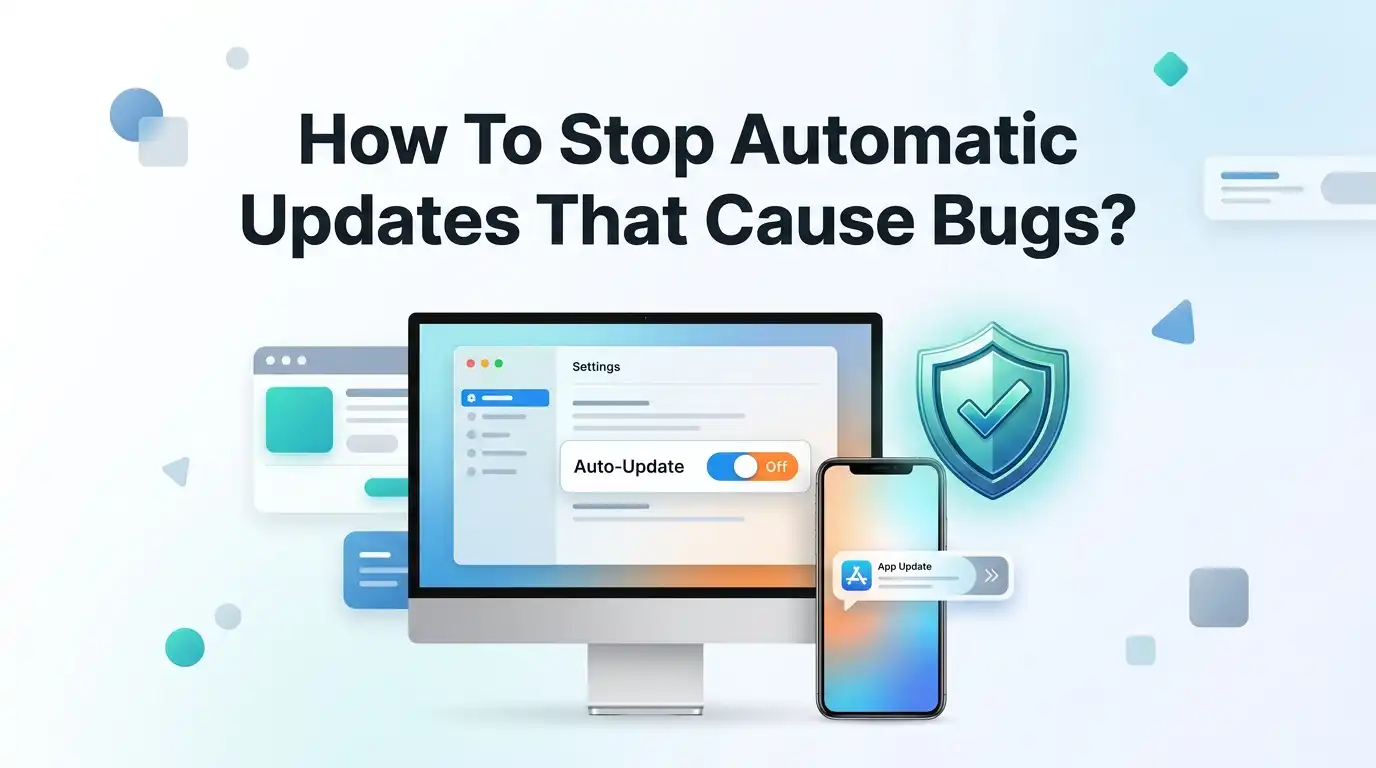
How To Stop Automatic Updates That Cause Bugs?
Automatic updates promise smooth performance and better security. Yet many of us have watched an update turn a working device into a slow, glitchy mess. One day your laptop runs fine.
The next morning it freezes, apps crash, and your printer stops responding. Sound familiar? You are not alone. Buggy updates frustrate millions of users every year, and the worst part is they often arrive without warning.
The good news is that you hold more control than you think. You can pause updates, delay them, or block the ones that break things. You can even undo an update that already caused damage.
Key Takeaways
- Pausing updates is the safest short term fix. Both Windows and Mac let you delay updates for weeks without touching risky settings.
- Metered connection is a clever trick that tells Windows to hold back large downloads, which stops most feature updates from sneaking in.
- Rolling back a bad update is possible within ten days on Windows, so you can undo the damage quickly if something breaks.
- Group Policy and the Registry offer deeper control, but these tools suit advanced users who feel comfortable editing system files.
- Driver updates deserve special attention, since faulty drivers cause many crashes, and you can block them separately from system updates.
- Waiting a few days before updating lets other people find the bugs first, which protects you from early release problems.
Why Automatic Updates Sometimes Break Your Device
Updates should improve your device, but they do not always work as planned. Software companies push updates to huge groups of users at once. Every computer is different, so an update that works on one machine may clash with another. This mismatch is where bugs are born.
Driver conflicts are a common cause. When a new update installs a fresh driver, it may not match your exact hardware. Your sound, screen, or Wi-Fi can stop working as a result.
Rushed release schedules also play a part. Companies want to ship updates fast, so testing sometimes falls short. Early updates carry the highest risk of bugs. Understanding this helps you see why delaying an update often protects you more than installing it right away.
Pause Windows Updates Through Settings
The simplest way to stop updates on Windows is the built in pause feature. You do not need any special skills for this. It works on both Windows 10 and Windows 11.
Open Settings by pressing the Windows key and the letter I together. Click Windows Update in the left menu. Look for the Pause updates option near the top. Click the dropdown and pick how long you want to wait, up to five weeks.
Pros: This method is quick, safe, and fully reversible. You will not damage your system.
Cons: The pause is temporary. After five weeks, Windows forces updates again. You must repeat the process to keep updates paused longer. Still, this is the perfect starting point for most people who just want breathing room.
Use a Metered Connection to Block Downloads
A metered connection is a smart trick that tricks Windows into holding back updates. Windows treats a metered network like a limited data plan, so it avoids large downloads. This stops most feature updates from installing on their own.
Open Settings, then click Network and Internet. Choose your Wi-Fi or Ethernet connection. Find the Metered connection toggle and switch it on. Windows will now delay big update files.
Pros: This method is easy and blocks heavy updates without touching system tools. It is great for people who want a middle ground.
Cons: Microsoft sometimes ignores this setting for updates it considers critical. Small security patches may still slip through. So while this trick helps a lot, it is not a total lock. Combine it with the pause feature for stronger results.
Defer Feature Updates on Windows Pro
If you use Windows Pro, you can delay updates for much longer using Group Policy. This tool lets you push feature updates back by up to 365 days and quality updates by up to 30 days. Home edition users cannot use this method.
Press the Windows key and R together. Type gpedit.msc and press Enter. Go to Computer Configuration, then Administrative Templates, then Windows Components, then Windows Update. Look for the settings that manage when updates arrive and set your delay.
Pros: You gain long term control without fully disabling updates. Security patches still arrive on a safer schedule.
Cons: Group Policy only works on Pro, Enterprise, and Education editions. The menus feel technical for beginners. Take your time and read each option carefully before you change it.
Disable the Windows Update Service Completely
For full control, you can turn off the Windows Update service itself. This is the strongest method, but it needs care. It stops all updates until you turn the service back on.
Press the Windows key and R together. Type services.msc and press Enter. Scroll down to find Windows Update in the list. Right click it and choose Properties. Change the Startup type to Disabled, then click Stop and Apply.
Pros: No update will install while the service is off. You get complete peace from surprise updates.
Cons: You also block important security fixes, which leaves your device open to threats. Windows may restart the service after major upgrades. This method suits people who watch their systems closely and update manually. Do not forget to turn it back on now and then to stay safe.
Roll Back a Buggy Update You Already Installed
Sometimes an update installs before you can stop it, and things break. The good news is you can undo it. Windows keeps a window of ten days to roll back major updates.
Open Settings, then go to System, then Recovery. Look for Go back to the previous version if a big update caused trouble. Click it and follow the steps.
For smaller updates, open Settings, click Windows Update, then Update history. Choose Uninstall updates and remove the one that caused the bug.
Pros: You can quickly fix a broken system and return to a working state. This saves you from a full reset.
Cons: The ten day limit is strict for big updates. After that, the rollback option disappears. Act fast when you notice a problem so you do not miss the window.
Uninstall a Specific Problem Update by KB Number
Every Windows update carries a KB number, which acts like an ID tag. When you know which update broke your device, you can remove just that one. This is more precise than a full rollback.
Open Settings, click Windows Update, then Update history. Scroll down and note the KB number of the recent update. Click Uninstall updates, find that KB number, and remove it.
You can also search online for the KB number to confirm it caused known bugs. Many users report problem updates within days of release.
Pros: You keep all the good updates and remove only the bad one. This targeted fix protects the rest of your system.
Cons: Some cumulative updates bundle many fixes together, so you cannot always remove one part. Finding the right KB number takes a little research, but it is worth the effort.
Stop Automatic Driver Updates on Windows
Driver updates cause a big share of crashes, freezes, and hardware failures. Windows often replaces your working driver with a newer one that does not fit. Blocking driver updates alone can solve many bug problems.
Press the Windows key and R together. Type sysdm.cpl and press Enter. Go to the Hardware tab and click Device Installation Settings. When Windows asks if you want to download driver software automatically, choose No.
Pros: Your hardware keeps its stable drivers. This is one of the most useful fixes for gamers and creators.
Cons: You must update drivers yourself when needed, and skipping them for too long can cause other issues. Check your device maker’s website now and then for safe, tested driver versions instead of letting Windows guess.
Turn Off Automatic Updates on Mac
Mac users face buggy updates too, and Apple gives clear controls to manage them. You can stop your Mac from installing updates on its own.
Click the Apple menu in the top left corner and open System Settings. Go to General, then Software Update. Click the small Info button next to Automatic Updates. Turn off the options for downloading and installing updates automatically.
Pros: You choose when to update, so you can wait until an update proves stable. This protects you from early release bugs on macOS.
Cons: You must remember to install security patches yourself. An outdated Mac can face security risks. A good habit is to check for updates once a week and read user reports before you install anything major.
Stop App Updates on Android and iPhone
Phone apps update constantly, and a bad app update can crash your favorite tools. Both Android and iPhone let you turn this off. You gain control over which apps change and when.
On Android, open the Google Play Store, tap your profile icon, go to Settings, then Network preferences, then Auto update apps. Choose Do not auto update apps.
On iPhone, open Settings, tap App Store, and turn off App Updates.
Pros: You avoid surprise changes that break app features you rely on. You can update one app at a time after checking reviews.
Cons: Some apps stop working with older versions over time. Update important apps manually to keep them safe and working. This method gives you a nice balance between control and safety.
Wait Before You Install Any Update
One of the smartest habits costs you nothing. Simply wait a few days before installing any new update. Early adopters find the bugs first, and companies rush out fixes soon after.
When an update appears, do not click install right away. Give it three to seven days. During that time, search online for the update name and see if others report problems. This tiny pause saves you from most known bugs.
Pros: You let other users test the update for you. You install a safer, more stable version.
Cons: You stay exposed to any bugs the update actually fixes during the wait. For most people, though, the risk of a fresh buggy update outweighs the risk of waiting a few days. Patience truly protects you here.
Create a Backup Before Every Major Update
A backup is your safety net. Even with all these tricks, an update can still slip through and cause trouble. A recent backup lets you restore everything in minutes.
On Windows, use the built in File History or create a system restore point before updating. On Mac, use Time Machine to save a full copy of your system. Phones can back up to the cloud automatically.
Pros: You never lose your files, photos, or settings. You can undo any update disaster with confidence.
Cons: Backups take storage space and a little setup time. Set them to run automatically so you never forget. This one habit removes most of the fear around updates. Even if something breaks, you simply roll back to your saved copy and move on with your day.
Edit the Registry to Control Updates on Windows Home
Windows Home users cannot use Group Policy, but the Registry Editor offers a similar path. This tool changes deep system settings, so handle it with care. A small mistake can affect how Windows runs.
Press the Windows key and R together. Type regedit and press Enter. Go to the Windows Update policy folder and create a new value that turns off automatic downloads. Search for the exact key name first, since the path matters.
Pros: Home users gain control that normally belongs only to Pro users. You can set updates to notify you instead of installing on their own.
Cons: The Registry is risky for beginners, and errors can cause bigger problems. Always back up the Registry before you change anything. If you feel unsure, stick to the pause and metered connection methods, which are much safer.
Frequently Asked Questions
Is it safe to turn off automatic updates completely?
Turning off updates fully protects you from buggy releases, but it also blocks security patches. This leaves your device open to threats over time. A better approach is to delay updates and install them manually after checking that they are stable. That way you stay safe and avoid bugs.
How long can I pause Windows updates?
The built in pause feature holds updates for up to five weeks. After that, Windows resumes updates on its own. You can repeat the pause to extend it further. For longer control, Pro users can defer feature updates for up to a full year through Group Policy settings.
Can I undo an update that already broke my computer?
Yes, you often can. Windows keeps a ten day window to roll back major updates through the Recovery settings. For smaller updates, you can uninstall them by KB number in the update history. Act quickly, since the rollback option expires after ten days.
Why do driver updates cause so many problems?
Driver updates must match your exact hardware, and Windows sometimes installs a driver that does not fit. This mismatch leads to crashes, freezes, and broken features. Blocking automatic driver updates and installing tested drivers from your device maker usually solves these issues.
Should I always wait before installing an update?
Waiting a few days is a smart habit for most people. Early updates carry the highest risk of bugs, and companies release fixes soon after launch. A short wait lets others find the problems first. For urgent security patches, though, install sooner rather than later.
Do I need to back up before every update?
A backup is strongly recommended before major updates. It gives you a way to undo any damage in minutes. Small updates rarely need a fresh backup, but big feature updates can change many system files. A recent backup removes the stress and keeps your files safe no matter what happens.